For years, "AI audio" meant text-to-speech and not much else. ByteDance's new Seed Audio 1.0 throws that whole workflow out. You describe a scene — the voices, the mood, the music, the background — and it builds the entire soundscape in one shot.
It launched on June 23, 2026, and it's already one of the most talked-about model releases of the year. Here's what it actually does, and how to use it without wasting a single generation.
What Seed Audio actually is (and isn't)
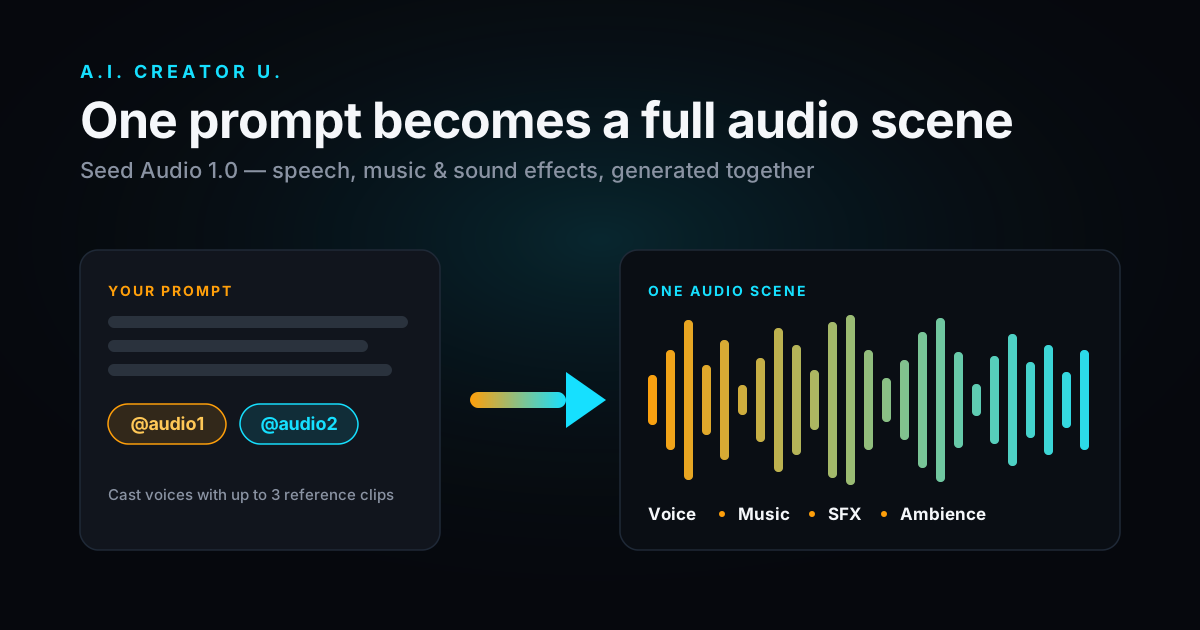
Seed Audio 1.0 — also referred to as Doubao-Seed-Audio 1.0 — is ByteDance's all-in-one audio generation model. The key word is all-in-one. Traditional TTS gives you a voice reading words. Seed Audio is prompt-directed audio production: from a single prompt it can arrange dialogue, multiple speakers, emotional tone, accents, background music, environmental ambience, and foley-style sound effects into one coherent piece.
Think of the difference like this: TTS is a narrator. Seed Audio is a tiny radio production team.
Reported capabilities at launch include:
- Multi-character dialogue in a single pass — distinct voices per speaker, no stitching clips together.
- Voice cloning from a short reference — give it a sample, get that voice back (zero-shot).
- Voice + music + sound effects together — generated as one scene, not layered after the fact.
- Cross-lingual synthesis — multiple languages without fine-tuning.
- Up to ~2 minutes per generation, with the voice staying consistent across extensions.
A fair caveat: Seed Audio is brand new and ByteDance's public technical documentation is still limited. So treat the headline capabilities as reported product features rather than fully documented specs — and always test on your own use case before you commit a project to it.
Where you can access it
Right now, Seed Audio is reachable a few ways:
- Volcano Engine API — ByteDance's developer platform (the direct route).
- Doubao app — ByteDance's consumer assistant.
- BytePlus — the access path for international developers.
Now live in A.I. Creator U. The easiest way to use it: Seed Audio is built right into the Audio Studio alongside Seedance 2.0 — generate your video and its full soundtrack in one place, paid with the same credits, no separate API account to manage. Open the Audio tab, pick Seed Audio 1.0, and start prompting.
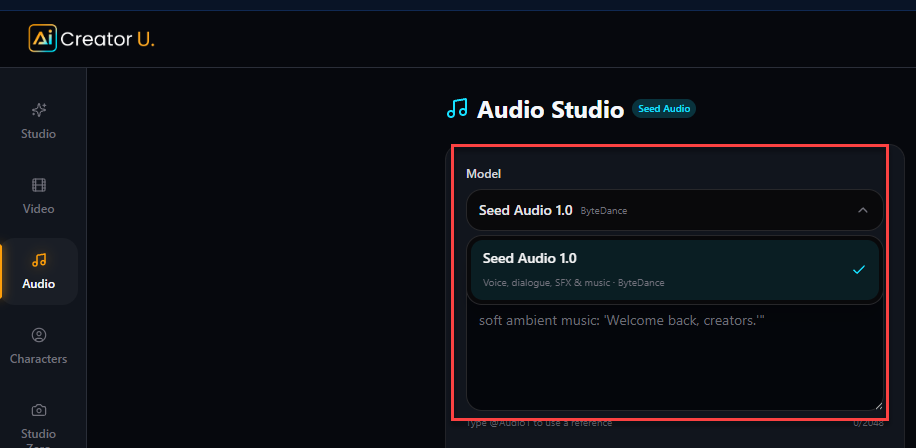
Seed Audio 1.0 in the A.I. Creator U. Audio Studio.
How to use Seed Audio: a prompt framework that works
The mistake people make with audio models is the same one they make with video models — they write a thin prompt and blame the model for thin output. Seed Audio rewards direction. Treat your prompt like a brief to a sound engineer.
Here's a structure that consistently produces usable audio:
- State the format and length. "A 30-second product ad voiceover," "a two-character dialogue scene," "a 15-second TikTok hook." Tell it what you're making.
- Cast the voices — with reference clips. This is the killer feature. You can attach up to three reference audio clips and call them in your prompt with @audio1, @audio2, and @audio3. Each one locks a specific voice. Assign a character to each reference, and Seed Audio will use that exact voice wherever you tag it.
- Write the actual lines. Give it the script verbatim, in quotes, in order. This is the part most people under-specify.
- Direct the delivery. Pacing, emotion, emphasis. "Slow and confident on the first line, then pick up energy."
- Set the sound bed. Music style and mood, plus any ambience or effects. "Light upbeat electronic bed, low in the mix. Subtle whoosh on the product reveal."
- Lock the mix priorities. Tell it what should sit on top — usually the voice. "Keep dialogue clearly above the music."
Multi-voice dialogue with reference clips
This is where Seed Audio pulls away from everything else. Attach a reference clip per character, tag them with @audio1 / @audio2, write the back-and-forth, and direct the delivery inline. The model renders the whole conversation — distinct voices, emotion, timing — in one pass.
Here's a real two-voice scene built from two reference clips:
Kevin @audio1 (angry, fed up):
"Why won't everyone just leave me alone?! My cat's insane, my mom's got a growth that talks, and my buddy thinks he's some Instagram pickup artist."

Vinny @audio2 (calm, reassuring):
"Bro... relax. Your cat's cool — I've talked to him."

Kevin @audio1 (soft, annoyed sigh):
"Vinny... for the love of god... stop talking."
Notice what's doing the work: each line is tagged to a reference voice, and the delivery cue in parentheses steers the emotion. That's a full comedic exchange with two consistent characters — no recording, no stitching, no voice actors.
A simpler ad example:
"A 20-second e-commerce video ad. Narrator @audio1: friendly and energetic. Script: 'Tired of boring product videos? Meet the upgrade your store's been waiting for — scroll-stopping ads, made in minutes.' Upbeat electronic music bed, low under the voice. Soft whoosh on 'made in minutes.' Keep the voice clearly on top."Run it, listen, then change one variable at a time — a voice, the music, the pacing — until it locks. Don't rewrite the whole prompt every time; you'll never learn what's actually moving the output.
Then take it into Seedance for voice-guided video
Here's the workflow that makes this more than a neat audio toy. Once you've got your dialogue or voiceover from Seed Audio, you feed that audio into Seedance 2.0 as voice guidance — so your on-screen characters are driven by the exact performance you just generated. The voices, the timing, the emotion you directed all carry through to the video.
That's the full loop, all in one place: cast your voices with reference clips → generate the conversation with Seed Audio → drop it into Seedance for character video that's locked to the audio. Two reference clips in, a finished talking-character scene out.
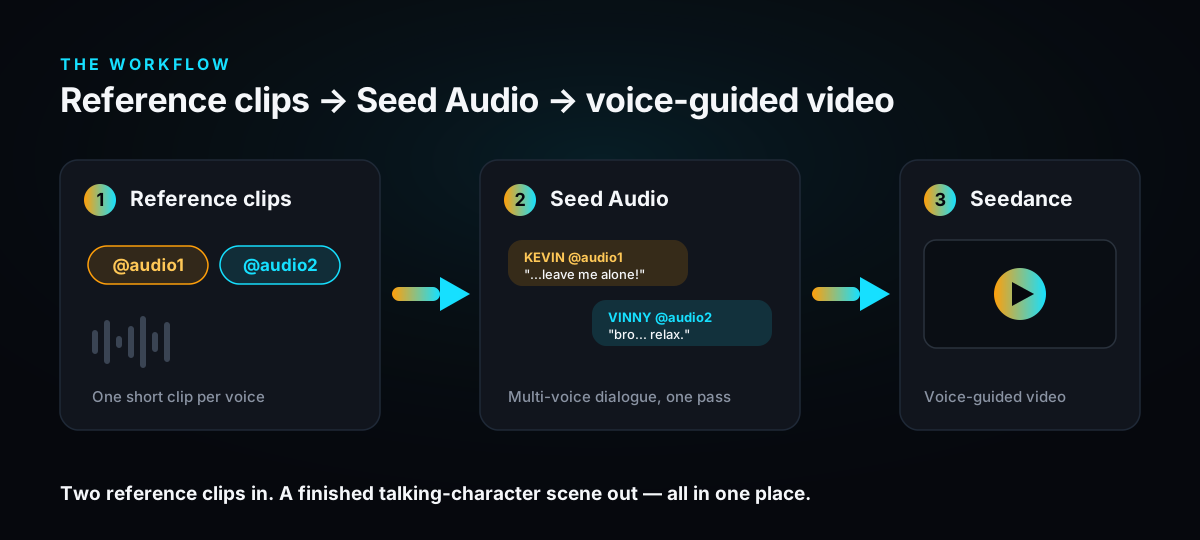
Seed Audio vs. traditional TTS
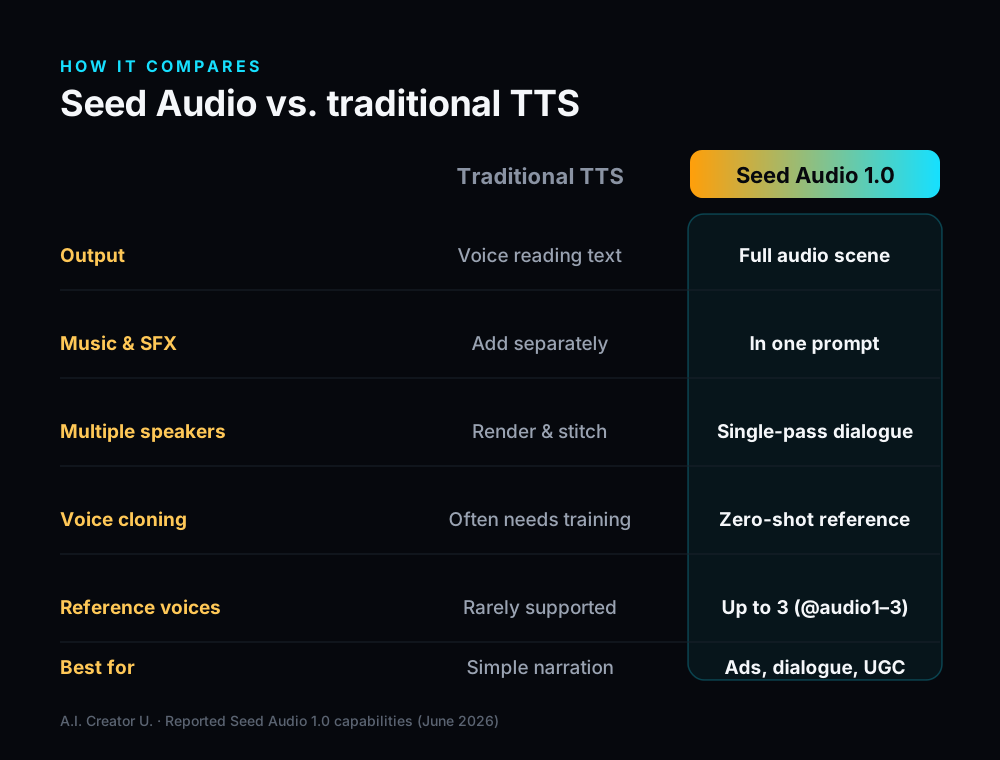
| Traditional TTS | Seed Audio 1.0 | |
|---|---|---|
| Output | Voice reading text | Full audio scene |
| Music & SFX | Add separately | Generated together, in one prompt |
| Multiple speakers | Render & stitch | Single-pass dialogue |
| Voice cloning | Often needs training | Zero-shot from a short reference |
| Best for | Simple narration | Ads, dialogue, audio drama, rich UGC |
Where this actually helps creators and sellers
- Product ads — a polished voiceover with a music bed and a reveal sound, in one generation. Pair it with a Seedance 2.0 video and you've got a finished ad.
- UGC-style content — multiple character voices for skits and fake-conversation hooks without hiring voice talent.
- Faceless / short-form channels — narration plus ambience for story videos and explainers.
- Localization — the same script in multiple languages for different markets.
If you already build video on A.I. Creator U., the obvious move is video + audio in one workflow: generate the clip in the Studio, then score and voice it with Seed Audio — no exporting to three other tools.
The bottom line
Seed Audio collapses voiceover, music, and sound design into a single prompt — which, for anyone making video content at volume, is a real time-saver, not a gimmick. Write your prompt like a brief, change one thing at a time, and you'll get usable audio fast.
It's live inside A.I. Creator U. now — so you can make the video and its entire soundtrack in the same place, today.