Quick answer: if you're going to edit, mix, or layer the clip with anything else, export WAV at 48kHz. If you're dropping a finished voiceover straight into a TikTok, Reel, or YouTube Short, MP3 at 44.1kHz or 48kHz is smaller and sounds identical after the platform recompresses it anyway. If you're piping audio into a real-time app or a game engine, OGG Opus is the one most people have never heard of and should be using. PCM is for pipelines, not people, don't pick it by hand unless you know exactly why you need raw samples.
Audio Studio hands you four export formats and six sample rates every time you generate a clip with Seed Audio. Most people either freeze on that dropdown or just leave it on whatever it defaulted to last time. Neither is a great plan: pick wrong and your podcast voiceover sounds thin, your file is ten times bigger than it needs to be, or your carefully-cloned voice comes out of your video editor sped up like a chipmunk.
None of this is complicated once you know what each option is actually for. Here's the breakdown.
What do MP3, WAV, PCM, and OGG Opus actually mean?
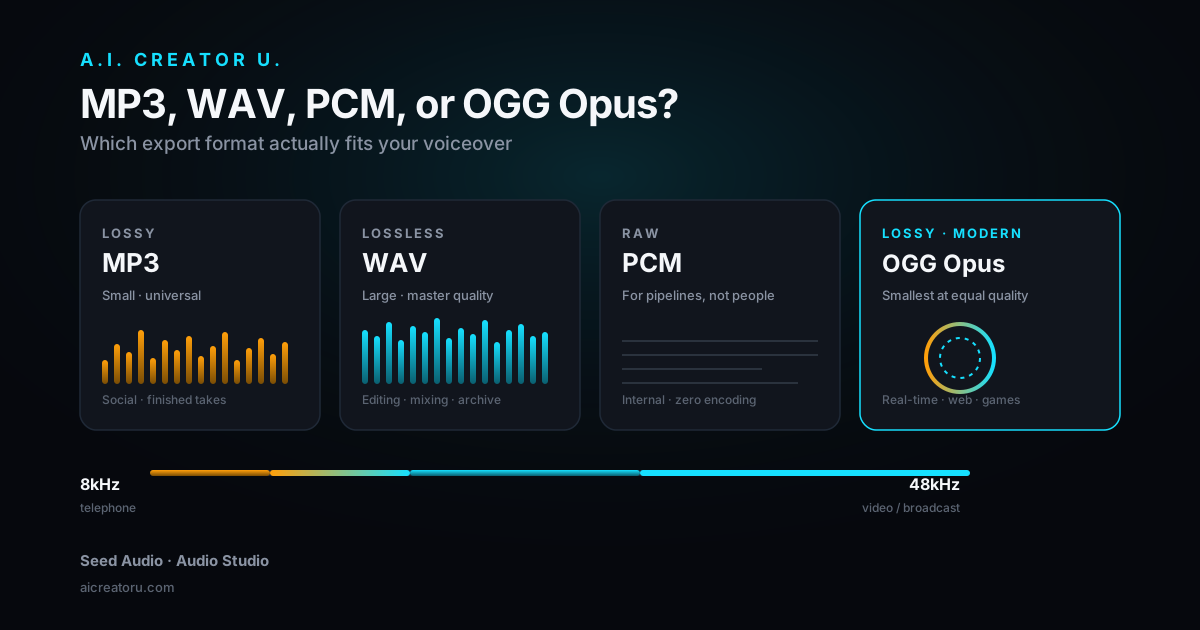
Two of these are lossless (nothing thrown away), two are lossy (some data discarded to shrink the file). That's the whole split that matters.
PCM is raw, uncompressed audio samples with zero encoding overhead and zero playback delay. It's what a text-to-speech engine spits out before anything else happens to it. Nobody listens to a bare PCM file for pleasure, it's meant to be consumed by another piece of software.
WAV is PCM wrapped in a simple file header so normal apps (your video editor, your DAW, your phone) know how to open it. Same lossless quality as PCM, just wearable in public. This is your "quality first" choice.
MP3 compresses audio using a psychoacoustic model, throwing out frequency information your ear is less likely to notice. At a reasonable bitrate it sounds close to indistinguishable from the original for speech, and the file is roughly a sixth the size of WAV. It's the default for a reason: every platform on Earth can play it.
OGG Opus is the newer, smarter lossy codec most people have simply never encountered outside of Discord and browser-based apps. At the same bitrate it beats MP3 on quality, and it was built specifically for low-latency, real-time audio. If you're feeding a voice clip into a live app, a game, or anything that streams rather than downloads, this is usually the right call, not MP3.
| Format | Type | Relative file size | Best for | Universal playback |
|---|---|---|---|---|
| PCM | Lossless, raw | Largest | Feeding another app or pipeline | No (needs a wrapper) |
| WAV | Lossless | Large | Editing, mixing, archiving the "master" | Yes |
| MP3 | Lossy | Small | Finished voiceovers going into video or social | Yes, everywhere |
| OGG Opus | Lossy | Smallest at equal quality | Real-time apps, games, web embeds | Mostly (not native iOS Photos/Files playback) |
Which one should you actually pick in Audio Studio?
Ask yourself one question: is this clip going to touch another piece of software again, or is it done?
If it's going to get edited, layered under music, ducked against dialogue, or dropped into a multi-track timeline: export WAV. Every re-encode of a lossy file loses a little more quality, and if you're going to be moving this clip through two or three more tools before it ships, you don't want to compound MP3 artifacts on top of MP3 artifacts.
If the clip is finished, the voiceover is exactly what's going out, and it's headed straight to a video file or a social upload: export MP3. You already dialed in the read using the reference voice and the speed, pitch, and volume controls, the compression won't be the thing that makes or breaks it, and you'll thank yourself for the smaller file when you're managing forty voiceover takes in a project folder.
If you're building something that plays audio live (a bot, an interactive app, anything embedded in a web page that can't afford to buffer a whole file first): OGG Opus.
If you don't recognize the situation you're in, you're not in the PCM situation. Skip it.
What sample rate should you use?
Audio Studio gives you 8kHz, 16kHz, 24kHz, 32kHz, 44.1kHz, and 48kHz, and defaults to 24kHz. Here's what that number is actually doing: it's how many snapshots of the sound wave get captured per second, and it sets a hard ceiling on the highest frequency the clip can represent (roughly half the sample rate, so 24kHz captures up to about 12kHz of content).
- 8kHz is old telephone quality. There's essentially no reason to pick this for anything you're publishing.
- 16kHz is passable for a quick voice memo or an internal draft, not for a finished piece.
- 24kHz (the default) is a genuinely good balance for spoken voice, most human speech energy lives well under 12kHz, so you're rarely leaving anything audible on the table, and the file stays small.
- 32kHz is a step up if the voice has more sibilance or brightness you want preserved.
- 44.1kHz is the CD and music-industry standard. Use it if you're mixing the voiceover against music or SFX that were themselves produced at 44.1kHz.
- 48kHz is the video and broadcast standard, and it's what your video editor almost certainly runs internally. If the clip is landing inside a video project, matching 48kHz avoids the software silently resampling it for you.
The one rule that actually bites people: keep everything in a project at the same sample rate. Mixing a 24kHz voiceover into a 48kHz video timeline usually gets auto-resampled and sounds fine, but pulling a 48kHz clip into an older tool expecting 44.1kHz, or vice versa, is exactly how you get the sped-up-chipmunk or dragging-underwater voice that makes people assume their AI voice generator is broken. It isn't broken. It's a sample rate mismatch.
A real workflow: three quick scenarios
TikTok or Reels voiceover. Generate the clip, dial in the voice with the reference or preset controls, export MP3 at 44.1kHz or 48kHz. Drop it straight into your editor. Don't overthink it, the platform re-compresses everything on upload anyway.
Podcast intro or narration. Export WAV at 44.1kHz (matching your music beds) or 48kHz (matching your recording rig). You want the lossless master in your editing session, then export your final mixed episode as MP3 once, at the end, not at every intermediate step.
Voiceover for a video ad you're still cutting. Export WAV at 48kHz. You'll be trimming, layering under motion graphics, maybe ducking under a music track. Do that work lossless, and only compress once, on the final render.
Ready to generate the clip? Head into Audio Studio, pick your voice, and try the format that actually matches what you're about to do with it.
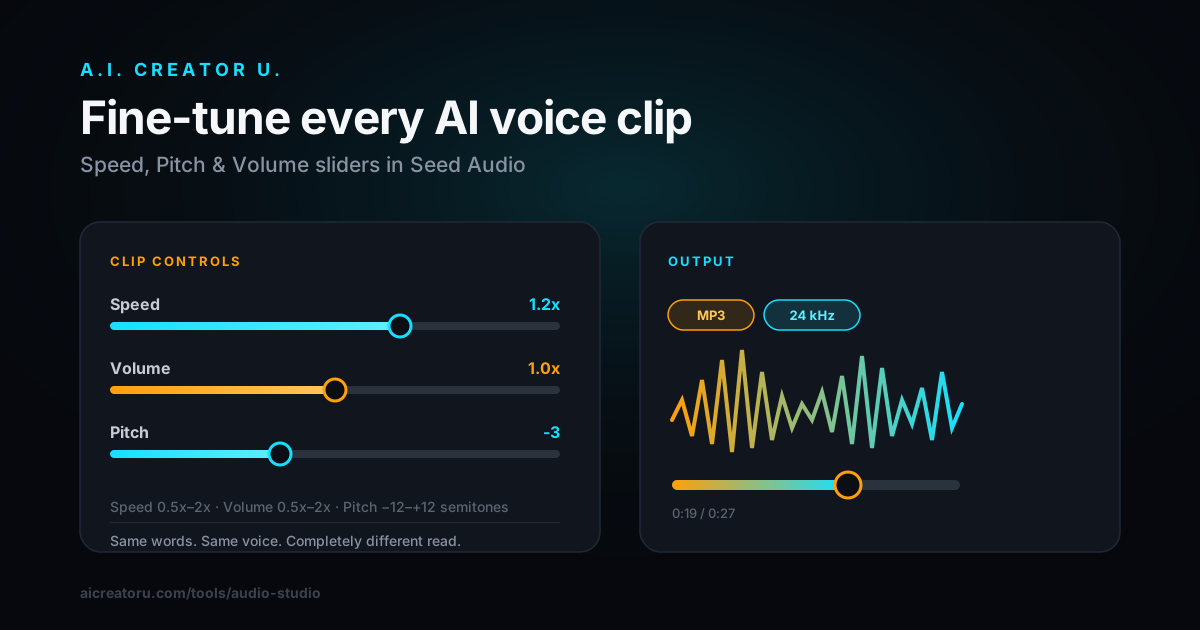
If you already generated a clip in the wrong format, you don't need to regenerate it from scratch and burn credits again. Open it in the trim and crop tool, which lets you re-export the selection in a different format on the way out.
Mistakes that quietly wreck AI voiceovers
- Defaulting to whatever was picked last time, instead of matching the format to where the clip is actually going.
- Exporting WAV for a finished TikTok voiceover and uploading a file five to ten times bigger than it needed to be, for zero perceptible gain once the platform recompresses it.
- Mixing sample rates inside one project and blaming the AI voice model when the pitch comes out wrong. It's almost never the voice model.
- Picking PCM out of curiosity. It's the one format on that list built for software, not for you. If you're not writing code that consumes it directly, it's the wrong choice basically every time.
- Never trying OGG Opus because the name looks unfamiliar. It's a genuinely better lossy codec than MP3 at the same size, most people just default past it out of habit.
For the rest of what Seed Audio can do, from cloning a reference voice to matching a clip's mood to a photo, the full Audio Studio guide covers every control on the panel.
FAQ
What's the actual difference between MP3 and WAV for an AI voiceover? WAV is lossless and larger, MP3 is compressed and smaller. For finished speech headed to video or social, the difference is basically inaudible at a decent bitrate. For a clip you're still editing or mixing, WAV avoids compounding compression artifacts across multiple re-exports.
Should I just always export WAV to be safe? You can, quality-wise it's never wrong. The tradeoff is file size: a minute of WAV runs several megabytes versus a few hundred kilobytes for MP3. If you're archiving dozens of takes or uploading straight to a platform that will recompress it anyway, WAV is overkill.
Why does Audio Studio default to 24kHz instead of something higher? Because most speech doesn't need more. Human voice energy sits well under the 12kHz ceiling that 24kHz supports, so you get a clean, small file without losing anything you'd actually notice. Bump it to 44.1kHz or 48kHz specifically when you're matching music or a video project running at that rate.
What is OGG Opus and is it safe to use? It's a modern, open, royalty-free lossy codec built for real-time and streaming use, and it beats MP3 on quality at the same file size. It plays natively in every modern browser and most apps, though it's less universally supported than MP3 inside consumer tools like a phone's default photo/video gallery. For web and app use, it's often the smarter pick.
I generated a clip in the wrong format. Do I need to start over? No. Use the trim and crop tool on that clip and choose a different output format when you re-export the selection, no need to regenerate the voice and spend credits again.
Every export option on this list is available the moment you sign up, Audio Studio's voiceover, sound design, and reference tools unlock with any credit purchase, and new accounts start with 15 free credits to test the workflow before spending anything. Try Audio Studio now and pick the format that actually matches what you're building.