Seed Audio's Speed, Pitch, and Volume Sliders: How to Fine-Tune Any AI Voice Clip
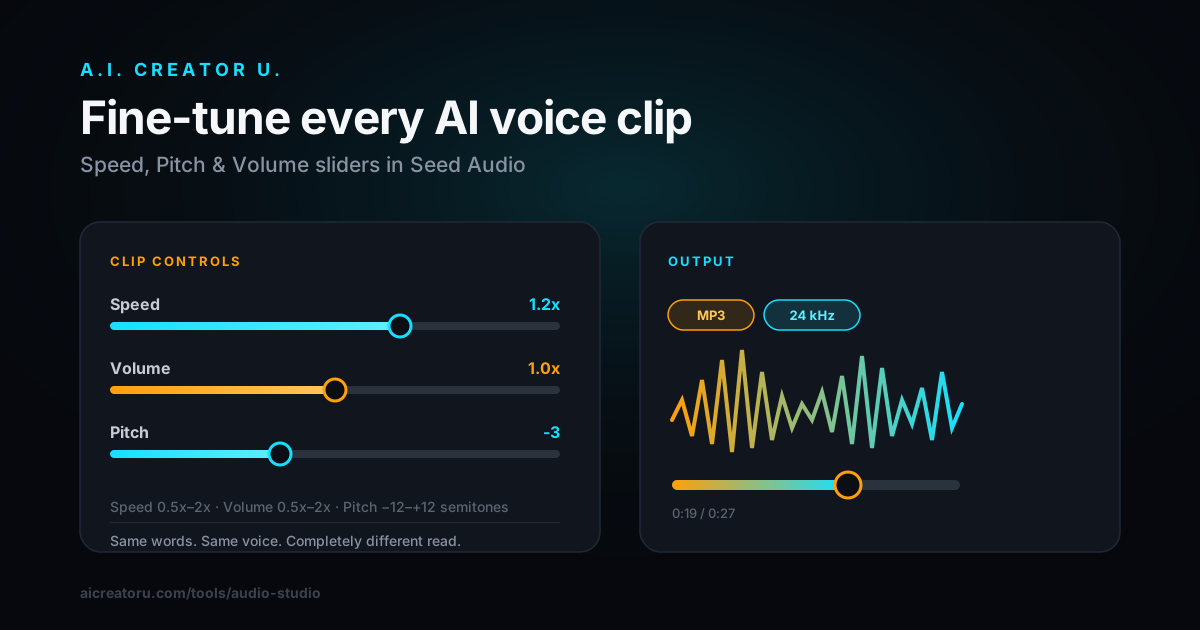
Quick answer: In Seed Audio (inside Audio Studio), every clip has three sliders under the generate button: Speed (0.5x to 2x), Volume (0.5x to 2x), and Pitch (-12 to +12 semitones). They're not cosmetic. Speed controls pacing and, indirectly, how long your clip runs (Audio Studio estimates duration from a 150-words-per-minute baseline, adjusted by your speed setting). Pitch shifts the voice up or down without changing the speed, which is how you turn one preset into a narrator, a hype voice, or something smaller and younger sounding. Small moves (0.9x to 1.15x speed, plus or minus 2 to 3 semitones) read as natural. Big moves read as a cartoon, on purpose or not.
Most people generate an AI voice clip once, listen to it, and either accept it or throw it out and rewrite the whole prompt. That's the slow way. The clip you already have is usually 80% of the way there. The other 20% is pacing and tone, and that's exactly what the three sliders fix, no regeneration required.
Why your first AI voice clip never quite fits
You write a solid prompt, generate the clip, and something's off. Maybe it's a hair too slow for the cut you already made. Maybe the preset voice is good but sounds a little too mature for the punchy TikTok energy you're going for. Maybe it's just quieter than the trending sound you're layering under it.
The instinct is to rewrite the prompt and roll the dice again. That works, eventually, but it burns generations on a problem that isn't a prompting problem at all. It's a delivery problem, and delivery is exactly what speed, pitch, and volume control.
Seed Audio's model doesn't have a separate "mode" for narration versus hype versus cinematic reads. The tone comes from how you write the prompt (that's a separate skill), but the pacing and register of whatever tone you land on comes from these three sliders sitting right below the voice picker. Ignoring them means fighting the prompt for something a slider fixes in two seconds.
What Speed, Volume, and Pitch actually do
Here's what's really happening under each slider, pulled straight from how Audio Studio sends the request:
| Control | Range | What it changes | What it doesn't change |
|---|---|---|---|
| Speed | 0.5x to 2x, in 0.1 steps | Playback pace of the whole clip; also shifts the estimated runtime shown before you generate | The words themselves, or the voice's core character |
| Volume | 0.5x to 2x, in 0.1 steps | Output loudness of the clip on its own | Loudness relative to other tracks once you mix (always level-match after export) |
| Pitch | -12 to +12 semitones, whole steps | How high or low the voice sits, independent of speed | Talking speed. This is the one that lets you make a voice younger, older, bigger, or smaller without slowing it down |
That independence between speed and pitch is the part worth sitting with. Cheap pitch-shifting (the kind built into a lot of consumer video editors) speeds up or slows down the whole track and lets the pitch ride along for the change, which is why a sped-up clip always sounds like a chipmunk. Seed Audio decouples them. You can drop the pitch four semitones for a deeper, more authoritative read and keep the exact same pacing, or speed a clip up to 1.3x for urgency without it climbing into helium territory.
How to match a voiceover to a video that's already cut
This is the single most useful reason to touch these sliders instead of rewriting a prompt. If you've already edited your video and have a hard runtime to hit, say 27 seconds, and your first voiceover pass generates at 31 seconds, you don't need a shorter script. Nudge speed up to 1.1x or 1.15x and regenerate. Audio Studio recalculates the estimated duration live as you move the slider (using roughly 150 words per minute at 1x, scaled by your speed setting), so you can see the projected length shrink before you spend a generation on it.
Work the problem in this order:
- Write and generate at 1x first. Get the words, the voice, and the emotional read right before you touch pacing. Judging tone through a sped-up or slowed-down clip is like judging a photo through a filter, you'll misjudge it.
- Check the runtime against your cut. If your video is a fixed length (a Short, a Reel, an ad slot), you already know the target. Compare it to what the clip actually generates at.
- Adjust speed in small steps. Move it 0.05 to 0.1 at a time. Past roughly 1.2x, most voices start to lose the natural pauses between phrases. Past 1.3x to 1.4x, it reads as obviously sped up to most listeners.
- Only then touch pitch, if the read needs it. Dropping pitch 2 to 4 semitones is a quick way to make a voice feel heavier or more serious for a cold open. Pushing it up 2 to 4 semitones makes a voice read younger or more playful. Past plus or minus 6, you're solidly in novelty territory (some creators want exactly that for a bit; just know that's what you're reaching for).
- Set Volume last, and always relative to what it's sitting under. A clip that sounds perfectly loud in isolation can get buried under a trending audio bed. Generate at a comfortable default, then ride the level in your video editor rather than maxing the Volume slider and clipping the output.
A cheat sheet for common reads
You don't need to memorize exact numbers, but these are reasonable starting points before you fine-tune by ear:
| The read you want | Starting point |
|---|---|
| Documentary-style, deliberate narrator | Speed 0.85x to 0.95x, Pitch -2 to -4 |
| Punchy, high-energy short-form hook | Speed 1.1x to 1.2x, Pitch 0 to +1 |
| Deep, authoritative "movie trailer" voice | Pitch -4 to -6, Speed left at 1x |
| Younger, lighter-sounding character | Pitch +3 to +5, Speed 1x |
| Fast product-listicle voiceover that still sounds human | Speed 1.15x to 1.25x, Pitch 0 |
Start there, generate, listen back at your actual video's volume level (not through good headphones in a quiet room), and adjust one slider at a time. Changing two variables at once makes it hard to tell which one fixed, or broke, the read.
The mistake that makes AI voice obviously AI
The single biggest tell that a voiceover is AI-generated isn't the voice itself anymore, the presets are good enough that most listeners won't clock it cold. It's mismatched pacing: a voice reading at a speed that doesn't match the energy of the pitch, or a pitch shift pushed far enough that the formants (the resonances that make a voice sound like it's coming from a body of a certain size) stop matching the pace. A slow, deep pitch shift reads as intentional and cinematic. The same pitch shift at 1.5x speed reads as broken.
If you only take one thing from this: change one slider, listen, then change the next. Stacking three aggressive moves at once (fast, high-pitched, and loud) is how you end up with a clip that sounds like a ransom note instead of an ad.
FAQ
Does changing the speed slider affect how many credits a clip costs? No. Generation cost is based on the clip itself, not the playback settings you apply to it. Speed, Pitch, and Volume are free to experiment with before and after you commit to a generation.
Can I change these settings after I've already generated a clip? Yes. The sliders sit on the same generation form you used the first time, so you can reuse a clip's prompt and voice, adjust the sliders, and regenerate rather than starting from scratch. If you're refining a clip you already like, pull the original settings back up first so you're only changing the one thing you meant to change.
Why does my sped-up clip still sound slightly different in tone, not just faster? Speed changes pacing but can subtly affect how emphasis lands on words, since pauses compress along with everything else. If a fast read is losing its punch, try a smaller speed bump (say 1.1x instead of 1.3x) and let Pitch and prompt phrasing carry more of the energy instead.
What's a safe pitch range that won't sound like a novelty effect? Plus or minus 3 to 4 semitones reads as a natural variation in most voices, closer to a different person than an effect. Once you're past 6 in either direction, most listeners will clock it as an intentional pitch shift rather than a different natural voice, which is fine if that's the goal (chipmunk-style comedy clips lean into exactly this).
Do these controls work the same way on a cloned voice as they do on a preset voice? Yes. Speed, Volume, and Pitch apply after the voice is generated, whether that voice came from one of the 20 presets or from a reference clip you uploaded. That said, cloned voices tend to be less forgiving of big pitch shifts since listeners already know what the source voice actually sounds like.
Stop fighting the prompt for a delivery problem
A voice clip that's almost right isn't a failed generation, it's a clip that needs two minutes with three sliders instead of a full rewrite. Get the words and the voice locked in at 1x, then let Speed match your cut, Pitch match your tone, and Volume match your mix. If you haven't picked a preset voice yet, our rundown of Seed Audio's 20 presets is the fastest way to land on one worth fine-tuning. And once your clip is trimmed to the exact moment you need, the free waveform trim tool handles the cutting without leaving Audio Studio.
Open Audio Studio and try it on a clip you already generated this week. You'll probably fix it in under a minute.
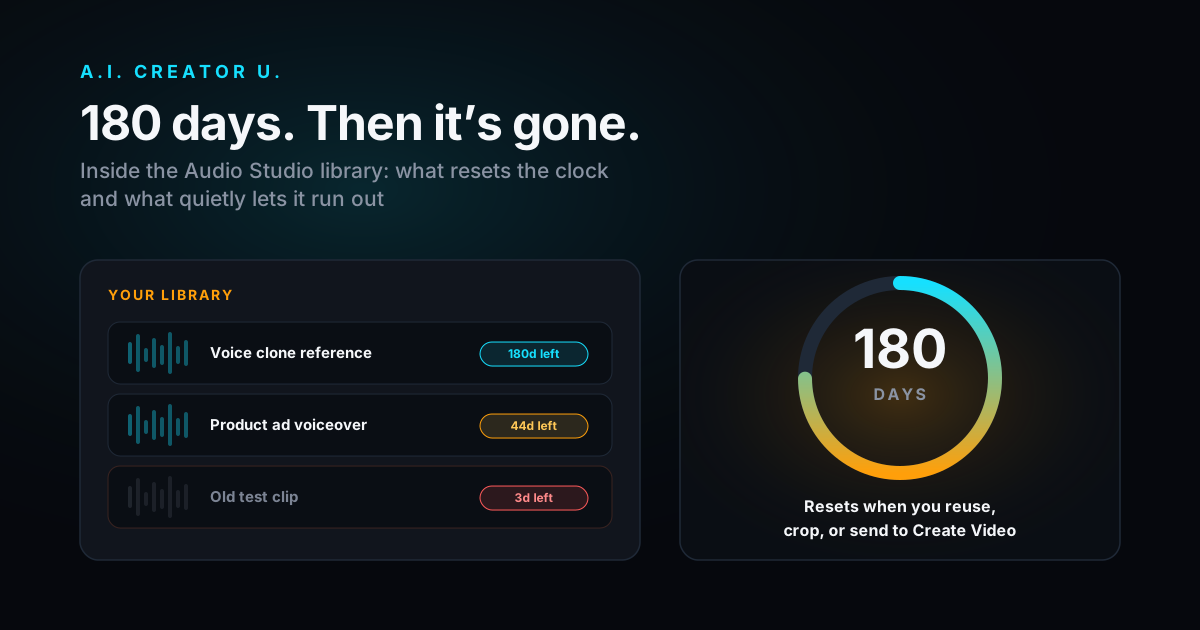
If you're not sure how long your finished clips actually stick around before you get to this step, Audio Studio's library rules are worth a quick read too, it explains what to save and when.
Ready to stop settling for the first take? Head to Audio Studio and put these sliders to work on your next voiceover.