Your Audio Studio Library, Explained: How Long AI Clips Last (and How to Keep Yours From Vanishing)
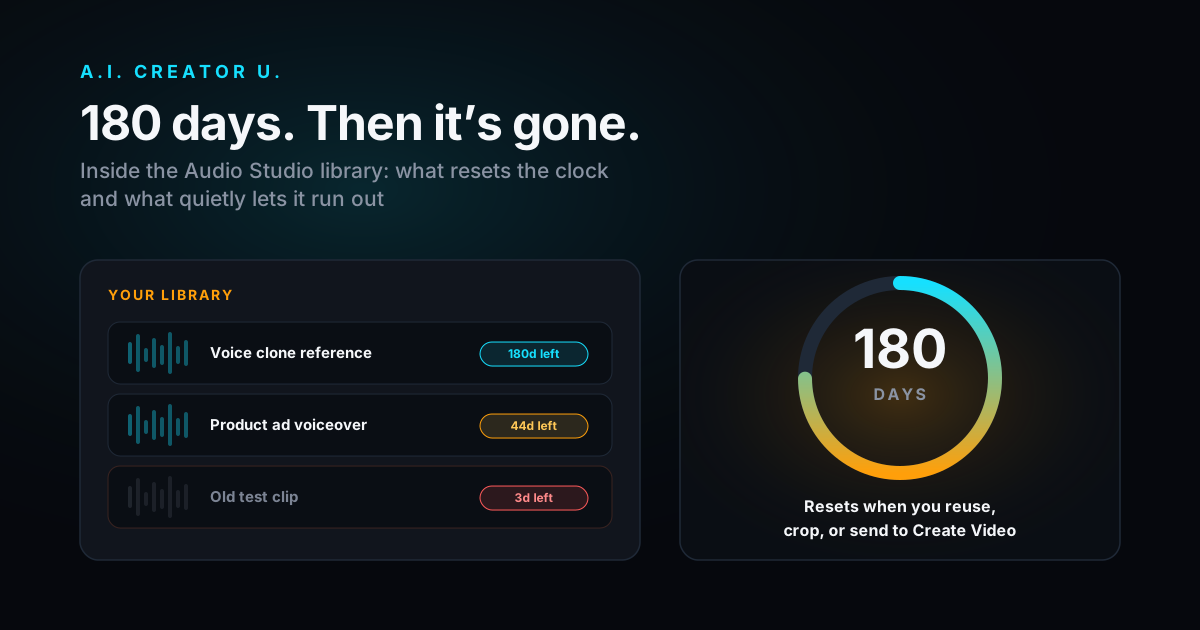
Quick answer: Every clip you generate, upload, or crop in Audio Studio lands in a personal library and sticks around for 180 days from the moment it's created. That clock resets, but only when you actually use the clip again: generate something new with it as a reference, crop it, or send it to Create Video. Just downloading it or clicking "Reuse" to reload the prompt doesn't count. Miss the window and the clip is gone for good, no warning email, no recovery. The only heads-up you get is the day counter sitting quietly in your library.
Most people never think about this until the day they go looking for a clone reference they generated four months ago and it isn't there anymore. So here's exactly how the system works, what resets the clock, and what happens on both sides of that 180-day line.
What's actually sitting in your library
Open Audio Studio and everything you've ever touched shows up in one running list on the right: clips you generated from a prompt, voice clips you uploaded as cloning references, image references, and anything you've cropped out of a longer clip. Each row shows its status, whether it came from a prompt or an upload or a crop, the output format, duration, how many credits it cost, and the voice preset if you used one.
This isn't a rendered-once-and-forgotten output folder. It's the same pool of media you draw from every time you open the tool. Crop a clip down to a clean 15 seconds and the crop becomes its own library entry. Upload a voice sample to clone from and it sits in the library right alongside your generations, ready to reuse on your next session. There's no separate "uploads" tab and no separate "history" page. It's all one list, newest first.
That matters because Audio Studio is credit-gated (flat 2 credits per generation, regardless of format or length) and locked behind having made at least one purchase. Every clip in there cost you something, either credits or the time it took to record and upload a reference. Losing one by accident is a real cost, not just an inconvenience.
The 180-day clock, and what actually resets it
Every clip gets an expiration date the moment it's created: 180 days out. That's true whether it came from a text prompt, an upload, or a crop. What people get wrong is assuming that just having the clip, or looking at it, keeps it alive. It doesn't. Only specific actions reset the countdown, and a few obvious-seeming ones don't.
| Action | Resets the 180-day clock? |
|---|---|
| Downloading the clip | No |
| Clicking "Reuse" to reload the prompt and voice | No, by itself |
| Actually generating a new clip using it as an @Audio reference or image reference | Yes |
| Cropping it in the waveform tool | Yes, on the source clip you cropped from |
| Sending it to Create Video ("To Seedance") | Yes |
That "Reuse" row trips people up. Clicking Reuse just copies the prompt, voice preset, and any attached references back into the generation form so you can tweak and regenerate. It doesn't touch the original clip's clock at all. You have to actually hit generate for anything to reset. So if you're just browsing your library to remember what you made, that browsing itself buys you nothing.
The three actions that do reset the clock all have something in common: they're the system confirming you're actively building on that clip, not just storing it. Crop a clip and the fresh crop gets its own full 180-day window while the clip you cropped from also gets its clock reset, since you clearly still want it around. Drop a past clip into a new generation as an @Audio1 reference and both the reference and the new output get a live clock. Hand a clip to Create Video as an audio reference and it's the same deal.
Practically, this means an actively-used voice reference basically never expires. If you clone your own voice once and keep referencing that same clip every time you generate a video voiceover, it renews itself indefinitely. It's the clips you generate once, like it, and then never touch again that quietly age out.
What happens when the clock runs out
This is where it gets less forgiving than most people expect. Audio Studio has two different ways a clip can disappear, and they're not the same.
| Manual "Remove" | Automatic 180-day expiry | |
|---|---|---|
| The audio file | Deleted from storage | Deleted from storage |
| The library record | Soft-deleted, kept in the background | Hard-deleted, gone entirely |
| Why | You chose to clear clutter | The retention window closed |
| Any warning first | It's your own click | No email, no notification |
When you hit the trash icon on a clip yourself, the underlying file is deleted but the database record sticks around behind the scenes. That's a deliberate choice: it keeps a permanent audit trail for things like refund disputes or abuse tracing, so support can still see what a job was even after you've cleared it from your view.
The automatic 180-day sweep is blunter. It runs once a day, checks for anything past its expiration timestamp, and permanently deletes both the file and the database row. Nothing is kept. There's no soft-delete safety net and, more importantly, no warning before it happens. The only signal you ever get is the small "Xd left" counter that shows up next to a clip once it's inside the last stretch of its window. If you're not in the habit of checking your library, you won't see it coming.
I'll be straight about this part: a silent, unannounced hard-delete is a rough way to handle something people paid credits for. A lot of tools send a "your files expire soon" email before anything gets wiped. Audio Studio doesn't, at least not yet. Until that changes, the day counter in your library is the only warning you're going to get, so it's worth an occasional glance if you have clips you care about.
The library isn't just storage, it's a workflow
The reason the library exists at all isn't really retention, it's reuse. Every completed clip has a small row of actions under it, and which ones show up depends on what kind of clip it is.
A finished audio clip gets five buttons: To Seedance (hands it straight to Create Video as an audio reference and jumps you there), Reuse (reloads the prompt, voice preset, and any references it used), Crop (opens the waveform tool), Use as ref (adds it directly into your current generation as a new @Audio reference), and Download. An uploaded image reference gets a shorter set: Reuse and Download.
That gives you a few real workflows worth knowing:
Iterating on a voice. Generate a line, don't love the delivery, hit Reuse, tweak the prompt wording (delivery in Seed Audio comes entirely from how you phrase the prompt, since there's no separate "mode" parameter), and regenerate. The prompt and voice preset come back exactly as they were, so you're only changing the one thing you meant to change.
Building a recurring voice. Clone a reference once, then instead of re-uploading it every session, find it in your library and hit Use as ref to pull it straight into a new generation. Combine that with the fact that using it this way resets its clock, and a reference clip you rely on regularly effectively never expires as long as you keep using it.
Feeding Create Video. Generate a line in Audio Studio, then hit To Seedance to send it over as an audio reference for a video, no re-download and re-upload round trip required. The clip needs to be under 15 seconds for that hand-off to work, and if it's longer the button will prompt you to crop it first.
Trimming without burning credits. Cropping doesn't cost anything. If a clip's mostly right but has three seconds of dead air at the front, crop it in the waveform tool instead of regenerating from scratch and spending another 2 credits.
None of these are hidden. They're just easy to miss if you're used to other tools where a generation history is just a log you scroll past.
This adds up differently depending on what you're using Audio Studio for. A creator cloning their own voice once and reusing it across dozens of videos over months barely has to think about retention at all, since every real generation resets the clock automatically. A seller running one-off product ad voiceovers is in a different spot: each clip might get generated, used once for a single ad, and then never touched again, which is exactly the pattern that quietly ages out. If that's your workflow, the fix isn't complicated, just download anything you might repurpose later instead of assuming it'll still be sitting in the library six months from now.
A practical way to not lose anything you care about
If there's one habit worth building, it's this: the moment you generate a clip you know you'll want again, either send it somewhere (Create Video, a crop) or plan to actually reuse it soon. Don't rely on remembering it exists 179 days from now.
A few concrete rules that cover most cases:
- Voice you'll reuse regularly? Use it in at least one real generation every few months. The clock resets itself and you never have to think about it again.
- One-off clip you might want later? Download it. The library is a workspace, not a permanent backup, and a file on your own drive doesn't have an expiration date.
- Test clip you don't care about? Let it expire naturally instead of manually clearing it. Expiry is silent either way, so there's no upside to doing the deleting yourself.
- Not sure? Check the days-left counter next to older clips every so often. It's the only warning the system gives you, so it only works if you actually look at it.
FAQ
How long do clips stay in my Audio Studio library? 180 days from the moment each clip is created, whether it was generated from a prompt, uploaded as a reference, or produced by cropping another clip. Each clip tracks its own expiration date independently.
Does downloading a clip reset the retention clock? No. Downloading, and clicking Reuse to reload a prompt, don't touch the clock. Only generating a new clip using it as a reference, cropping it, or sending it to Create Video resets the 180-day window.
What happens to a clip after it expires? It's permanently and automatically deleted, both the audio file and the library record, during a daily cleanup sweep. There's no recovery after that point and no email warning beforehand. The only signal is the days-left counter shown on the clip in your library once it's getting close.
Is that different from deleting a clip myself? Yes. Manually removing a clip deletes the file but keeps a soft-deleted record behind the scenes, for support and audit purposes. Automatic expiry deletes both the file and the record entirely, with nothing kept.
Does the 180-day clip clock have anything to do with my free credits? No, they're separate timers. New accounts start with up to 16 free credits (a 6-credit welcome pack plus 10 more for finishing onboarding), and those free credits are only valid for 14 days. The 180-day retention window applies to any clip you generate, regardless of whether you paid for it with free or purchased credits, and it's tracked per clip, not per account.
Try it
If you haven't opened your library in a while, it's worth a quick pass through Audio Studio to see what's sitting close to expiring and whether anything's worth cropping or reusing before it's gone. And if you're still getting familiar with how prompts, voice presets, and references fit together in the first place, the AI Audio Generation guide is the place to start, with the Seed Audio walkthrough as a hands-on follow-up.
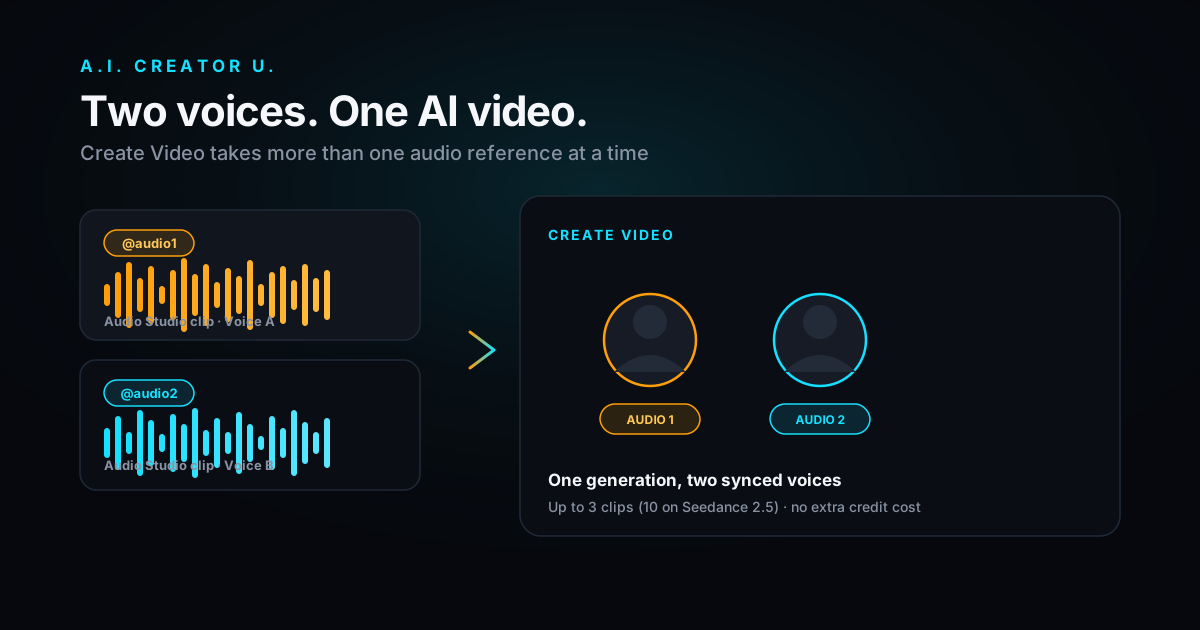
Once you've got a clip you like, two related guides are worth bookmarking: how to trim and edit AI-generated audio clips covers the waveform crop tool in depth, and how to sync multiple voices to one AI video covers exactly how those reused reference clips end up shaping a Create Video generation.
Your library is already doing more work than a simple history tab. Knowing what actually keeps a clip alive means you stop losing the ones you meant to keep.