How to Sync Multiple Voices to One AI Video (The Audio Reference Trick in Create Video)
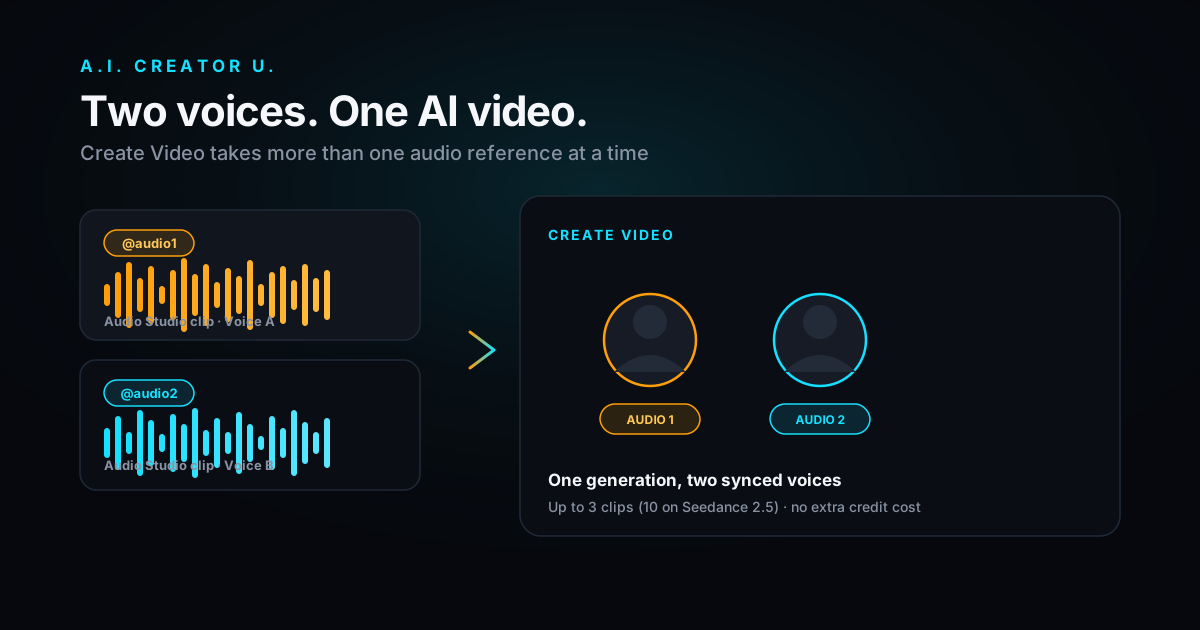
Quick answer: Create Video's audio reference panel doesn't stop at one clip. Generate up to three separate Audio Studio exports (ten on Seedance 2.5), attach them, and tag them @audio1, @audio2, @audio3 in your prompt to tell the model which voice, character, or moment each clip drives. It's how you get two people talking in one shot, or a narrator plus a distinct sound cue, without stitching two generations together in an editor afterward. It costs nothing extra: you pay the normal per-second price for the model, resolution, and duration you already picked.
Most people never find this panel because it only shows up once you've already attached one audio clip, and even then, nothing tells you it takes more than one.
What an audio reference actually does (it's not background music)
An audio reference isn't a soundtrack you drop underneath a finished clip. When you attach one to a Create Video generation, the model uses it to drive the voice, pacing, and lip-sync of what it generates, not just play quietly in the background. ByteDance's own prompt documentation for Seedance describes the mechanic in one line: "Reference the timbre in Audio N to generate." Timbre, meaning the actual character of the voice, not a beat you're syncing cuts to.
That's why this only makes sense once you've already generated the voice line separately. The usual order is: write and generate the dialogue in Audio Studio (Seed Audio 1.0, a flat 2 credits per generation regardless of length), then bring the finished clip over to Create Video as a reference instead of typing "a woman says X" into the video prompt and hoping the model invents a voice that matches your character.
If you only need one voice, you're already covered: our guide to adding AI voiceover to your videos walks through Character Studio's Video tab, which has a single Audio Reference slot built for exactly that. This post is about what happens when one slot isn't enough, because Create Video's standalone tool doesn't stop at one.
One slot vs. three: two different tools, two different jobs
This is worth being precise about, because the two audio-reference surfaces on the site behave differently and neither the app nor most tutorials spell out the difference:
- Character Studio's Video tab has one Audio Reference slot. It's built for a single character delivering a single line, with a "voice casting" template that pulls tone description straight from your saved voice library. Great for a talking-head or AI-twin clip.
- The standalone Create Video tool (
/tools/create-video) has a full Audio References panel that accepts multiple clips at once, each one individually croppable, playable, and removable, with a running counter showing how many slots and how many total seconds you've used.
If your shot only needs one voice, stick with Character Studio, it's simpler and purpose-built for that. If you're generating a scene where two people trade lines, or where a voice and a separate sound element both need to land at specific moments, you want the standalone Create Video panel.
How many clips you can actually stack
The cap depends on which model you've selected, and it changes more than most people expect once you switch to Seedance 2.5:
| Model | Max audio clips | Length per clip | Combined limit | Needs an image or video too? |
|---|---|---|---|---|
| Seedance 2 (Fast / Quality / Mini) | 3 | 2 to 15 seconds | 15 seconds total | No |
| Seedance Open / Seedance Premium | 3 | 2 to 15 seconds | 15 seconds total | Yes |
| MiniMax H3 | 3 | 2 to 15 seconds | 15 seconds total | Yes |
| Seedance 2.5 | 10 | 2 to 30 seconds | 30 seconds total | No |
The "needs an image or video too" column matters more than it looks. On the base Seedance 2 models and on Seedance 2.5, an audio reference can stand on its own alongside your text prompt. On Seedance Open, Seedance Premium, and MiniMax H3, the platform requires at least one image or video reference in the mix before it'll accept audio, since those models use the image or video to anchor who's speaking. If you're not sure which model you're on, the practical fix is simple: keep a reference image of your character attached anyway. It rarely hurts and it's required on three of the six models regardless.
Don't read "you can attach 10" as "you should." ByteDance's own guidance for Seedance recommends keeping total references to four or five well-chosen assets, not maxing out the cap, warning that too many references makes it "difficult for the model to judge feature priorities," which shows up as blurry subject identification and style drift. In practice that means: two speakers, maybe three if the scene genuinely needs it, not ten clips because the slider goes to ten.
Step by step: two voices, one video
- Generate each line separately in Audio Studio. Write the dialogue for character A, generate it with the preset voice or clone you want, then do the same for character B. Each generation is a flat 2 credits regardless of how long the line runs.
- Crop each clip to spec if it's running long. Audio Studio's waveform crop tool (free to use) trims to the window your target model needs, 15 seconds max per clip on most models, 30 on Seedance 2.5. If you skip this step, the "To Seedance" hand-off button will catch it for you and pop the crop tool automatically before letting the clip through.
- Send both clips to Create Video. From the Audio Studio output list, hit "To Seedance" on each finished clip. It hands the file straight to Create Video's audio reference panel, no manual download and re-upload. The first clip lands as
@audio1, the second as@audio2. - Reference them by name in your video prompt. Something like: "Two people at a kitchen counter. The woman on the left speaks in the timbre of Audio 1. The man on the right responds in the timbre of Audio 2." The panel shows you the exact tags to use once clips are attached, so you're not guessing at syntax.
- Generate. Cost is the standard per-second rate for whichever model, resolution, and duration you picked. Attaching two or three audio references doesn't add a surcharge on top of that.
One thing worth flagging before you build a whole scene around this: the model is matching timbre and delivery to a role you describe, it isn't transcribing your audio clip's exact words into forced lip-sync the way a dubbing tool would. Write your video prompt with the same care you'd give any Seedance prompt, describe the framing, the action, and which character is speaking when, and let the audio reference handle how it sounds rather than assuming it'll read your clip like a script.
This is different from the Audio Studio "@Audio" trick
If you've read our piece on multi-voice AI dialogue, you already know Audio Studio has its own @Audio1/@Audio2/@Audio3 system. Don't confuse the two, they solve different problems:
- Audio Studio's trick happens entirely inside Audio Studio. You feed it up to three reference voice clips and one prompt, and it generates a single finished audio file with multiple speakers already mixed together, a two-person podcast segment, for instance. The output is audio. No video involved.
- Create Video's audio references (this post) take clips you've already generated and use them to drive a video generation. The output is video, and each clip can anchor a different character or moment inside that one generation.
They pair well together. Generate a two-voice conversation as a single audio file with Audio Studio's trick, or generate two separate clips and hand both to Create Video as distinct references, depending on whether you want one blended audio track or a video where the model is actively syncing to each voice as a distinct source.
What it actually costs
Nothing beyond what you'd already pay. Audio Studio generation is a flat 2 credits per clip, independent of length, whether you're generating one line or a full 30-second monologue. Cropping is free. The "To Seedance" hand-off is free, it's just moving a file. And attaching one, two, or three audio references to a Create Video generation doesn't change the credit cost of that generation at all, the price is set entirely by the model, resolution, and duration you choose, same as if you'd generated with no audio reference attached.
The one gate worth knowing about: Audio Studio itself is a members' tool. Free accounts can explore Create Video and most of the site, but voiceovers, sound design, and audio references unlock once you've made a single credit purchase of any size, it's not tied to a specific plan tier. New accounts do start with up to 16 free credits (a 6-credit welcome pack, plus 10 more for finishing the onboarding tour), which is enough to test the workflow end to end before deciding whether to buy in.
A quick opinion on why this is underused
Multi-character dialogue is one of the more visible fronts in AI video right now. Some newer models are starting to auto-match lines to speakers when a prompt describes several characters talking, an interesting direction, but also one you don't fully control: you're trusting the model to guess who says what. The audio-reference approach is less automatic and more work upfront, you have to generate the clips yourself, but you get to decide exactly which voice lands on which character, in which order, at what pacing. For anything beyond a quick demo, that control is worth the extra two or three Audio Studio generations. It's also, in our experience, the single most skipped feature on the Create Video page, mostly because the panel doesn't announce itself until you've already attached one clip.
Inside a saved project, you get named tags instead of @audio1
One more detail worth knowing if you're building a recurring series or channel: attach audio inside a saved Project (rather than a one-off standalone generation) and the system swaps the generic positional token for a name you actually chose, @carol-voice instead of @audio1, pulled straight from how you labeled the asset in your project library. It's a small thing, but if you're producing episode after episode with the same two or three characters, typing @carol-voice and @mike-voice into every prompt is a lot easier to keep straight than remembering which numbered slot is which.
FAQ
Can I really put more than one voice in a single AI video generation? Yes, on every model that supports audio references you can attach at least three clips (ten on Seedance 2.5). Each one gets its own positional tag, @audio1, @audio2, @audio3, that you reference directly in your prompt to tell the model which clip drives which character or moment.
Does adding extra audio references cost more credits? No. The credit cost of a Create Video generation is set by the model, resolution, and duration, not by how many reference images, videos, or audio clips you attach. Generating the source clips in Audio Studio is a separate, flat 2-credit cost per clip.
What's the difference between this and Audio Studio's own multi-voice trick? Audio Studio's @Audio1-3 system produces a single finished audio file with multiple voices already blended together, useful for a standalone podcast-style clip. Create Video's audio references take clips you've already generated and use each one to drive a specific part of a video generation. One makes audio, the other makes video that's synced to audio you made earlier.
Which models support multiple audio references? Seedance 2 (Fast, Quality, and Mini), Seedance Open, Seedance Premium, and MiniMax H3 all accept up to 3 clips (2 to 15 seconds each, 15 seconds combined). Seedance 2.5 raises that to 10 clips, 2 to 30 seconds each, 30 seconds combined, and doesn't require an accompanying image or video the way Seedance Open, Premium, and MiniMax H3 do.
What happens if my combined clips run over the time limit? The panel blocks you before you can generate, with an on-screen counter showing seconds used against the cap. If you send an over-length clip from Audio Studio via the "To Seedance" button, it automatically opens the crop tool first instead of letting a rejected upload through.
Ready to build a scene with more than one voice in it? Start in Audio Studio, generate your lines, and hand them straight to Create Video when they're ready. If you haven't generated with Seed Audio before, our complete guide to Audio Studio covers the basics of writing a prompt that actually produces usable voice output, and our AI Audio pillar guide is the place to start if you're new to the tool entirely.