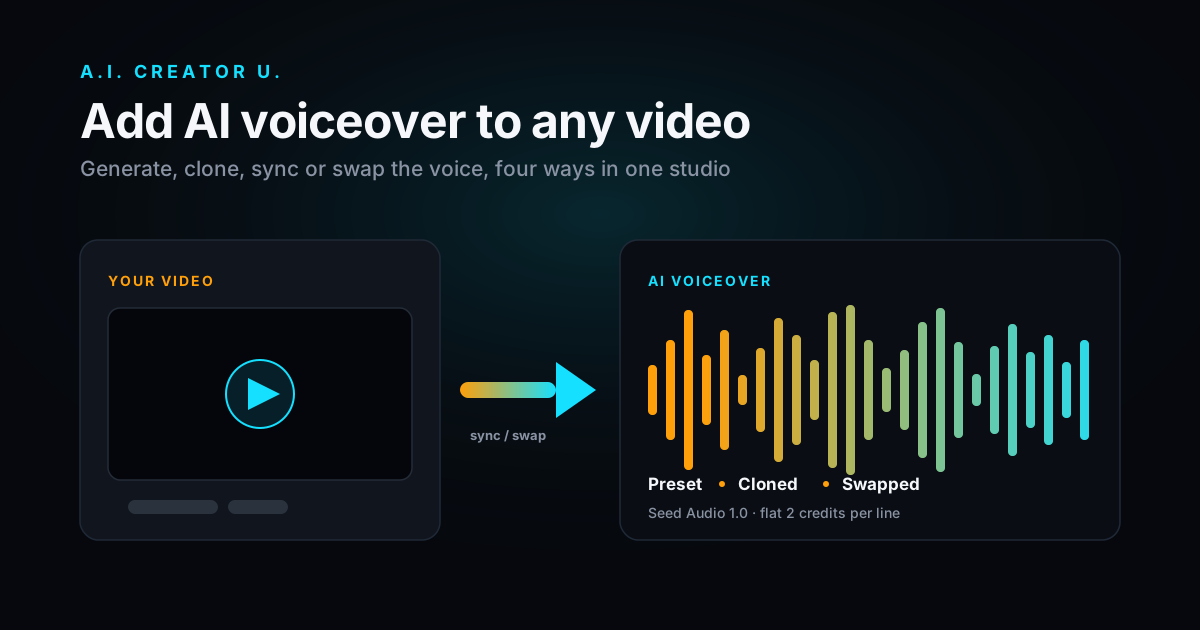
Quick answer: The fastest way to add an AI voiceover to a video is to generate the line in Audio Studio (Seed Audio 1.0, 2 credits flat, any length), then either bake it into a new video generation as an audio reference so a character lip-syncs to it, swap it onto a video you already made in the app (1 credit, keeps the original timing), or just export the MP3 and drop it on your existing footage in whatever editor you already use. There's no single "upload video, add voice" button here that works on any random file, and that's worth knowing before you go looking for one.
That last sentence is going to disappoint some of you, so let's get it out of the way first: a lot of "AI voiceover generator" searches are really looking for one button that takes a silent clip and returns it fully narrated. Almost nobody actually ships that cleanly, because syncing a generated voice to existing footage means the tool has to guess your pacing, your cuts, and your intent. What you can do, reliably, is generate the voice separately and then combine it with video in one of a few specific ways depending on what you're starting from. Below are the four that actually work, in order of how much control they give you.
What "adding AI voiceover" actually means (pick your starting point)
Before you touch anything, figure out which of these you're doing, because the workflow is different for each:
- You're starting from nothing: you have a script or an idea, no footage yet. Generate the voiceover first, then build video around it.
- You want a character to say the line on camera: a talking-head or AI twin video where mouth movement should match the audio.
- You already generated a video here and don't like the voice: re-render just the audio, keep everything else.
- You have outside footage (phone b-roll, stock clips, a screen recording) and want to lay AI narration over it: this one happens in your video editor, not ours, and I'll explain why below.
Method 1: Generate the voiceover in Audio Studio
This is the base case every other method builds on. Audio Studio runs Seed Audio 1.0 (ByteDance), and it's a genuine voice-and-sound model, not just TTS: it does voiceover narration, dialogue, sound effects, and music from one text prompt.
- Go to Audio Studio (
/tools/audio-studio) and leave the model on Seed Audio 1.0, it's the only one available right now. - Write your line in the prompt box. Describe tone if you want control: "Warm narrator over soft ambient music: 'Welcome back, creators.'" works better than the bare line alone.
- Pick a voice preset from the dropdown, or leave it on "Auto / from reference" if you're cloning a voice (Method 2).
- Set format (MP3, WAV, PCM, or OGG Opus), sample rate (up to 48kHz), and if you want to push it, speed (0.5x to 2x), volume, and pitch (up to 12 semitones either direction).
- Hit Generate. It's a flat 2 credits, regardless of how long the line runs.
- Download the clip once it lands in your Outputs list.
That MP3 or WAV is now yours to use anywhere, including outside the platform. This is the step everything else depends on, so it's worth getting the read right before you move on: play the preset preview before you commit credits to a full generation, it saves you from paying twice for the same line in the wrong tone.
Method 2: Clone a voice instead of using a preset
If you want the voiceover in your own voice, or a specific voice you have rights to use, don't pick a preset, reference it instead.
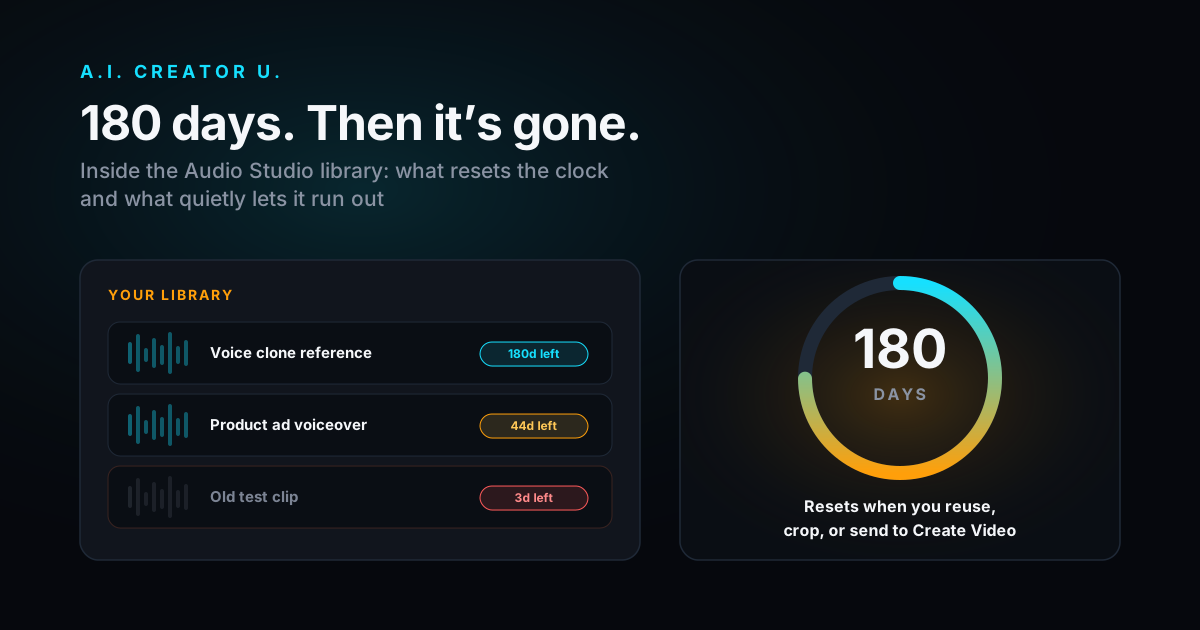
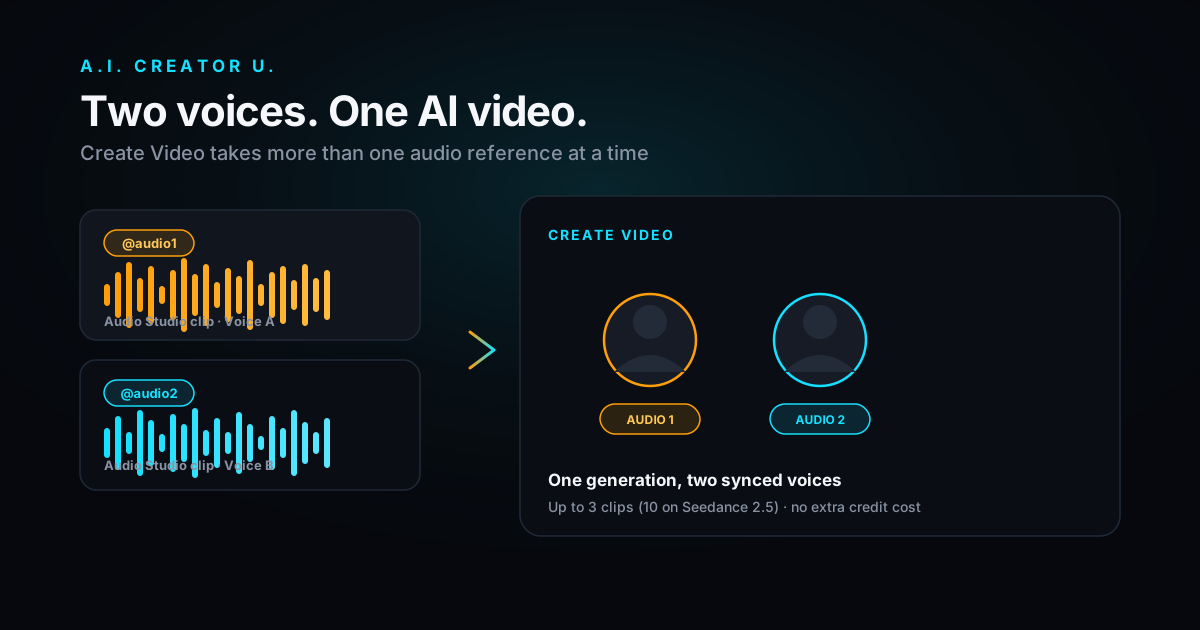
Audio Studio has three drag-and-drop reference voice slots. Drop in up to 30 seconds of clean audio per slot, tag it in your prompt with @Audio1 (or @Audio2, @Audio3), and the model will speak your line in that voice rather than a preset. This is the same reference mechanism used for sound design elsewhere in the tool, just pointed at speech instead of ambient audio.
A cleaner long-term option: Character Studio's Voices tab lets you clone a voice once (record or upload samples, read a short script) and save it to a permanent voice library. That saved voice is reusable across the platform, including as an Audio Studio reference and in the two video methods below, so you're not re-uploading a sample clip every time you want your own voice on a project.
One honest note here, because it matters more than most tool pages admit: voice cloning is powerful and easy to misuse. Only clone voices you own or have explicit permission to use. We've written a full breakdown of the responsible-use side of this if you want the longer version before you start uploading samples.
Method 3: Sync the voiceover to a character as you generate video
This is the method for talking-head content, AI twins, and any video where a face needs to say your line convincingly, not just have audio playing underneath it.
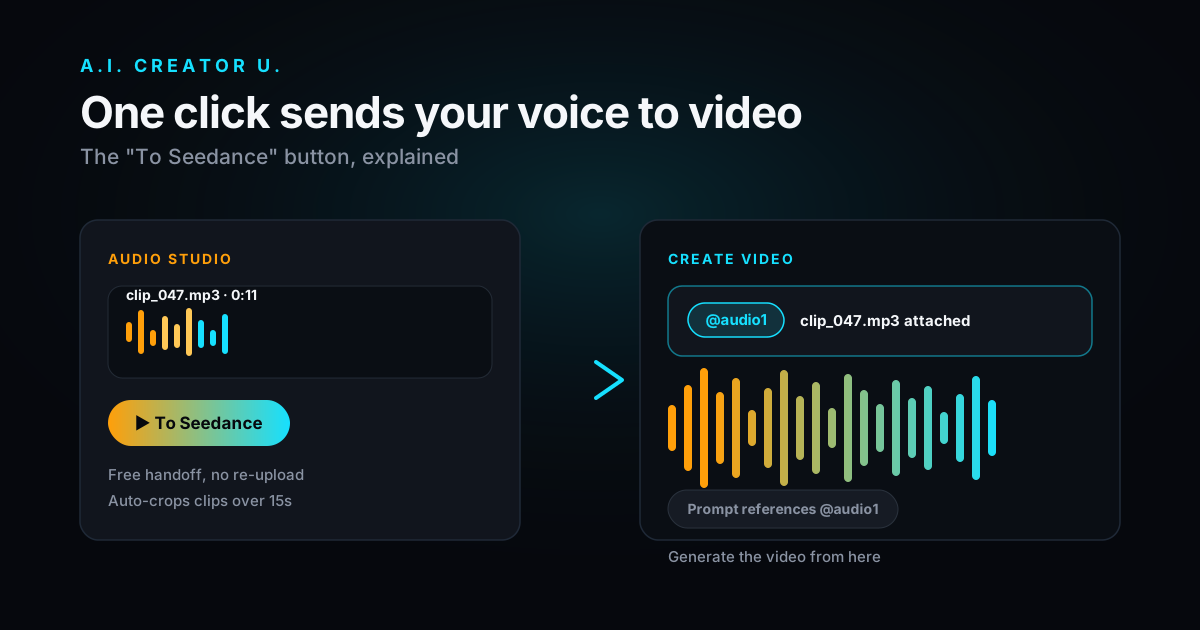
In Character Studio's Video tab, the Audio Reference slot is built for exactly this. Attach your Seedance-generation video to an audio clip (your Audio Studio export, or a voice pulled straight from your saved voice library) and the model uses it to drive lip-sync and motion timing during generation, not just as background sound. There's even a "voice casting" template that auto-fills a tone description from your voice's saved attributes, so the prompt knows how the character should deliver the line, not just what to say.
The practical order of operations:
- Generate or pick your voiceover (Method 1 or 2).
- In Character Studio's Video tab, drop that audio into the Audio Reference slot.
- Write your video prompt as usual, describing the shot, framing, and character.
- Generate. Credit cost is the normal video-generation cost for the model and duration you pick, same as any Create Video job, the audio reference doesn't add a surcharge on top.
This is the closest thing on the platform to "type a script, get a talking video," and it's the method to reach for when the goal is a spokesperson, an AI twin explainer, or any UGC-style clip where a face is doing the talking. If that's specifically your use case, our AI Talking Head guide goes deeper on getting the framing and delivery right.
Method 4: Already have a video here? Swap the voice, keep everything else
This one surprises people, because it solves a real annoyance: you generated a video, the visuals are great, but the voice reading the line isn't quite right, or you want to offer the same video in a different voice for a different audience.
Any completed video you generated on the platform that has audio gets a Swap voice option in the gallery. Pick a voice from your library (preset or cloned), and it runs an ElevenLabs speech-to-speech pass: it extracts the original audio, re-renders it in the new voice, and muxes the result back onto the video while preserving the original timing. So your cuts, your lip-sync, your pacing, none of it moves, only the voice itself changes.
It's a flat 1 credit per swap, and it typically clears in well under a minute (it queues fast, then the re-render itself is usually 5 to 30 seconds). This only works on videos you generated here, since it needs the job record to find and re-render the source audio, it's not a general upload-any-video tool.
Method 5: Adding AI voiceover to footage you shot or sourced elsewhere
Here's the honest gap, and it's the one most "AI voiceover" articles gloss over: if your footage came from your phone, a stock library, or a screen recording, and it doesn't already exist as a generation in this platform, there's no automatic sync step here that will lay a voiceover over it and match your cuts for you.
What actually works, and what most working creators do anyway, is simpler than it sounds:
- Generate your voiceover in Audio Studio (Method 1 or 2), matching the pacing to your footage by re-listening and adjusting the speed slider if needed.
- Download the WAV or MP3.
- Drop it onto your video's audio track in whatever editor you're already cutting in, CapCut, Premiere, DaVinci, even the Shorts tool if you're assembling from a script.
- Nudge the clip start point until the read lines up with your cuts, trim silence at the head if needed.
This isn't a limitation unique to us. Even the tools built specifically as "AI dubbing" products need the source video's scene timing to do a good automatic sync, and for anything more complex than a single static shot, a five-second manual nudge in your editor beats fighting an auto-sync algorithm. The upside of generating the voice separately is that you get one clean, high-quality track you can re-time, re-trim, or reuse across multiple cuts of the same project without regenerating anything.
Comparing the methods
| Method | Best for | Where | Cost | Keeps your existing footage? |
|---|---|---|---|---|
| Generate voiceover only | Scripts, narration, any standalone audio need | Audio Studio | 2 credits flat | N/A, audio only |
| Clone a voice | Using your own or a licensed voice instead of a preset | Audio Studio + Character Studio Voices | 2 credits (generation) | N/A |
| Audio-reference video generation | New talking-head / AI twin video that lip-syncs to your line | Character Studio Video tab | Standard video-generation cost | No, it's a new generation |
| Voice swap | Re-voicing a video you already generated here | Character Studio gallery | 1 credit flat | Yes, only audio changes |
| Manual layering | External footage, stock clips, screen recordings | Your own editor | Cost of the voiceover only | Yes, fully manual |
FAQ
Can I upload any video and have AI add a voiceover to it automatically? Not for footage from outside the platform, no. You generate the voiceover separately in Audio Studio and either build a new video around it (Method 3), swap it onto a video you already made here (Method 4), or add it manually in an editor for outside footage (Method 5). Be skeptical of any tool that claims to do this on arbitrary source video with zero manual sync; it's a much harder problem than it sounds.
How much does an AI voiceover cost? A flat 2 credits per generation in Audio Studio, no matter how long the line runs. Voice swapping an existing video is 1 credit. Sign up and you get up to 16 free credits between the welcome pack and onboarding bonus (both expire in 14 days), and Audio Studio itself unlocks with any credit purchase.
Can I use my own voice for the voiceover? Yes. Upload up to 30 seconds of clean sample audio as a reference in Audio Studio, or clone it once in Character Studio's Voices tab and save it to your library for reuse. Only clone voices you own or have permission to use.
Will the AI voice sync to my character's mouth movements? Only if you generate the video with the audio attached as a reference (Method 3). Audio added after the fact, whether by swap or by manual layering, plays under the video without driving lip movement.
What file formats can I export the voiceover in? MP3, WAV, PCM, or OGG Opus, at sample rates up to 48kHz, with adjustable speed, volume, and pitch before you generate.
Where to start
If you already have a script, open Audio Studio and generate the line first, it's 2 credits and takes seconds, and you'll immediately know if the read is right before you build anything around it. If the end goal is a talking character or spokesperson video, skip straight to Character Studio's Video tab and use the audio reference so the lip-sync comes free with generation instead of needing a fix later.
For the full picture of what's possible with Seed Audio beyond voiceover, dialogue, sound effects, and music from one prompt, the Audio Generation complete guide is the pillar page for this whole cluster and links out to every related workflow, including multi-voice AI dialogue if your project needs more than one speaker in the same clip.