How to Dub a Video into Another Language with AI (2026 Guide)
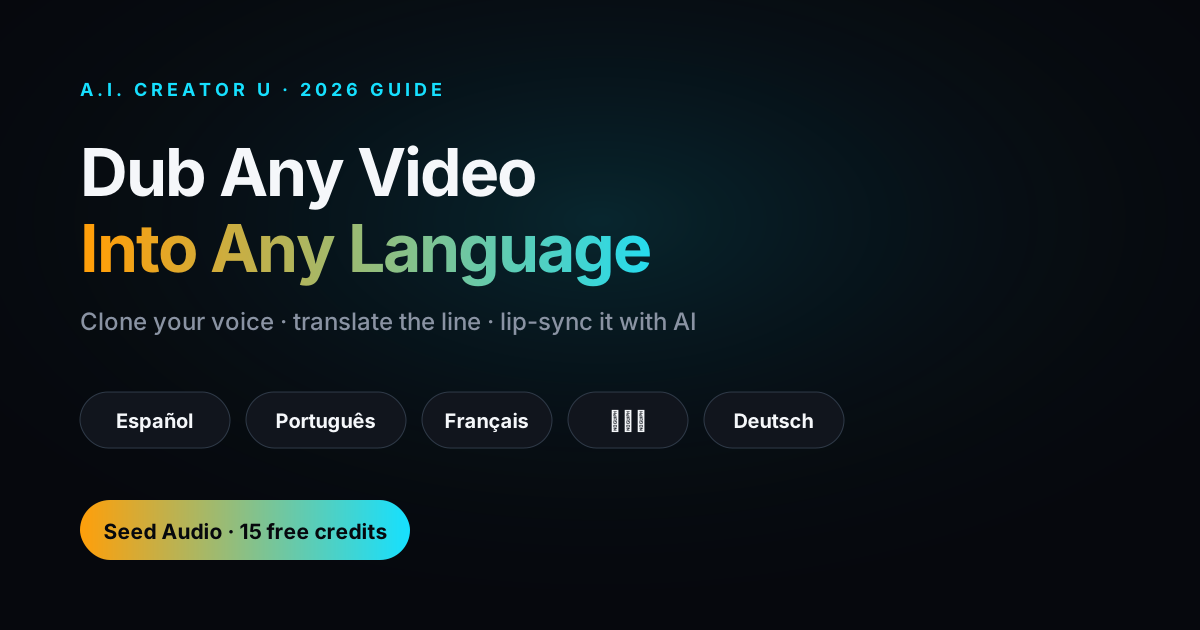
Quick answer: AI video dubbing swaps a video's spoken audio for a new language without reshooting anything. The fast path with A.I. Creator U: clone or pick a voice in the Audio Studio, generate the translated line, then either drop that clip under your existing footage or feed it back into Create Video as an audio reference on a lip-sync-capable model (Kling 3.0, HappyHorse, or Seedance 2.5) so the mouth movements actually match the new language. No studio, no voice actor, no reshoot.
A year ago, "dubbing" meant hiring a translator, booking a voice actor in a booth somewhere, and waiting a week. Now it's a workflow you can run before lunch. The catch is that most creators still think dubbing means slapping subtitles on a video and calling it localized. It doesn't. Subtitles get skipped. A voice that actually sounds like it's speaking your audience's language, coming out of a mouth that's moving in sync, is what keeps people watching past the first three seconds.
This guide walks through what AI dubbing actually is, when you need real lip sync versus when you don't, and the exact steps to do it inside A.I. Creator U using Seed Audio and Create Video together.
What is AI video dubbing, exactly?
AI dubbing replaces a video's original spoken audio with a new track in a different language, generated by a voice model instead of a human actor. There are two tiers of it, and confusing them is where most people waste money:
- Voice dubbing: a new audio track in the target language, cloned to sound like the original speaker (or a preset voice), layered under the video. Fast, cheap, works on any footage. The mouth doesn't match the new words, but for talking-head content, tutorials, and voiceover-driven videos, viewers barely notice.
- Lip-synced dubbing: the same new audio track, plus the video model regenerates or adjusts the mouth movements so they visually match the translated speech. This is what dedicated dubbing tools like HeyGen and Rask AI are built around, and it's what separates "obviously dubbed" from "wait, did they actually film this in Spanish?"
For most creators the first tier is enough. Save the lip-sync step for content where the face is close-up and on camera for most of the clip, like a spokesperson video or a testimonial.
Why bother dubbing instead of just adding subtitles?
Subtitles are the cheap fallback, not the good option. A few numbers worth knowing: platforms increasingly test-run auto-dubbed audio over subtitle-only versions because native-language audio consistently holds attention longer, especially on mobile where people scroll with sound half-muted and captions half-read. The AI video translation market itself is a signal here: it was estimated around $2.68 billion in 2024 and is projected to climb toward $33.4 billion by 2034, according to industry market research, which tells you every major platform is betting that dubbed audio, not just captions, is where localized content is headed.
If you're a creator trying to break into a second market (Spanish-language TikTok, Portuguese YouTube, whatever), dubbed audio is the difference between "foreign creator with subtitles" and "creator who speaks my language."
What A.I. Creator U actually gives you for this
Being straight about the tool stack matters more than hype here. Two pieces do the real work:
- Seed Audio (inside the Audio Studio) handles the voice side. It supports voice cloning that holds up across languages, meaning you can clone a voice once and generate lines in a different language that still sound like that person, not a generic TTS reading a script. It also ships around 20 preset voices if you don't want to clone anyone.
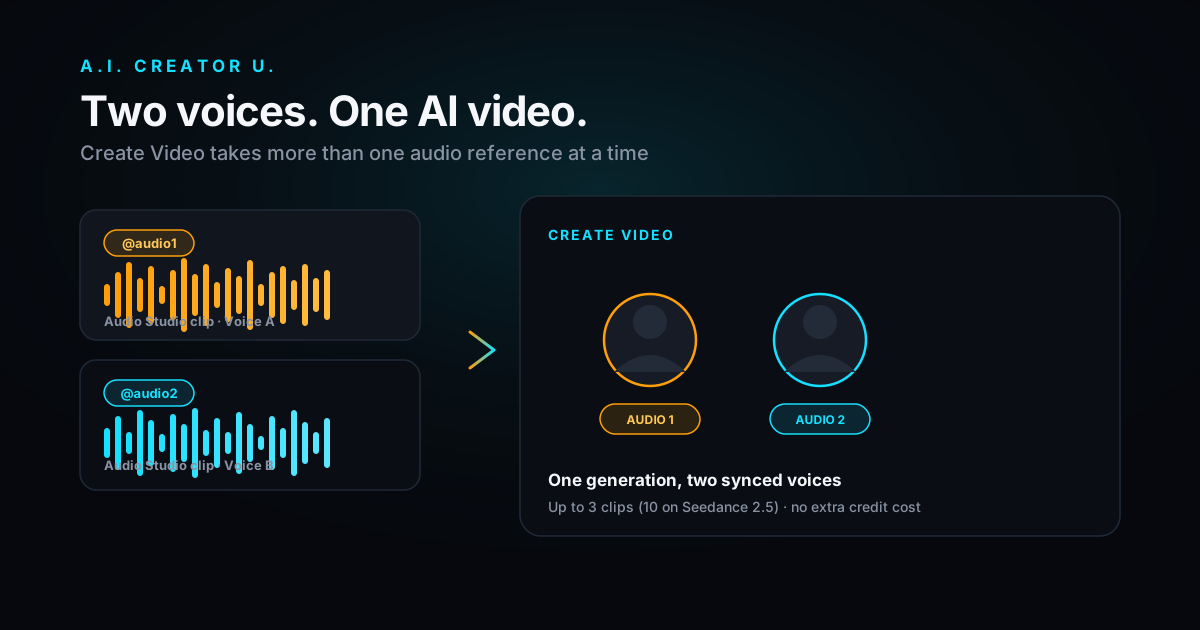
- Create Video handles the visual side. Several models in the picker are built for lip accuracy: Kling 3.0 is described in-app for "precise lip sync," HappyHorse is built for "strong multilingual lip sync," and Seedance 2.5 supports native audio sync plus up to 10 audio reference clips, including audio-only references, so you can hand it a finished dub and have it match mouth movement to that exact track.
That combination, clone or generate the line in Seed Audio, then route it into a lip-sync model in Create Video, is the actual dubbing workflow. There's no single "dub my video" button (yet), but the pieces chain together in about four steps.
The 4-step dubbing workflow
Step 1: Get your source line and translate it
Start with the script or a transcript of what's being said. If you don't have one, transcribe the clip (most editing tools do this in seconds) and run it through a translation pass, either a straight machine translation or, better, translate for meaning and timing, not word-for-word accuracy. A literal translation often runs longer or shorter than the original line, which throws off lip sync before you've even started.
Step 2: Clone or pick the voice in Seed Audio
Open the Audio Studio. If you're dubbing your own voice or a recurring on-camera personality, clone it once, it's reusable for every future video in that language. If the speaker isn't available or you'd rather not clone a real person, pick one of the preset voices that fits the tone (there's a full breakdown of all 20 in our preset voices guide if you want specifics on which one lands where). Generate the translated line. Listen for pacing, a translated sentence that runs noticeably longer than the source will fight the video's cut points.
Step 3: Get the audio into Create Video
Two ways to do this, depending on what you're making:
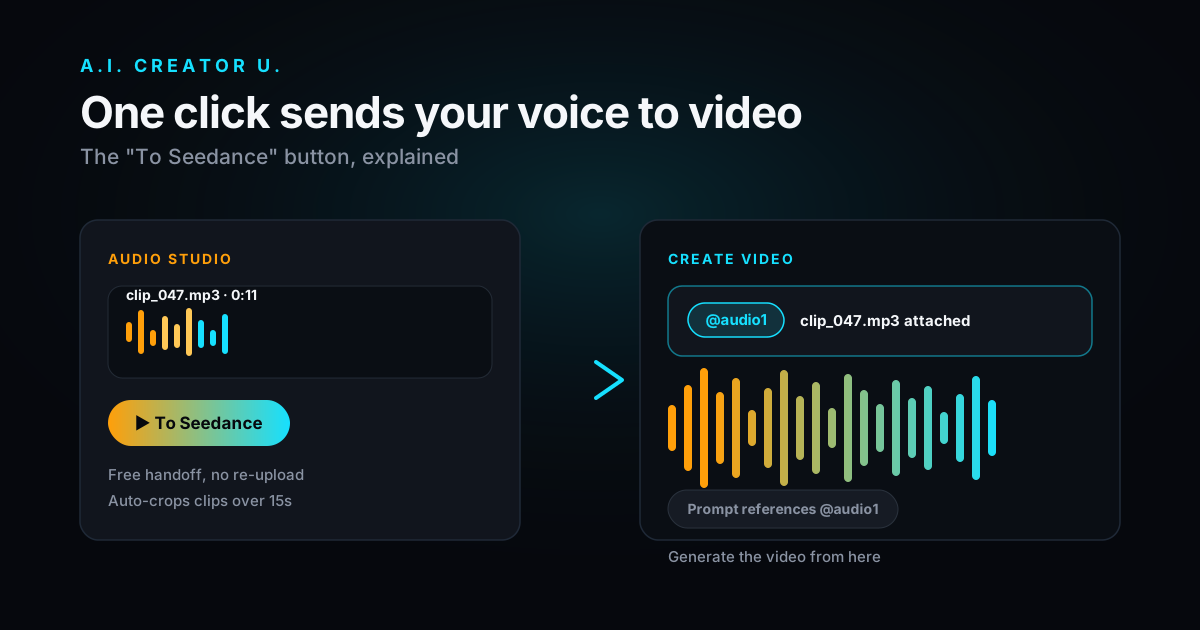
- New generation from scratch: use the "To Seedance" button to send the Audio Studio clip straight into Create Video's composer as an audio reference. Build the visual around that finished line.
- Existing footage you want re-synced: attach the dubbed clip as an audio reference and use a lip-sync-strong model (Kling 3.0 or HappyHorse) with the source footage as your visual reference, so the model adjusts mouth movement to the new audio.
Step 4: Render, check sync, adjust pacing if needed
Watch it back at actual speed, not just skimming. If a line drifts out of sync toward the end of a clip, it's almost always a pacing mismatch from Step 1, the translation ran long. Trim the line or split it across two shorter clips rather than trying to force the model to compress speech unnaturally.
Voice dubbing vs. lip-synced dubbing: which do you need?
| Situation | Voice dubbing only | Full lip-synced dubbing |
|---|---|---|
| Voiceover / narration videos (no face on screen) | ✅ Perfect fit, fastest | Unnecessary, skip it |
| Talking-head tutorials, wide or side angle | ✅ Usually fine | Nice-to-have, not critical |
| Close-up spokesperson or testimonial video | ⚠️ Noticeable mismatch | ✅ Worth the extra step |
| Product demo with a narrator off-camera | ✅ Ideal | Not applicable |
| UGC-style ad with a creator speaking to camera | ⚠️ Works but looks dubbed | ✅ Recommended |
| Short-form hook videos (first 2 seconds matter most) | ⚠️ Risky if mouth is visible | ✅ Worth it for the hook |
The honest rule: if the mouth is small in frame, moving, or on screen for under half the clip, don't bother with lip sync. Spend that time on getting the translation and delivery right instead.
Common mistakes that make a dub feel fake
Even with good tools, a few habits separate a convincing dub from an obviously-dubbed clip:
- Translating too literally. A translation that's grammatically correct but reads like a textbook sounds nothing like how a real person in that market actually talks. If you can, have a native speaker sanity-check the line, or at minimum ask for a "natural, conversational" translation rather than a formal one.
- Ignoring pacing. Romance languages especially tend to run 15 to 20% longer than English for the same meaning. Build that into your script length assumptions before you generate.
- Skipping the voice match. A cloned voice that sounds robotic or emotionally flat undercuts everything else. Regenerate the line if the energy doesn't match the original delivery, most tools let you nudge emotion or emphasis in the prompt.
- Forgetting background audio. If there's music or ambient sound under the original dialogue, make sure your new dub sits at a level that doesn't fight it. A dub that's mixed too hot reads as amateur instantly.
How A.I. Creator U compares to dedicated dubbing tools
Purpose-built dubbing platforms exist, and they're worth knowing about. HeyGen leans on 175-plus language support with lip sync baked in and reportedly runs around $0.97 per minute on its creator tier. ElevenLabs is strong specifically for audio-only dubbing (no lip sync) across roughly 29 languages, priced closer to $0.44 per minute. Rask AI targets high-volume localization workflows with per-minute overage pricing around $3.
Those tools are worth it if dubbing is your entire business model, agencies localizing hundreds of videos a month, for example. If dubbing is one part of a broader content workflow that also includes generating the original video, voiceover, sound effects, and music, doing it inside the same credit-based system you're already using for everything else means one login, one bill, and voices that carry across your whole catalog instead of living in a separate app.
FAQ
Does A.I. Creator U have a one-click "dub this video" feature? Not as a single button yet. The workflow is two connected tools, Seed Audio for the translated voice, Create Video for the lip-sync pass, chained together through the "To Seedance" handoff or an audio reference upload. It takes a few extra minutes compared to a dedicated dubbing app, but it stays inside one platform and one credit pool.
Which Create Video model has the best lip sync for dubbing? Kling 3.0 and HappyHorse are both built for it, Kling 3.0 for precise sync on close, polished shots, HappyHorse for strong multilingual accuracy on image-to-video animations. Seedance 2.5 is the pick when you want native audio sync plus the flexibility of multiple reference inputs in one job. See our Kling AI Lip Sync guide for a deeper walkthrough of that model specifically.
Can I clone my own voice and have it speak a language I don't speak? Yes, that's the core use case for cross-lingual voice cloning. You clone the voice from a sample in your native language, then generate lines in the target language, and the output still carries your vocal identity. We cover this in detail in our multilingual voice cloning guide.
How much does AI dubbing cost inside A.I. Creator U? Everything runs on the same credit system as the rest of the platform, so cost depends on clip length and which models you use for the voice and video steps. New accounts start with 15 free credits, enough to test the full workflow, voice clone, translated line, and a lip-synced clip, before deciding whether to subscribe.
Is AI-dubbed audio noticeably worse than a human voice actor? It's closed the gap fast. For narration and voiceover-style content, most viewers can't reliably tell. For close-up, emotionally heavy dialogue, a skilled human actor still edges out AI in subtlety, but for the volume of content most creators and sellers are putting out, the AI version ships today instead of in two weeks.
Get your first dub done today
If you've got a video that's only working in one language, that's revenue and reach sitting on the table. Start in the Audio Studio, clone or pick a voice, generate your first translated line, and see how it sounds before you commit to a full lip-sync pass. Try Seed Audio free with your first 15 credits and dub your next video before your next upload deadline.
For the full picture on everything Seed Audio can do beyond dubbing, the AI Audio Generation complete guide is the pillar page worth bookmarking.