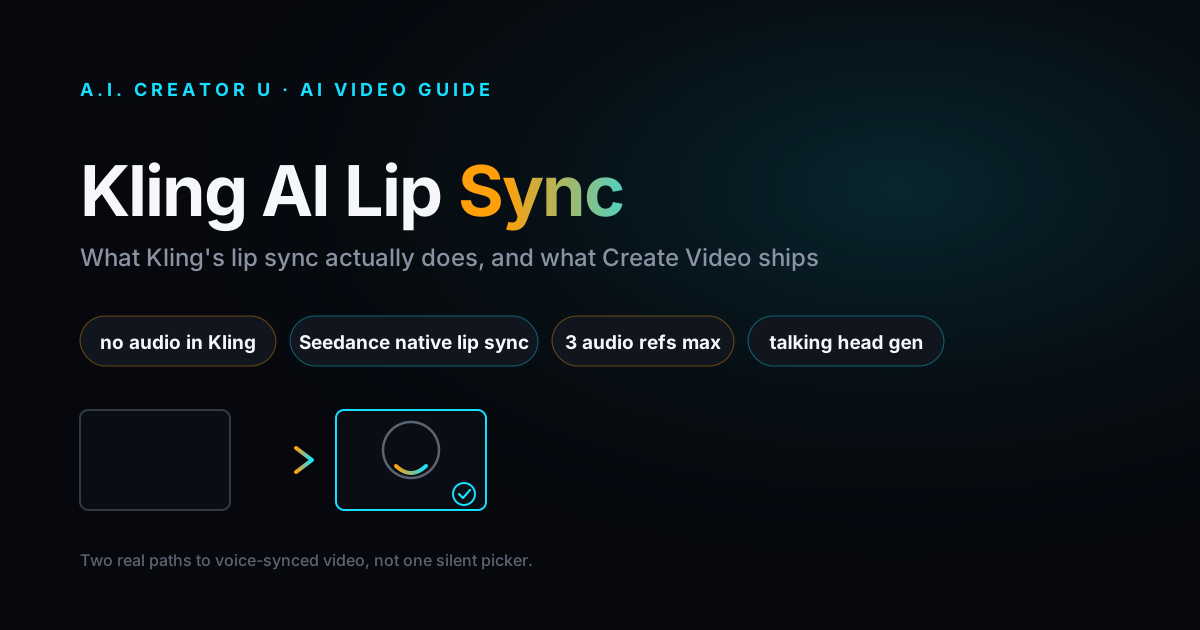
Quick answer: Kling's own Video 3.0 Omni model can generate native, lip-synced dialogue in up to five languages, according to Kling's product materials. But the Kling 3.0 and Kling 2.6 integrations inside A.I. Creator U's Create Video tool are video-only: no sound track, no audio input, nothing to sync. If you actually need voice synced to a face today, use Seedance 2.0's audio-reference mode (up to 3 clips, 2 to 15 seconds each) for full scenes, or the Talking Head Generator for a single presenter talking to camera. Both are live right now.
Type "kling ai lip sync" into Google and you'll land on a stack of pages describing a feature you can't reach from our Kling 3.0 picker. That's not a bug report, it's just not how the integration is wired, and once you know why, getting a real lip-synced clip out of A.I. Creator U takes about ninety seconds.
Does Kling AI Actually Support Lip Sync?
On Kling's own platform, yes. Kling Video 3.0 and the Omni variant generate native audio (dialogue, sound effects, ambient noise, music) in the same pass as the video, and the model times mouth movement to that generated speech. Reported specs put multilingual support at five languages: English, Chinese, Japanese, Korean, and Spanish, with each character in a multi-shot scene able to speak a different one and still stay in sync. Kling reportedly also ships tiered lip-sync quality: Standard gives you a basic pass, Pro tightens the alignment, and Master is the closest to a dubbed take.
Take those specifics as reported, not verified firsthand. We don't operate Kling's platform directly, we integrate their model through an API. What we can tell you with certainty is what that integration actually exposes, because we wrote the code.
Worth understanding why this is even hard: real lip sync means mapping generated or uploaded speech to the visemes, the mouth shapes, a face needs to make for each sound. "M" and "B" close the lips, wide vowels open the jaw, and if the timing drifts by even a couple of frames the whole clip reads as dubbed rather than spoken. Models that generate audio and video together, which is what Kling claims for its own Omni model and what Seedance actually does inside our tool, have an easier time nailing that timing because the mouth motion was never a separate step bolted onto finished footage. That's also why standalone "upload a photo, upload an MP3" lip sync tools tend to look slightly off on hard consonants. They're solving a harder problem: matching motion to audio that already exists, frame by frame, after the fact. If you want the full rundown on what Kling 3.0's picker actually does inside Create Video, from multi-shot storyboarding to character consistency, the complete Kling 3.0 guide covers it.
So Why Can't You Lip-Sync with Kling Inside A.I. Creator U?
Because our Kling 3.0 and Kling 2.6 entries in Create Video were built as silent video generators. Kling 3.0 gives you multi-shot storyboarding, character consistency across shots (we call this Elements), start and end frame control, and clips up to 15 seconds. What it doesn't have is an audio track, an audio-reference upload, or a sound toggle of any kind. Kling Motion Control, the third Kling option in the picker, is video-to-video motion transfer and has the same gap.
Here's the part that makes this concrete instead of theoretical: try to attach an audio file while Kling is selected and the app won't let you. It automatically switches your model to Seedance 2 and shows a toast that says "Switched to Seedance, required for audio references." That's not a content-writer's interpretation of the product. That's the literal behavior. Audio references are gated to models that declare support for them, and right now, in this build, that's Seedance, not Kling.
Whether Kling's native audio ever lands in our integration is a fair question and not one we're promising an answer to here. Model providers add capabilities to their APIs on their own schedule, and we wire them in when they're stable enough to ship. Until then, if a Kling API key gets you dialogue with lip sync, our Kling picker won't be how you get there.
How Do You Actually Sync Voice to Video, Then?
Two paths, depending on what you're making.
Path 1: Seedance 2.0's Native Audio-Driven Lip Sync
This is the one that matches "sync voice to video" most literally. Seedance 2.0 clips run 4 to 15 seconds, output up to 2K or 4K depending on your plan, and accept text, image, video, and audio as input, generating native audio in the same pass rather than bolting a voice track on after the fact.
The audio side works like this: in Create Video, switch Seedance's mode to omni_reference (it's the default), and an "Audio References" field appears with a clear limit printed right on it: max 3 clips, 2 to 15 seconds each, 15 seconds total. Upload a voice clip, describe the scene and what the character says in your prompt, and Seedance generates video where the mouth movement is timed to that audio as part of generation, not stitched on top of a static photo.
One workflow shortcut worth knowing: if you record or generate your voice line in Seed Audio, you can send that clip straight into Create Video as an audio reference without re-uploading anything. It shows up pre-attached, ready to attach to a scene. That combination, a clean cloned or generated voice from Seed Audio feeding directly into Seedance's lip sync, is the closest thing we have to Kling's "native audio in one pass" pitch, just split across two purpose-built tools instead of one model doing everything.
One limitation worth flagging honestly: omni_reference mode and first/last-frame mode are mutually exclusive. If you need precise start and end frame control for a shot, you give up audio references for that generation, and vice versa. Plan your shot list around that trade-off rather than discovering it mid-project.
For the full prompting mechanics (durations, resolution tiers, reference images, all of it), the complete Seedance 2.0 prompting guide covers the rest of the model in depth. This article is specifically about the audio-sync piece.
Path 2: The Talking Head Generator (Best for a Single Presenter)
If what you actually need is one person or avatar talking straight to camera, like the hook for a UGC-style ad, a full cinematic Seedance scene is overkill. The Talking Head Generator, tucked inside the UGC ad creator's five-step flow at /tools/ugc-creator, is built for exactly that shot.
You upload or select an avatar image, then either upload your own audio clip or type a script and let it generate voiceover for you (with an emotion setting, neutral by default). It renders through an avatar lip-sync model, with a fallback path if the primary provider is unavailable. The output is a single talking clip, not a multi-shot scene, which is exactly the tradeoff you want when the whole job is "make this face say this line."
Where this differs from Seedance's approach: Seedance generates the mouth movement as part of the scene from scratch. The Talking Head Generator animates an existing static photo to match separately-generated audio. That's a real technical distinction, not marketing language, and it shows up in the output. Fast head-and-shoulders delivery, tight framing, no camera movement, that's the Talking Head Generator's comfort zone.
Kling 3.0 vs Seedance 2.0 vs Talking Head Generator: Which One Do You Need?
| Kling 3.0 (in Create Video) | Seedance 2.0 (in Create Video) | Talking Head Generator | |
|---|---|---|---|
| Audio input | None | Up to 3 clips, 2 to 15s each, 15s total | One audio clip or a typed script |
| Lip sync | Not exposed in this integration | Native, generated with the scene | Animated onto a static photo |
| Max length | Up to 15 sec | 4 to 15 sec | Matches your audio length |
| Best for | Silent cinematic shots, multi-shot storyboards, character consistency | Full scenes where a character speaks as part of the action | One presenter talking to camera, UGC hooks |
| Where to find it | Create Video | Create Video (omni_reference mode) | /tools/ugc-creator, step 5 |
Both paths run on credits rather than a flat per-video fee, and cost scales with clip length and resolution rather than a fixed rate, so check the live pricing page for current numbers before you budget a batch of clips. Processing time also isn't instant: expect a couple of minutes per clip for Seedance, and roughly similar for the Talking Head Generator, since both are queued generation jobs, not real-time previews. Plan a test clip first rather than batching ten variations before you've confirmed the voice and timing look right.
Step-by-Step: Lip-Sync a Video with Seedance 2.0
- Open Create Video and pick a Seedance 2 tier from the model picker. You'll see an "audio" tag on the models that support it.
- Confirm the mode toggle is set to omni_reference, not first/last frames. The audio field only shows up in this mode.
- Get your voice line ready. Either upload an existing recording, or jump to Seed Audio, generate or clone the voice you want, and hand it off directly into this field.
- Upload the clip under Audio References. Keep it inside the limits: 2 to 15 seconds per clip, 3 clips max, 15 seconds total across all of them.
- Write your prompt describing the scene, the character, and what they're saying or doing. Seedance uses this alongside the audio to time the generation.
- Generate. Review the clip for mouth-shape accuracy on hard consonants (P, B, M tend to be the first thing that looks off if something's misaligned) and regenerate if needed.
Common Mistakes That Break Lip Sync
The biggest one is picking Kling first, building a whole shot around it, and only discovering there's no audio path when you go looking for the upload button. Decide up front whether the shot needs a voice. If it does, start in Seedance.
The second is stacking too much audio. Three clips at 15 seconds total sounds generous until you're trying to fit a full product pitch in there. Trim your script to the actual line that needs lip sync and let the rest of the scene carry silently or with a voiceover added in post.
The third is fighting the mode toggle. If you need a locked start frame and end frame for continuity with a previous clip, you're in first/last-frame mode, and audio references won't appear no matter how you dig through the UI. That's expected, not broken.
The fourth is ignoring emotion and pacing on the Talking Head Generator. The tool defaults to a neutral delivery, which reads flat if your script is meant to sound excited or urgent, the kind of tone most UGC hooks actually need. Set the emotion deliberately, and if you're generating the voice from a typed script rather than uploading your own read, write the script the way you'd actually say it out loud, contractions and all, not the way it looks clean on a page. TTS engines follow punctuation and phrasing more literally than a human reader would.
Here's the honest opinion behind all of this: single-image lip sync tools, the Talking Head Generator included, still have a faint uncanny-valley wobble on wide mouth shapes and fast dialogue. If your shot only needs to hold up for five to eight seconds and doesn't need camera movement, native generation through Seedance usually looks more natural, because the mouth motion was never overlaid onto a photo in the first place. It was generated as part of the scene. Save the Talking Head Generator for when you specifically need a fixed avatar image speaking, like a recurring UGC presenter, not as a default.
Ready to test it yourself? Open Create Video and try a Seedance lip-synced clip. New accounts get 15 free credits, enough to run this workflow before you spend anything.
FAQ
Does Kling AI support lip sync? On Kling's own platform, reportedly yes. Kling Video 3.0 Omni generates native audio and lip-synced dialogue in up to five languages as part of the video generation itself, according to Kling's product materials.
Can I lip-sync a video with Kling 3.0 inside A.I. Creator U? No. The Kling 3.0 and Kling 2.6 integrations in Create Video are video-only: no sound track, no audio-reference upload. Try to attach audio with Kling selected and the tool switches your model to Seedance 2 automatically, because that's the model built to handle it.
What's the actual way to sync voice to video in A.I. Creator U? Use Seedance 2.0 in Create Video. Set the mode to omni_reference, upload up to 3 audio clips (2 to 15 seconds each, 15 seconds total), and Seedance generates the scene with lip-synced dialogue in one pass.
What if I just need one person talking to the camera, like a UGC ad hook? Use the Talking Head Generator inside the UGC ad creator at /tools/ugc-creator. Upload a photo, add a script or your own audio, pick an emotion, and it renders a single lip-synced talking clip. It's built for that one shot, not a full scene.
Is there a free way to try this? Yes. New accounts get 15 free credits, enough to test a Seedance lip-synced clip or a Talking Head Generator video before paying for anything.