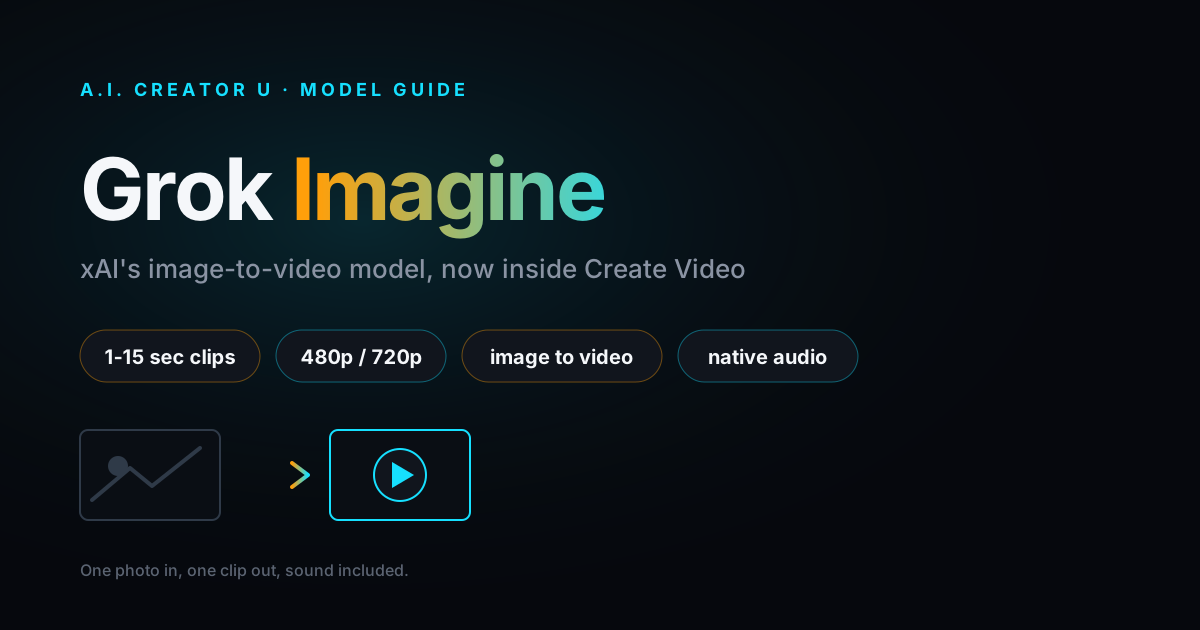
Quick answer: Grok Video (officially "Grok Imagine") is xAI's AI video model. Inside A.I. Creator U's Create Video tool, it currently runs as Grok Imagine 1.5: upload one reference image, describe the motion, and get back a 1 to 15 second clip with native audio, at 480p or 720p. It's image-to-video only in this integration, no from-scratch text prompt, and no tone-mode selector, those live in xAI's own Grok app. An independent, Elo-based leaderboard (the Image-to-Video Arena) has ranked Grok Imagine 1.5 above Sora 2, Veo 3.1, Seedance 2.0, and Kling in blind testing. Run it on the same credits as Seedance 2.0, Kling 3.0, and Veo, no separate xAI account needed.
What Is Grok Video (Grok Imagine)?
"Grok Video" is the term people search for. "Grok Imagine" is what xAI actually calls it: the image and video generation arm of Grok, built on an in-house video architecture xAI calls Aurora. Its current flagship, Grok Imagine Video 1.5, got a wide public release on June 17, 2026. On xAI's own grok.com/imagine, it's a genuinely broad tool: text-to-video, image-to-video, video extension, even a tone selector (Normal, Fun, Spicy) that adjusts how bold the output can get, bounded by what Elon Musk described in March 2026 as an "if it's allowed in an R-rated movie" standard.
Here's the part worth knowing before you open a prompt box: A.I. Creator U's Create Video integration doesn't expose all of that. Our picker runs Grok Imagine 1.5's image-to-video pipeline specifically: upload a reference image, describe the motion, done. There's no text-to-video option for Grok here (Seedance 2.0, Kling 3.0, and Veo cover that in the same tool), no tone selector, and no built-in extend step. That's a deliberate, narrower slice of the model, not a lesser one. If you came here after reading about "Spicy mode" somewhere else, that's xAI's own app. It's not part of this integration.
What Can Grok Video Actually Do Right Now?
Here's Grok Imagine 1.5's spec sheet, as it runs inside Create Video:
| Spec | Grok Imagine 1.5 in Create Video |
|---|---|
| Input | One reference image (required) |
| Output | 1 to 15 second clip, any whole second |
| Resolution | 480p or 720p |
| Aspect ratios | Auto, 16:9, 9:16, 1:1, 4:3, 3:4 |
| Audio | Native, generated in the same pass |
| Faces / characters | Fully supported |
| Video extend | Not available for Grok in this tool |
| Typical generation time | Roughly 2 to 5 minutes end to end |
Two things stand out. First, it's image-to-video only. You're animating a photo or frame, not typing a scene from scratch, so it's a different kind of tool than Veo or Seedance for greenfield ideas, but a genuinely strong one for "make this photo move." Second, the resolution ceiling is 720p. Seedance 2.0 and Kling 3.0 both push past that, so if you need 4K hero footage, Grok isn't your model.
In practice, the 1 to 15 second range covers more than it sounds like it should. Most scroll-stopping product clips and character reveals run 3 to 8 seconds anyway, since that's roughly the window before a viewer's thumb starts moving. Save the full 15 seconds for a single hero shot, not a first draft you're still testing.
Is Grok Video Any Good? Where It Ranks
Worth a straight answer, since it's the obvious question. Grok Imagine 1.5, the same model version running inside Create Video, currently sits at the top of the Image-to-Video Arena: an independent, crowd-sourced leaderboard that uses blind pairwise comparisons and Elo scoring, the same method chess ratings use. As of June 2026, it reportedly held an Elo score of 1473, a 52-point jump over the 1.0 model, ranking ahead of Sora 2, Veo 3.1, Seedance 2.0, and Kling in head-to-head votes.
That's a real, third-party result, not just xAI's marketing copy, and it lines up with what a side-by-side shows: motion holds up, physics look plausible, and native audio (dialogue where the scene calls for it, sound effects, ambience) lands in the same generation pass instead of a separate sound step. xAI also markets Grok Imagine as significantly cheaper than Sora 2 Pro on its own API. We'd take that specific comparison with a grain of salt since it's xAI's own number, and either way it's a different pricing model entirely from A.I. Creator U's credits, so it doesn't change what anything costs here.
None of that makes Grok the best model for every job. The "where it falls short" section below matters just as much as this one.
Who Is Grok Video Actually For?
Two groups get real, practical value out of this specific integration.
Sellers animating product stills. If you've already got a clean product photo, from Studio Zero, a phone shoot, or a supplier listing, Grok Imagine 1.5 turns it into a moving clip with matched sound in a couple of minutes. No need to write a from-scratch prompt describing the product itself. Steam rising off a drink, fabric catching light, a lid popping open: that kind of subtle, believable motion is exactly what image-to-video is good at, and it's the exact amount of motion a listing thumbnail or product page benefits from, enough to stop a scroll without needing a full ad edit built around it.
Creators bringing a still to life. Got a Character Studio portrait, a thumbnail-style frame, or a single striking image you want to animate for a Reel or Short? Same workflow applies, and faces and characters are fully supported. It won't storyboard a multi-shot sequence for you (that's Kling's job), but for "make this one image move convincingly," it's a fast, cheap way to get there.
If your starting point is a script or a concept with no image yet, start in Seedance, Kling, or Veo instead, and treat Grok as the tool you reach for once you've already got a still worth animating.
How Do You Generate a Video with Grok Inside A.I. Creator U?
The fastest way to run Grok Imagine 1.5 without touching xAI's API directly:
- Open Create Video and select Grok Imagine 1.5. It's in the model list alongside Seedance 2.0, Kling 3.0, and Veo, marked as new. You're on shared credits: no separate xAI account or API key.
- Upload your reference image. This step is required. Grok 1.5 is image-to-video only, so use a clean product shot, a character frame, or any still you want brought to life.
- Pick your aspect ratio. Auto derives it from your source image, or force 16:9, 9:16, 1:1, 4:3, or 3:4 depending on where the clip is headed.
- Set duration. Anywhere from 1 to 15 seconds. Shorter clips generate faster and cost less, so test at 4 to 6 seconds before committing to a full 15-second run.
- Choose resolution. 480p for quick tests, 720p for anything you'll actually publish.
- Write the motion prompt. Describe what should happen to the image, not what's already in it. "The camera slowly pushes in as steam rises from the cup" does more work than re-describing the cup you already uploaded.
- Generate, then review the audio, not just the picture. Native audio is a real feature here, not an afterthought, so check that the sound matches the action before calling it done.
- If it's close but not right, change one variable. The camera direction, the pacing, one word in the motion description, then regenerate. Rewriting the whole prompt each time just makes it harder to tell what actually moved the result.
Try it now: Grok Imagine 1.5 is live in A.I. Creator U's Create Video tool with 15 free credits to start. Upload an image, describe the motion, and see the result in a few minutes. Start free →
What's a Good Grok Video Prompt?
Since Grok 1.5 is image-to-video, your prompt isn't building a scene from nothing, it's directing motion on top of one that already exists. That changes what a good prompt looks like. Structure it in three parts.
1. The motion. What moves, and how. Be specific about speed and direction: "slow push-in," "she turns her head toward camera," "the liquid pours in a steady stream."
2. The camera. Does the camera move too, or hold still while the subject moves? Name it: "static shot," "slow pan left," "handheld drift."
3. The mood or finish. One line on lighting, pace, or tone: "warm and unhurried," "crisp product-photography lighting," "energetic, quick cuts implied by fast subject motion."
Ready-to-paste example
A steaming cup of coffee sits on a wooden table by a window. Slow, steady steam rises and drifts left as morning light shifts subtly across the cup's surface. Camera holds a static close-up, shallow depth of field. Warm, quiet, unhurried morning mood.
Notice what's absent: no re-description of the cup's color or the table's material. Grok already has that from your reference image. Every word here is doing motion, camera, or mood work instead, which is the actual skill of prompting an image-to-video model.
Where Does Grok Video Fall Short?
Hyping a model that just topped a leaderboard is easy. Here's the honest read.
You can't start from text here. Grok Imagine supports text-to-video in xAI's own app, but Create Video's integration is image-to-video only. If you don't have a reference image yet, use Seedance 2.0, Kling 3.0, or Veo instead, all of which build a scene from a written prompt alone.
720p is the ceiling. No 1080p, no 4K. For hero content that needs to hold up on a big screen, that's a real limitation next to Seedance 2.0 or Kling 3.0.
No extend inside Create Video. Veo and some Seedance modes let you chain a clip into something longer. Grok doesn't have that option here, so 15 seconds is a hard cap per generation, not a starting point you build from.
No multi-shot storyboarding. If you need several connected shots from one generation, Kling 3.0 is built specifically for that.
Grok vs Veo vs Kling vs Seedance: Which Should You Use?
There's no single winner here, and anyone telling you otherwise is selling something. A rough guide to when Grok Imagine 1.5 is the right call:
Reach for Grok when: you're animating an existing photo or frame (product shots, character stills, a screenshot you want to bring to life), you want native audio without a separate sound pass, and 15 seconds at 720p covers what you need.
Reach for Veo when: you need the most convincing photorealism and native dialogue, or premium 4K output.
Reach for Kling 3.0 when: you need a multi-shot storyboard from one generation, or crisp on-screen text and product labels.
Reach for Seedance 2.0 when: you're starting from text with no reference image, or want a different motion feel entirely.
If you're weighing image-to-video options more broadly, our best AI image-to-video tools comparison puts all of them side by side, and our best free AI video generators roundup is the wider hub if you're still deciding where to start.
The practical move, since they all run on the same credits in one tool, is to test your actual shot across two or three models before committing. What wins on a talking product demo won't necessarily win on a still-life product shot.
The Bottom Line
Grok Video, really Grok Imagine 1.5, is a legitimately strong image-to-video model: independently benchmarked at the top of its category, with native audio generated in the same pass, running inside Create Video on the same credits as everything else. The catch is real too: image-to-video only in this integration, capped at 720p and 15 seconds, no extend step. If your