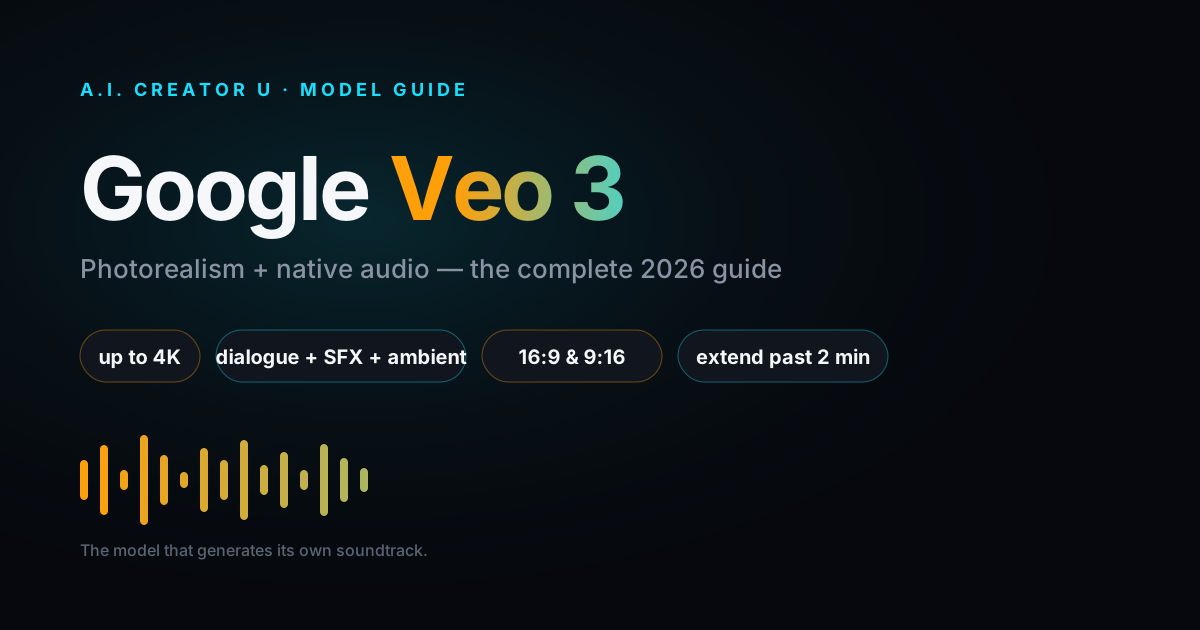
Google Veo 3 is Google DeepMind's AI video model, known for two things above all — photorealism and native audio it generates itself. You write a directed prompt — subject, action, camera, style, and the sound you want — then generate.
Quick answer: Google Veo 3 is Google DeepMind's AI video model, known for photorealism and native audio it generates itself. The current flagship is Veo 3.1 (released October 14, 2025), which produces 8-second clips at up to 4K, 24fps, with synced dialogue, sound effects, and ambience baked in. The fastest way to actually run it is inside A.I. Creator U's Create Video tool, where Veo sits next to Seedance 2.0, Kling 3.0, and Grok on shared credits — no Google account or AI Studio setup.
What is Google Veo 3?
Veo 3 is Google DeepMind's family of text-to-video and image-to-video models. When people say "Veo 3," they usually mean the current flagship, Veo 3.1, which landed on October 14, 2025 — with 4K capability added in January 2026. That 4K matters: it's genuine detail reconstruction, not a cheap upscale slapped on top.
Two things separate Veo from the pack. First, photorealism — it's one of the most convincing models for real-world footage, human faces, and physically plausible motion. Second, and this is the one that changed the game: native audio. Veo doesn't hand you a silent clip to score later. It generates the sound as part of the video.
A quick precision note, because it matters for accuracy: we'll refer to the family as "Veo 3." The current flagship is Veo 3.1, and there are Fast and Lite variants for speed and cost. Platforms run different sub-versions, so we won't overstate exactly which one any given tool serves at any given moment — what's below is the family's capability set.
Google Veo 3 specs at a glance
| Spec | Google Veo 3 (3.1 flagship) |
|---|---|
| Resolution | 720p, 1080p, or 4K (4K added Jan 2026) |
| Frame rate | 24fps |
| Clip length | 8-second base clips |
| Audio | Native — dialogue (lip-synced), sound effects, ambient, 48kHz stereo |
| Aspect ratios | 16:9 landscape and 9:16 vertical (vertical added in 3.1) |
| Extension | Chain 7-second segments, up to 20 extensions → 2+ minute videos |
Two lines worth quoting: Veo 3 generates 8-second clips at up to 4K and 24fps with native 48kHz stereo audio, and it can chain up to 20 seven-second extensions to build consistent videos over two minutes long.
What makes Google Veo 3 different
Most video models give you a silent clip and leave the sound design to you. Veo's whole personality is that it doesn't.
Native audio — three layers, generated at once
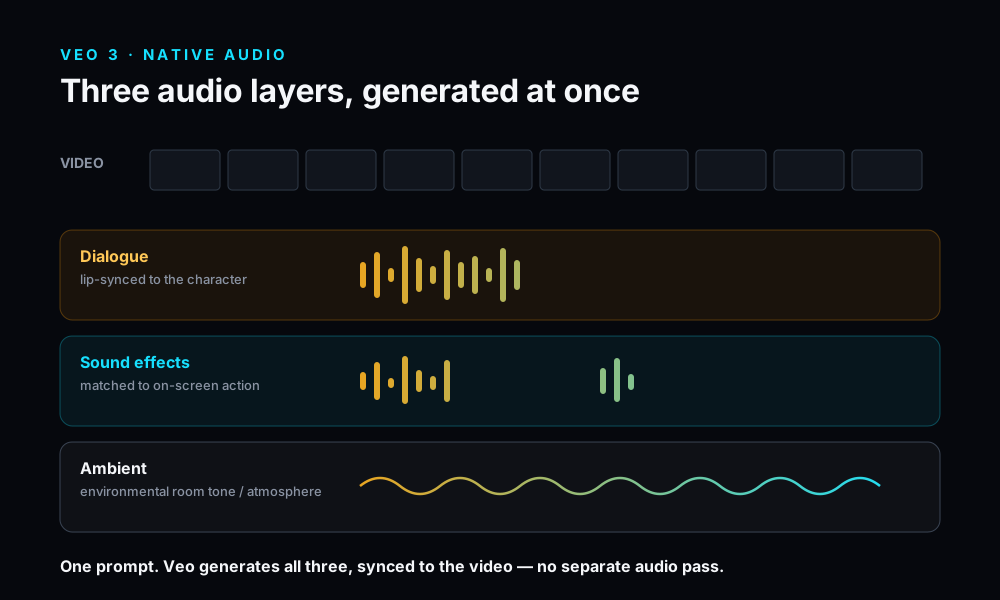
This is the headline. Veo 3 generates three types of audio simultaneously, all matched to what's on screen:
- Dialogue / speech — lip-synced to the character's mouth.
- Sound effects — matched to the action (footsteps, a door, a product clicking shut).
- Ambient audio — the background bed that makes a scene feel real (a busy café, wind, room tone).
Write a line of dialogue and describe the environment, and Veo fills in the speech, the effects, and the ambience together — no separate audio pass, no manual sync. For talking-head content, product demos, and anything where sound sells the realism, that collapses an entire second tool into the prompt.
Photorealism that holds up
Veo's real footage is genuinely hard to clock as AI. Human faces, skin, cloth, water, and reflections behave the way your eye expects. If your bar is "does this look like something a camera shot," Veo is usually the model that clears it.
4K that's actually 4K
The January 2026 4K update is genuine detail reconstruction, not a post-hoc upscale. That's a real difference — an upscaled 1080p clip invents mush where detail should be, while reconstructed 4K holds fine texture. For hero content that has to look premium, it counts.
Vertical and horizontal, native
Veo 3.1 added 9:16 vertical alongside 16:9 landscape. That means you can generate natively for TikTok, Reels, and Shorts without cropping a landscape clip and losing the frame — the composition is built for the aspect ratio from the start.
Extend past the 8-second wall
A single clip is 8 seconds. But Veo's video extension chains 7-second segments — up to 20 extensions — so you can build a coherent, consistent video over two minutes long. Instead of stitching disconnected clips in an editor, you extend the same scene and keep continuity.
How to use Google Veo 3: step by step
Here's the fastest path to your first good generation. We'll use A.I. Creator U's Create Video tool, so you skip the separate Google account, AI Studio setup, and API-key detour entirely.
- Open Create Video and pick Veo. Head to A.I. Creator U, open the Create Video tool, and select Veo from the model list (it sits alongside Seedance 2.0, Kling 3.0, and Grok). You're on shared credits — free credits to start, no Google account needed.
- Choose your mode. Veo supports text-to-video (describe it from scratch) and image-to-video (animate a still). Pick based on whether you're starting from a prompt or an existing frame.
- Pick your aspect ratio. Choose 16:9 for landscape/YouTube or 9:16 for TikTok, Reels, and Shorts. Native vertical means no awkward crop later — decide before you generate.
- Write a directed prompt — including the sound. Don't type "a person talking." Direct it: subject, action, setting, camera, style, and crucially the audio — the dialogue line, the sound effects, and the ambience. This is where Veo earns its keep. (Full framework below.)
- Set resolution. Push to 4K for hero content; drop to 720p or 1080p for quick tests so you're not burning credits on drafts. Clips generate at 24fps.
- Generate your 8-second base clip. Run it and watch the whole thing — picture and sound. Check the lip-sync, the effects timing, and whether the ambience fits.
- Extend if you need length. Past 8 seconds? Use video extension to chain 7-second segments — up to 20 — for a consistent video over two minutes. Keep the scene and continuity intact instead of hard-cutting.
- Review, then change one thing. Adjust a single variable — the camera move, one line of dialogue, the lighting — and regenerate. Don't rewrite the whole prompt each time, or you'll never learn what's actually moving the output.
Try it now: Veo is live in A.I. Creator U's Create Video tool with 15 free credits to start. Pick the model, paste a prompt with dialogue and ambience, and ship your first talking clip in minutes.
A prompt framework for Google Veo 3
Veo rewards direction — and unlike most models, that direction includes sound. A thin, silent-minded prompt wastes Veo's best feature. Use this structure and lean into the audio.
- Subject. Who or what is on screen, described concretely. "A friendly barista in her late 20s, apron, behind a wooden espresso counter."
- Action. What happens. "She slides a takeaway cup across the counter and looks up to camera."
- Setting. Where it lives. "A warm, busy independent café, morning light through a front window."
- Camera. The move and framing. "Slow push-in from a medium shot to a tight close-up on her face."
- Style & lighting. The look. "Photorealistic, shallow depth of field, warm natural light, cinematic."
- Audio — the part people skip. Spell out all three layers: the dialogue line, the sound effects matched to the action, and the ambient background bed.
Ready-to-paste example (leaning into native audio)
Veo 3 prompt — three audio layers:
A friendly barista in her late 20s, wearing a canvas apron, stands behind a wooden espresso counter in a warm, busy independent café with soft morning light through the front window. She slides a takeaway cup across the counter and looks up to camera. Slow push-in from a medium shot to a tight close-up on her face. Photorealistic, shallow depth of field, cinematic warm light.

Dialogue (lip-synced, English): She says, cheerfully: "One oat flat white — enjoy."

Sound effects: the soft scrape of the paper cup on the wooden counter, a quiet hiss from the espresso machine behind her.

Ambient: low café chatter, a distant coffee grinder, gentle cup clinking in the background.
Notice the work each part does: the dialogue line triggers lip-synced speech, the effects are tied to specific on-screen actions so they land in sync, and the ambient layer gives the scene a believable room tone. That three-layer audio direction is the difference between a Veo clip and a Veo clip that sounds shot. Run it, then change one thing at a time.
Where Google Veo 3 shines — and where it doesn't
Hyping one model helps nobody, so here's the straight read.
Veo 3 is the pick when:
- You need photorealism — real-world footage, believable human faces, physically plausible motion.
- You want native, synced audio — dialogue, sound effects, and ambience generated together, no separate sound pass.
- You're publishing vertical for TikTok/Reels/Shorts and want native 9:16, not a crop.
- You need premium 4K hero content with genuine reconstructed detail.
Reach for something else when:
- You need a multi-shot storyboard from one generation or on-screen product text that stays crisp — Kling 3.0 is built for that, storyboarding up to 6 shots at once and holding product labels legible.
- You want a longer single clip or a different motion feel — Seedance 2.0 has its own strengths, and the smart move is testing the same prompt across a few models.
- Your audio needs are heavy — voiceover casting, music beds, layered sound design beyond what any video model bakes in. For that, generate your soundtrack in Seed Audio (A.I. Creator U's Audio Studio) and pair it with the video.
- You're building a recurring on-camera persona or AI twin — start in Character Studio, then feed that identity into your Veo generations.
The reason we don't crown a single "best" model: they trade blows, and the winner depends on your exact shot. Veo wins realism and native sound; Kling wins shot control and text; Seedance has its own lane. If you want the full head-to-head, read our best free AI video generators comparison — that's the hub this guide feeds into.
The bottom line
Google Veo 3 is DeepMind's most realistic video model, and its superpower is native audio — lip-synced dialogue, matched sound effects, and ambient bed generated together in one pass, at up to 4K, 24fps, in 8-second clips you can extend past two minutes. It's the pick when realism and sound matter most. Kling wins multi-shot and text; Seedance has its own lane. The catch isn't the model, it's the setup — so run Veo inside A.I. Creator U's Create Video tool where it's ready on free credits with no Google account, and test the same prompt against Kling and Seedance to see which wins your shot.
Write a directed prompt, spell out all three audio layers, and change one variable at a time. Then pair it with Seed Audio for heavier voiceover and Character Studio for a consistent on-camera twin, and you've got a full production pipeline in one place.