How to Use Gemini Omni: The AI Video Model You Edit by Talking to It
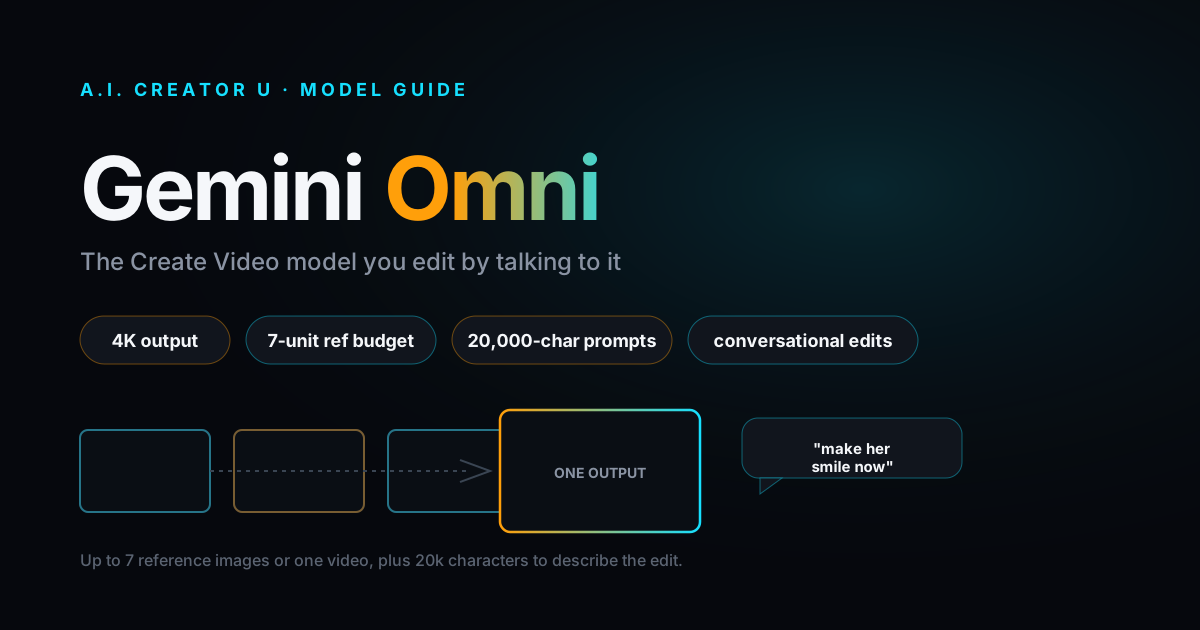
Quick answer: Gemini Omni is a video model sitting in Create Video's picker, right under Seedance 2. It generates from text, images, or one reference video, and it's built for follow-up edits in plain language instead of rewriting a whole prompt from scratch. It runs 4 to 10 second clips at 720p, 1080p, or 4K, isn't on the free tier, and shares a 7-unit budget between reference images (1 unit each) and a single reference video (2 units). Nobody's written about it yet, and that's the whole reason this post exists.
Open the model picker in Create Video and count the entries. There are more than a dozen now, and it's easy to default to whatever you used last time. Gemini Omni has been sitting there, fully public, since it shipped, and across 31 published AI Video guides on this blog, not one of them covers it. That's not an oversight anymore. It's a gap worth closing, because Omni does something the rest of the lineup doesn't: it lets you have a conversation with a video instead of re-rolling it.
What is Gemini Omni?
Gemini Omni is Google's video model, publicly launched at I/O 2026 as part of the Gemini line. Google's own framing is that it "allows you to create anything from any input and edit naturally using conversational language" (Google's Gemini Omni announcement, reported). In Create Video, that shows up as a model built around multiple references and character consistency, with the composer's own description reading: "best for creating and editing videos with multiple references, strong character consistency, and conversational changes." It's a genuinely different tool from the Seedance and Kling models next to it in the picker, not just a reskin.
Two things worth knowing before you touch it. First, it's not free tier. Seedance 2 Mini, Kling 2.6, Grok Imagine 1.5, and VEO 3.1 Lite/Fast all let a never-paid account generate; Omni doesn't. Second, it isn't gated behind an admin flag or beta waitlist. It's fully public, same as everything else in the picker.
What makes it different from the other multi-reference models
Create Video already has two models built around "throw a bunch of references at it": Seedance 2.5 and MiniMax H3. Here's where Omni actually sits next to them.
| Gemini Omni | Seedance 2.5 | MiniMax H3 | |
|---|---|---|---|
| Durations | 4, 6, 8, 10s | up to 15s | 4 to 15s (any integer) |
| Resolutions | 720p, 1080p, 4K | 720p only | 720p / 2K |
| Reference images | up to 7 (shared budget) | up to 30 | up to 9 |
| Reference video | 1 clip | up to 3 clips | up to 3 clips |
| Aspect ratios | 16:9, 9:16 only | full set | full set |
| Prompt length | 20,000 characters | 3,500 characters | 7,000 characters |
| Free tier | No | No | No |
The prompt length is the tell. 20,000 characters is roughly six times what Seedance 2.5 allows and almost three times MiniMax H3's cap. You don't need that much room to describe a single shot. You need it when your "prompt" is actually a running conversation: generate, then tell it what to change, then tell it again, all in one thread. That's the conversational-editing angle Google is pushing, and the character budget backs it up.
The tradeoff is real, though. Omni caps out at 10-second clips and only two aspect ratios, and it takes exactly one reference video, not three. If your job is a 15-second product spin in three formats, Seedance 2.5 or MiniMax H3 do more. If your job is "generate a shot, then keep talking to it until the character's expression is right," Omni is the only model in the picker built for that.
How the 7-unit reference budget actually works
This tripped me up the first time, so here's the exact mechanic. Gemini Omni doesn't have a separate cap for images and a separate cap for video. It has one shared pool of 7 units:
- Each reference image costs 1 unit.
- One reference video costs 2 units, flat, regardless of the clip's length.
- You get exactly one video reference slot. Attach a second clip and the composer tells you to remove the first one before it'll take the new one.
So your real options are: up to 7 images with no video, or up to 5 images plus one video, or any mix in between. The progress bar in the composer turns amber past 4 units and red past 6, which is a small thing but it means you're not guessing when you're about to hit the wall mid-upload.
One honest note here: the "conversational changes" pitch mostly means feeding the same character and setting references back into a new prompt that describes the change you want, not a persistent chat thread that remembers state between generations. Each generation is still its own job. The consistency comes from you re-attaching the same reference images and describing the delta precisely, the same discipline that makes any reference-based model behave. Omni just gives you far more prompt room and a wider reference mix to do it with.
What Gemini Omni can't do yet
Two capabilities are built into the model but switched off in the app right now: audio references and video extend. The code comment behind this is refreshingly blunt: they're "flagged off for now until we confirm they work end to end." That's the right call. A model that half-works on a feature is worse than a model that's honest about not having it yet, and it matches what Google itself says publicly: audio input for Omni is limited to voice references at launch, and Google's team has said it's still testing how to bring audio editing to users responsibly (Google's Gemini Omni announcement, reported).
Also missing, by design rather than by flag: voice cloning, start and end frame control, motion control, a dedicated video-edit mode, and multi-shot storyboarding. If any of those are the actual job, reach for the model built for it. Kling handles start and end frames and motion control. Seedance 2.5 and Kling 3.0 handle multi-shot. Omni's lane is narrower and that's fine; it's not trying to be everything.
How much does Gemini Omni cost?
Omni prices per second of output, and the rate changes with resolution. Here's what a generation actually costs in credits at each duration:
| Duration | 720p | 1080p | 4K |
|---|---|---|---|
| 4s | 7 credits | 11 credits | 19 credits |
| 6s | 10 credits | 16 credits | 28 credits |
| 8s | 13 credits | 21 credits | 36 credits |
| 10s | 16 credits | 26 credits | 45 credits |
Two things stand out. 4K jumps the price hard, close to triple the 720p rate at every duration, so save it for a shot you're actually going to post at full resolution rather than defaulting to it out of habit. And 1080p costs meaningfully more than 720p here, unlike some other models in the picker where 1080p is a small step up. If you're iterating on a prompt or testing a reference combo, do it at 720p and only bump to 1080p or 4K once you've landed on the version you want to keep.
New accounts start with up to 16 free credits (a 6-credit welcome pack plus 10 more after the onboarding tour, valid for 14 days), which covers exactly one 4-second 720p Omni clip with credits to spare, or gets you partway into a 1080p one. It's enough to see what the model does before you decide whether it earns a spot in your rotation.
Step-by-step: your first Gemini Omni generation
- Open Create Video and select Gemini Omni from the model picker, just below the Seedance entries.
- Pick your aspect ratio: 16:9 or 9:16. That's the full menu, so decide up front which platform you're cutting for.
- Attach references in the Multimodal Assets panel. Drop in up to 7 images (character shots, product photos, whatever needs to stay consistent), or swap some of that budget for one reference video at 2 units.
- Write your prompt. Since you've got 20,000 characters of room, don't just describe the shot: describe the reference relationships too ("the character from image 1, wearing the outfit from image 2, walking through the scene from the video reference").
- Choose resolution: 720p, 1080p, or 4K. Start at 720p unless you already know you're keeping this take.
- Set duration: 4, 6, 8, or 10 seconds.
- Hit generate, and watch the credit estimate update as you change duration and resolution so there are no surprises at charge time.
- To make a follow-up change, don't start over. Re-attach the same references and write a new prompt describing exactly what should change from the last version: "same character and setting, but she's smiling now" reads very differently to Omni than a from-scratch prompt would.
Is Gemini Omni worth it if a generation sometimes fails?
Here's the opinion part. Omni runs on a third-party backend that isn't always rock solid. When a generation comes back with a transient upstream error rather than an actual content rejection, the app automatically resubmits your exact same job, twice, before it ever shows you a failure. You'll usually never notice this happened; you'll just see your generation take a little longer than expected. It's a quiet, sensible piece of engineering, and it's also a tell that this is a newer model still finding its footing on the provider side.
My take: that's an acceptable tradeoff for what you're getting. A model with a 20,000-character prompt window and true conversational refinement doesn't exist anywhere else in this picker, and the auto-retry means the rough edges mostly stay invisible to you. What isn't acceptable is treating it like your default model for a straightforward image-to-video job where Seedance 2 Mini or Kling 2.6 would do the same thing for less money and zero video-reference limits. Use Omni when the job is specifically about iterating on a look through language, not as a general-purpose pick.
When should you actually reach for Omni?
A quick framework, since "it depends" isn't useful on its own:
- Reach for Gemini Omni when: you're refining a character or product look across multiple takes and want to describe changes in plain language instead of re-engineering the whole prompt; you need more than 3,500 to 7,000 characters of prompt room to hold onto reference relationships; a single reference video plus several images is genuinely what you have to work with.
- Reach for Seedance 2.5 instead when: you need up to 30 reference images, three reference video slots, or clips past 10 seconds, and 720p is fine for the output.
- Reach for MiniMax H3 instead when: you want 2K output with strong physical motion and first/last frame control, and you don't need the conversational back-and-forth.
- Reach for a free-tier model (Seedance 2 Mini or Kling 2.6) instead when: it's a straightforward text-to-video or image-to-video shot with no complex reference mixing, and you'd rather not spend credits testing the idea. Our Seedance 2 Mini guide and Kling 2.6 guide cover exactly that lane.
FAQ
Is Gemini Omni free to use? No. Unlike Seedance 2 Mini, Kling 2.6, and VEO 3.1 Lite/Fast, Gemini Omni doesn't carry a free-tier flag, so it draws from your paid credit balance from the first generation. New accounts get up to 16 free credits to try it with.
How many images and videos can I attach to Gemini Omni? They share one 7-unit budget. Each image costs 1 unit and you can attach up to 7 of them, or trade some of that room for a single reference video at 2 units. You can only attach one reference video at a time.
Can I extend a Gemini Omni clip or add reference audio? Not right now. Both features exist in the underlying model but are switched off in the app while the team confirms they work end to end. If you need extend or audio references today, Seedance 2 and Seedance 2.5 both support them.
What resolutions and durations does Gemini Omni support? 720p, 1080p, and 4K, in clips of 4, 6, 8, or 10 seconds, at 16:9 or 9:16. It doesn't offer 480p or the wider aspect-ratio menu some other models in Create Video have.
Why does Gemini Omni cost more at higher resolutions than other models? Its per-second rate scales more steeply with resolution: 720p and 1080p aren't priced the same here the way they are on some other models, and 4K runs close to triple the 720p rate. Check the credit estimate in the composer before you generate, since it updates live as you change duration and resolution.
If you've been scrolling past Gemini Omni in the Create Video picker, this is your sign to actually open it. Load in a character reference or two, write a prompt that's more conversation than command, and see what a model built for editing by language actually does with it. Start generating with Gemini Omni and if multi-reference work is your main use case, our complete AI video generation guide and MiniMax H3 breakdown are the two best next reads to figure out which model in the lineup actually fits your workflow.