Quick answer: the best AI image-to-video tools in 2026 are Kling 3.0 (best for animating a single photo into a stable, controllable clip), Google Veo 3.1 (best when the reference image needs to hold up at 4K with full native audio), Seedance 2.0 (best if you're locking a product or a face across up to 12 reference images and need the output to match, not just resemble, the source), and Grok Imagine Video 1.5 (currently topping the Image-to-Video Arena leaderboard for how well it preserves subject identity while changing the scene around it). Runway Gen-4, Luma Ray 3, and Pika round out the field for teams that want a dedicated editor around the model.
Bottom line: a still photo is the cheapest, most reliable starting point you have for AI video, because the model isn't guessing at a subject from a text prompt, it's animating something that already exists. The tool you pick should match the job: product shot, portrait, or story panel. If you'd rather not learn four separate interfaces to find out which model handles your photo best, run the same image through Seedance 2.0, Kling 3.0, and Veo side by side in one Create Video tool.
Every "best AI video generator" list online is really a text-to-video list wearing an image-to-video hat. That's backwards. Feeding a model a real photo, of your product, your face, your storyboard frame, gives it something concrete to work from, and that changes which tools actually deserve the top spot. Here's the honest breakdown for 2026.
Why image-to-video beats text-to-video for most real work
Text-to-video is a slot machine. You describe a scene, the model interprets it, and you get something in the neighborhood of what you asked for, sometimes closer, sometimes not. Image-to-video skips the interpretation step for everything that matters: the subject, the framing, the lighting, the exact product packaging. The model's only job is to add motion, a camera move, maybe a second character walking into frame, on top of a starting point you already approved.
That's why the sellers and creators who actually ship use image-to-video as the default and text-to-video as the fallback for shots they can't photograph. A few things separate a genuinely good image-to-video tool from one that just technically supports the feature:
- Identity lock. Does the product, face, or logo in frame 1 still look like itself in frame 90? Cheaper models drift: labels warp, faces subtly reshape, colors shift.
- Motion quality. Real physics, real weight. A jacket should move like fabric, not like it's underwater.
- Native audio. The newest models generate synced dialogue, ambient sound, and sound effects in the same pass as the video, so you're not layering a separate voice or SFX track after the fact.
- Duration and resolution ceilings. A 4 to 6 second clip at 720p is a proof of concept. A 15 second clip at 4K is a deliverable.
- Camera control. Motion brushes, start/end frame interpolation, and explicit camera-move prompting let you direct the shot instead of hoping the model guesses right.
The models actually worth your time
Kling 3.0 (Kuaishou): the stable, controllable pick
Kling 3.0 is the model most people should reach for first when animating a single photo. It renders up to 4K (3840x2160) at 60fps, supports clips up to 15 seconds, and its Motion Brush lets you paint exactly which part of the image should move and which should stay locked, which matters enormously for product shots where you want the background still and only the product turning. It also does multi-shot generation, up to six shots from one prompt, so you can build a mini sequence from a single reference photo instead of stitching clips together by hand.
Character and product consistency across shots is where Kling separates itself. Feed it a photo of a person or an item, and it holds the identity together noticeably better than most competitors when the camera moves or the scene shifts.
Full walkthrough: how to use Kling 3.0.
Google Veo 3.1: the resolution and audio benchmark
Veo 3.1 is what you reach for when the image needs to survive a big screen. It renders at 720p, 1080p, and 4K, and its native audio, dialogue, sound effects, and ambient noise, is lip-synced and delivered in 48kHz stereo, which is still the most complete audio implementation of the major models. Base clips run 8 seconds, and you can chain 7-second extensions to build out longer sequences, with both 16:9 and 9:16 handled natively so you're not cropping a horizontal render into a vertical feed.
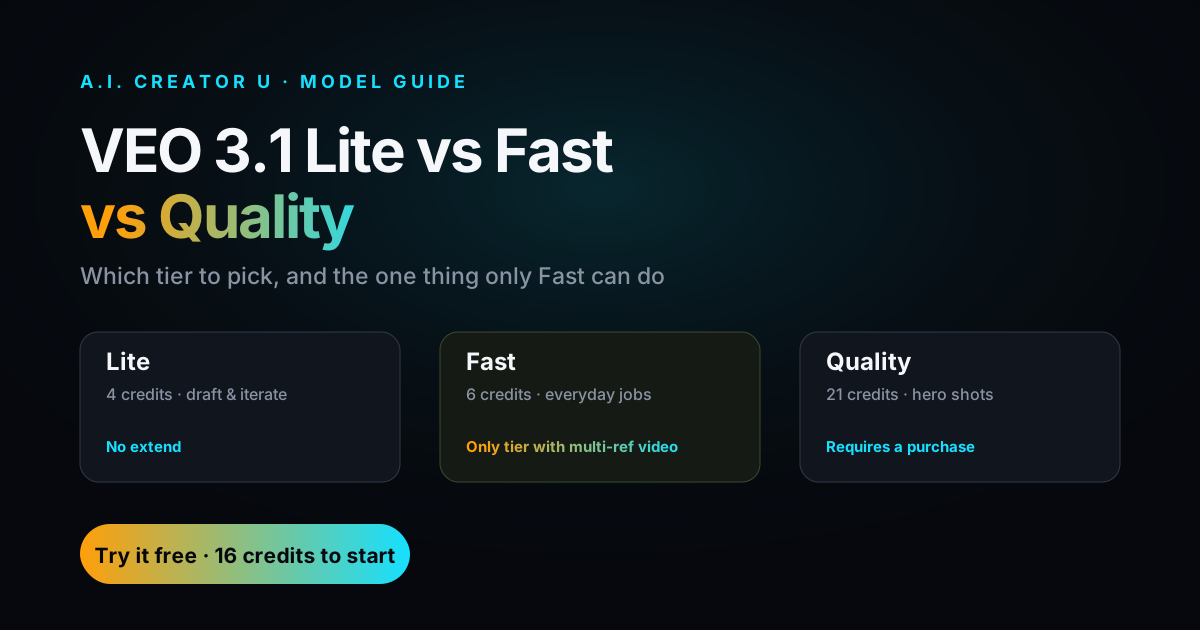
Three variants, Veo 3.1, Fast, and Lite, let you trade render time for quality depending on whether you're testing a concept or finishing a deliverable.
Full walkthrough: how to use Google Veo 3.
Seedance 2.0 (ByteDance): the reference-input specialist
Seedance 2.0's headline feature for image-to-video work is 12 reference inputs. That's not a typo. You can lock a product photo, a face, a logo, and a handful of style frames simultaneously, and the model treats all of them as ground truth rather than loose inspiration. For commercial work where "close enough" isn't a real option, that's the difference between a usable ad and a reshoot. It generates native audio in the same pass and supports clips up to 15 seconds.
Full walkthrough: the Seedance 2.0 ultimate guide.
Grok Imagine Video 1.5 (xAI): the newest identity-preservation leader
Grok Imagine Video 1.5 shipped in mid-2026 and, per independent Arena leaderboard testing, currently ranks first on image-to-video specifically, ahead of Seedance 2.0 and Veo in that benchmark. Its image-to-video workflow is built around subject and style consistency: it uses your reference photo to anchor how a person or object looks, then builds a new scene around it rather than trying to animate the exact composition of the source image. Clips run 6 to 15 seconds, render at 720p, and include synchronized dialogue, ambient sound, and sound effects generated in the same pass, at a fixed 24fps baseline. Treat the leaderboard ranking as a reported result rather than something we've independently verified end to end, but the underlying approach, prioritizing identity over literal composition, is a genuinely different angle from Kling or Veo.
The rest of the field
Runway Gen-4 is built for highly dynamic motion and is reportedly strong on prompt adherence for creators who want fine camera control. Luma Ray 3 was, per Luma's own claims, the first model to generate native 16-bit HDR output, and its Dream Machine interface reportedly supports chaining clips toward 30 seconds or more of continuous motion. Pika 2.2 added Pikaframes, start-and-end-frame interpolation that's genuinely useful when you know exactly how a clip should open and close, at up to 10 seconds and 1080p. All three are worth knowing by name if you're already inside their ecosystems, but none of them currently outperform Kling, Veo, or Seedance on the identity-lock and motion-quality fundamentals that matter most for image-to-video specifically.
Best AI image-to-video tools, compared
| Tool | Best for | Max resolution | Max duration | Native audio |
|---|---|---|---|---|
| Kling 3.0 | Stable single-photo animation, multi-shot sequences | 4K (3840x2160, 60fps) | 15 sec | Yes |
| Google Veo 3.1 | Resolution and full native audio | 4K | 8 sec base, extendable | Yes (dialogue, SFX, ambient, lip-synced) |
| Seedance 2.0 | Locking products/faces across up to 12 references | Up to 4K (platform-dependent) | 15 sec | Yes |
| Grok Imagine Video 1.5 | Subject identity preservation across a new scene | 720p | 6 to 15 sec | Yes (dialogue, ambient, SFX, music) |
| Runway Gen-4 | Dynamic motion, camera control | Varies by plan | Up to 16 sec (reported) | Varies |
| Luma Ray 3 | Extended sequences, HDR export | Varies by plan | Up to 30 sec chained (reported) | Varies |
| Pika 2.2 | Start/end frame interpolation (Pikaframes) | 1080p | 10 sec | Varies |
A quick honesty note: "varies by plan" isn't a dodge, it reflects that several of these tools gate resolution and duration behind paid tiers in ways that change often enough that quoting a hard number here would be stale within a quarter. Confirm current specs on the provider's own pricing page before you build a workflow around a number from any list, including this one.
Which tool should you actually use?
Match the tool to the photo, not the other way around:
- You're animating a product shot for an ad and the packaging has to stay perfectly readable → Seedance 2.0. The 12 reference inputs exist for exactly this.
- You want a single photo to become a stable, story-driven clip, possibly with multiple shots → Kling 3.0. Motion Brush plus multi-shot generation is the combination that gets you there.
- The image needs to hold up at 4K with a full soundtrack, dialogue, and effects baked in → Veo 3.1.
- You're building a character or influencer video and the priority is "this is still recognizably them" more than exact scene replication → Grok Imagine Video 1.5.
- You already know your start frame and end frame → Pika's Pikaframes.
- You want to test the same photo across two or three models before committing credits to a full render → run them side by side instead of signing into four separate accounts.
That last option is what A.I. Creator U is actually built for. Seedance 2.0, Kling 3.0, Veo, and Grok all live inside one Create Video tool, so you upload the reference photo once and try it against multiple models without re-uploading, re-cropping, or juggling four credit balances. New accounts start with 15 free credits, which is usually enough to run the same image through two or three models and keep whichever one nails the identity lock.
How to turn a photo into a video, step by step
- Start with a clean reference image. Good lighting, the subject centered, no busy background you don't want carried into the clip. Garbage in, garbage out applies harder to image-to-video than text-to-video.
- Pick the model based on the job, using the breakdown above, not whichever one you happen to have open.
- Write a motion-only prompt. You've already solved composition with the photo. Your prompt should describe camera movement, action, and audio, not re-describe what's already in frame.
- Lock what shouldn't move. If the tool supports a motion brush or region mask, use it. This is the single biggest lever against identity drift.
- Render a short test first. A 4 to 6 second draft at lower resolution tells you whether the model is holding the subject before you spend credits on a full 15-second, 4K pass.
- Add the soundtrack. If your model's native audio doesn't cover it, layer in AI voice, music, or SFX separately. A.I. Creator U's Audio Studio runs Seed Audio for exactly this, so you can score a clip without exporting to a different tool. See how to use Seed Audio.
Where A.I. Creator U fits (the honest version)
A.I. Creator U doesn't build its own foundation model to compete with Kling or Veo on raw quality. What it does is put Seedance 2.0, Kling 3.0, Veo, and Grok inside one Create Video tool, so the actual bottleneck, figuring out which model handles your specific photo best, gets solved in minutes instead of an afternoon of account creation. There's also a Character Studio for building a consistent AI twin across multiple videos, which matters if the "image" you're animating is a recurring character rather than a one-off product shot.
If you only ever animate one kind of photo, a single-model specialist might genuinely be all you need, and this guide should point you to it directly. If your work spans product shots one week and a character-driven short the next, the time saved by not re-learning four interfaces adds up fast, and that's the specific problem the platform is built to solve.
For a broader look at free options beyond just image-to-video, see the best free AI video generators of 2026.
Frequently asked questions
What's the best AI tool for turning a photo into a video? It depends on the photo. Kling 3.0 is the most reliable general-purpose pick for animating a single image into a stable clip. Seedance 2.0 wins when you need to lock a product or face across multiple reference images. Veo 3.1 is the choice when resolution and full native audio matter most. Grok Imagine Video 1.5 currently leads on preserving subject identity across a changed scene.
Is image-to-video better than text-to-video? For most real work, yes. Starting from a real photo removes the guesswork the model would otherwise apply to a text description, so the subject, framing, and details you already approved carry through into the video instead of being reinterpreted.
Do image-to-video tools add sound automatically? The newer frontier models, Veo 3.1, Kling 3.0, Seedance 2.0, and Grok Imagine Video 1.5, all generate native audio in the same pass as the video. Quality and completeness vary. If you need a specific voice or a custom soundtrack, layering in dedicated AI audio afterward still gives you more control.
How many reference images can I use to lock a product or a face? It's model-specific. Seedance 2.0 supports up to 12 reference inputs, which is the most generous among the major models right now. Most other tools work from a single reference image per generation.
Can I try multiple AI video models on the same photo without paying for each one separately? Yes, if you use a platform that hosts multiple models under one account. A.I. Creator U runs Seedance 2.0, Kling 3.0, Veo, and Grok in a single Create Video tool with one credit balance, and new accounts get 15 free credits to start, which is enough to compare a couple of models on the same image before committing further.
The bottom line
A real photo is the highest-leverage starting point in AI video right now, and the model you pick should follow the job: Seedance 2.0 for reference-locked product and brand work, Kling 3.0 for stable single-photo animation and multi-shot sequences, Veo 3.1 when resolution and full native audio are the priority, and Grok Imagine Video 1.5 when identity preservation across a new scene matters most. If you'd rather not choose blind, run your image through two or three of them in one place.
Start free: turn your first photo into a video at A.I. Creator U, Seedance 2.0, Kling 3.0, Veo, and Grok in one tool, 15 free credits to start.