The "To Seedance" Button, Explained: How to Send an Audio Studio Clip Straight Into Create Video
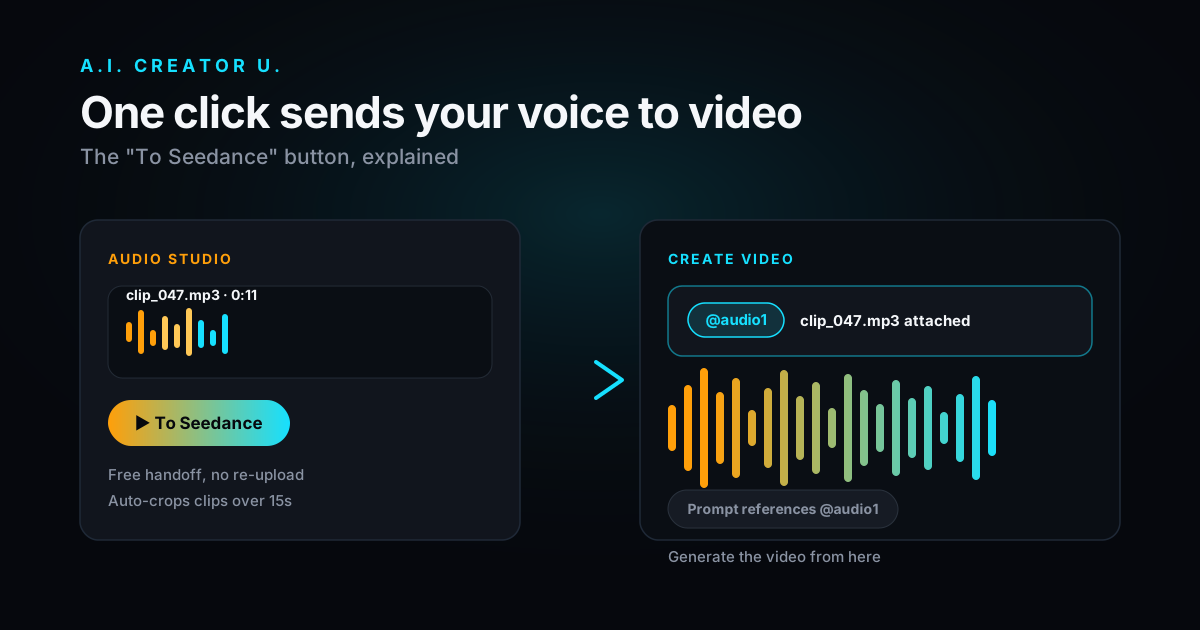
Quick answer: every finished Audio Studio clip has a "To Seedance" button. Click it and the clip lands in Create Video's audio reference slot automatically, no download, no re-upload, and no extra credits. Clips over 15 seconds get auto-cropped first; clips under 2 seconds get rejected outright, since that's the floor Seedance needs to lock onto a voice.
You generate the perfect voiceover in Audio Studio. Then what? For a lot of creators, the answer used to be: download the file, switch tabs, find the upload button in Create Video, and hope you grabbed the right take. That kind of round-tripping is exactly the friction AI tools are supposed to remove, and it's part of why 58% of AI marketing videos now use AI voiceovers instead of human recordings and AI editing workflows are cutting production time by 50 to 80% across the board, according to recent industry tracking (reported by Zebracat's 2026 AI video statistics roundup). The gains mostly come from cutting steps like this one out entirely.
A.I. Creator U. already cut this step. It's just easy to miss if you've never scrolled to the bottom of a clip card in Audio Studio.
What Does the "To Seedance" Button Actually Do?
Every completed clip in your Audio Studio library shows a small film-icon button labeled "To Seedance." Click it and three things happen in order:
- The clip's URL, name, and duration get written to your browser's session storage.
- You're taken straight to Create Video.
- Create Video reads that data, adds the clip as an audio reference, and shows a toast confirming "Audio reference added from Audio Studio."
There's no API call behind the handoff itself and no new charge. It's a client-side relay, a glorified copy-paste that happens to skip the copying and the pasting. The only credits involved are whatever you already spent generating the clip in Audio Studio (a flat 2 credits, regardless of length or voice) and whatever Seedance itself charges once you actually generate the video.
How Long Can Your Reference Clip Be?
This is where most people hit a wall the first time, so it's worth knowing the numbers before you start clicking.
| Limit | Default Seedance models | Seedance 2.5 |
|---|---|---|
| Minimum clip length | 2 seconds | 2 seconds |
| Max length per reference | 15 seconds combined | 30 seconds combined |
| Max number of audio references | 3 | 10 |
| Voice-clone reference cap (separate limit) | 30 seconds | 30 seconds |
Two things trip people up here. First, the "15 seconds" and "30 seconds" caps on the table are for audio you're feeding into a video generation as a reference, which is a completely different limit from the 30-second cap on reference clips you upload to clone a voice in the first place. They sound similar and they're not the same number for the same reason. Second, the cap that applies depends on which model you've selected in Create Video at the moment you send the clip, so if you're planning to use Seedance 2.5's longer window, pick that model before you click "To Seedance," not after.
What Happens If Your Clip Is Too Long or Too Short?
If your Audio Studio clip runs longer than 15 seconds, clicking "To Seedance" doesn't just fail silently. It pops a toast telling you to crop first, then automatically opens the built-in waveform crop tool with that exact clip already loaded, drag handles ready to go. You trim it down, confirm, and the shortened clip is what gets sent. (If you haven't used the crop tool before, our walkthrough on trimming and editing AI-generated audio clips covers the zoom controls and export formats in more depth.)
Go the other direction and try to send a clip under 2 seconds, and there's no auto-fix: you just get a toast explaining that Seedance needs at least 2 seconds of audio to work with. At that point your only real option is regenerating a longer clip, since 2 seconds usually isn't enough for a model to lock onto pitch, tone, and pacing reliably anyway.
One more small thing worth knowing: the system blocks you from attaching the same clip twice. Earlier versions of this flow let you re-click the button and silently double up a reference; that's been fixed, so re-clicking on an already-attached clip won't duplicate it.
Step-by-Step: From a Script to a Finished AI Video
Here's the full path, start to finish:
- Generate your clip in Audio Studio. Pick a preset voice or a cloned one, write your line, and generate (flat 2 credits either way).
- Preview it. Play it back in the library. If the pacing's off, adjust speed, pitch, or volume and regenerate rather than fixing it after the fact.
- Check the length against your target model. Under 15 seconds for most models, under 30 for Seedance 2.5.
- Click "To Seedance." Crop if prompted; you'll land in Create Video with the reference already attached.
- Write your video prompt, referencing the clip naturally or by its
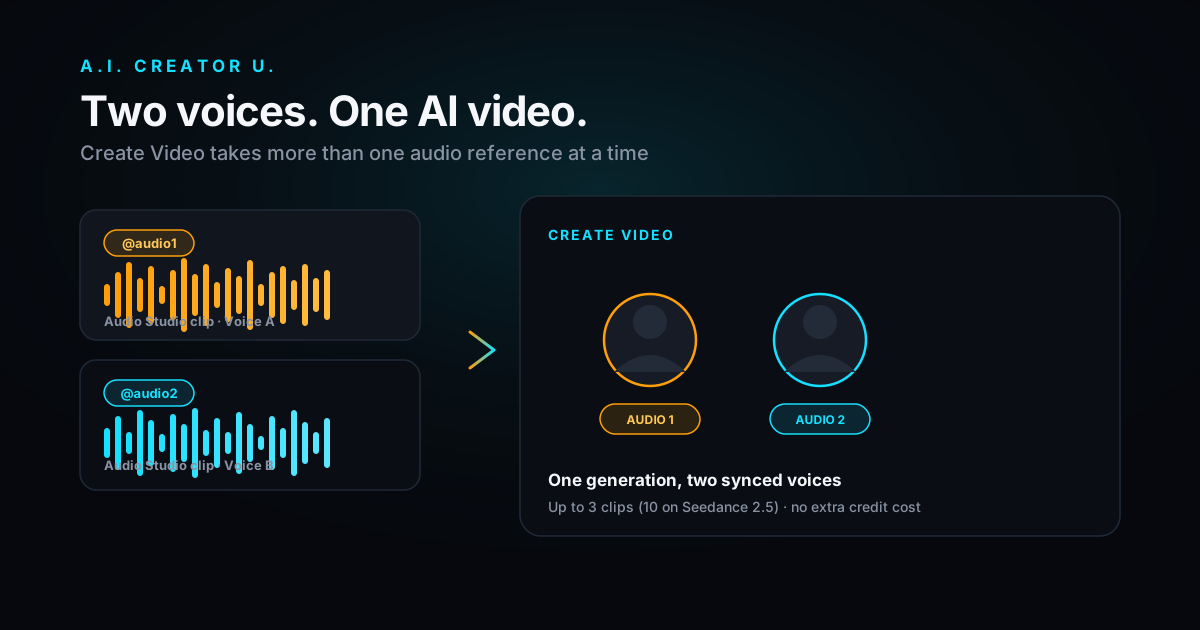
@audiotoken if you're stacking more than one voice (see our guide on syncing multiple voices to one AI video if you're doing a two-person dialogue scene). - Generate the video. Seedance's own per-second credit cost applies here, on top of the 2 credits you already spent on the voice.
That's it. No file management, no guessing which download in your folder is the final take.
Output Controls Most People Never Touch
While we're in Audio Studio's generation panel, it's worth flagging the controls that sit just below the voice picker, because none of them get much attention and they all affect what you're about to send downstream:
| Control | Range | Default |
|---|---|---|
| Format | MP3, WAV, PCM, OGG Opus | MP3 |
| Sample rate | 8, 16, 24, 32, 44.1, or 48 kHz | 24,000 Hz |
| Speed | 0.5x to 2x | 1x |
| Pitch | -12 to +12 semitones | 0 |
| Volume | 0.5x to 2x | 1x |
Speed is the one that matters most before a "To Seedance" handoff: Audio Studio shows a live estimated duration as you type and adjust speed, so you can watch your clip creep toward the 15- or 30-second ceiling before you generate, instead of finding out after.
Does This Reset My Clip's Storage Clock?
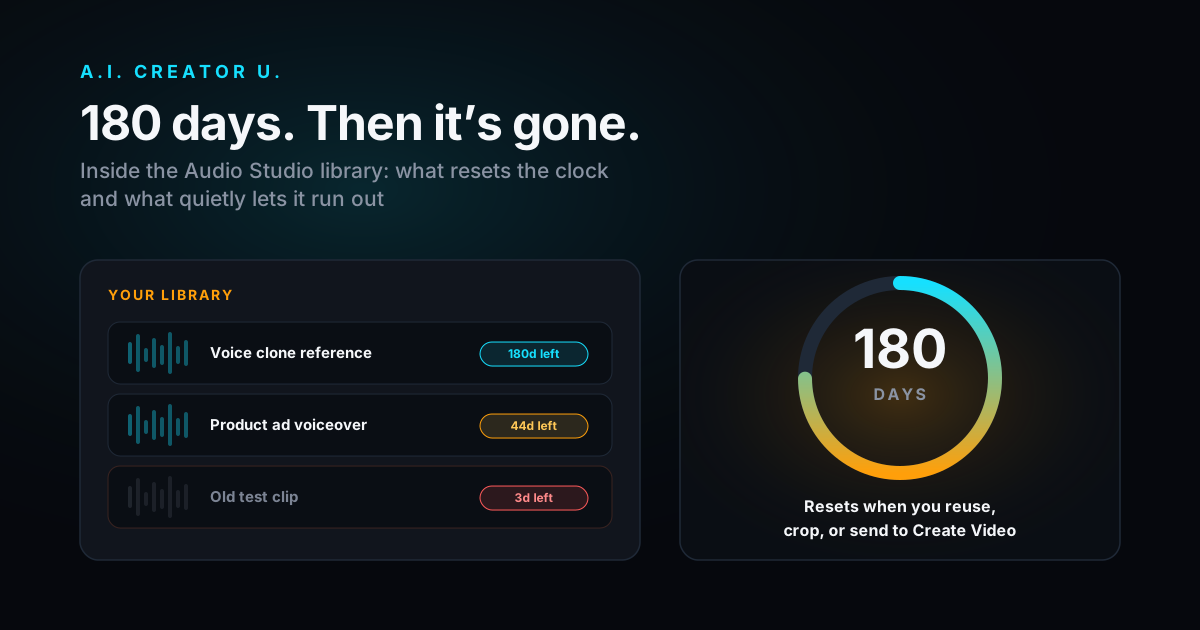
Yes, and it's a genuinely useful side effect. Sending a clip to Seedance "touches" it in the background, which resets its expiration timer in your Audio Studio library. If you've got a clip you keep reusing across multiple video drafts, sending it to Create Video each time also keeps it from aging out. We go deeper on exactly how long clips stick around and what causes them to expire in our guide to the Audio Studio library.
Is "To Seedance" the Same as the @audio Reference Trick?
Not quite, and it's worth knowing the difference. The @audio1 / @audio2 / @audio3 system lives entirely inside Create Video: it's how you tell the model which reference maps to which character once multiple clips are already attached. "To Seedance" is the delivery mechanism that gets a clip from Audio Studio into that slot in the first place. You'll typically use both in the same workflow: send two or three clips over with the button, then use the @audio tokens in your prompt to assign them.
Quick Answers
Does sending a clip to Create Video cost extra credits? No. The handoff itself is free. You've already paid the flat 2 credits to generate the clip in Audio Studio, and Seedance's own generation cost applies separately when you render the video.
What happens if my clip is longer than the limit? Audio Studio blocks the send, shows a toast, and auto-opens the crop tool pre-loaded with that clip so you can trim it down without leaving the page.
Can I send a cloned-voice clip, or only preset voices? Either. The button doesn't care how the clip was generated, only how long it is.
Do the length caps change if I switch models later? Yes. They're tied to whichever Seedance model is active in Create Video when you attach the reference, so confirm your model first if you're relying on Seedance 2.5's longer 30-second window.
Can I attach the same clip more than once by clicking the button twice? No, duplicate attachments are blocked. Re-clicking on a clip that's already attached won't add a second copy.
Stop Re-Uploading Your Own Voice
The whole point of building a voice clip and a video generator into the same product is that they shouldn't feel like two separate products. If you've been downloading MP3s out of Audio Studio and dragging them back in somewhere else, you've been doing more work than the tool needs from you. Generate the line, check the length, click "To Seedance," and keep writing your prompt.
Start a clip in Audio Studio, or if you already know what you want to say, jump straight to Create Video and build the scene around it. For the full picture of what Audio Studio can do beyond this one handoff, our complete guide to AI audio generation is the place to start.