Quick answer: To trim an AI-generated audio clip, open it in Audio Studio's built-in waveform editor (the scissors icon on any clip), drag the two cyan handles to your in and out points, pick MP3 or WAV, and save. It takes about ten seconds and doesn't cost credits. This matters because raw AI audio almost never lands at the exact length you need: voice clone references have to be 30 seconds or shorter, Seedance audio references have to be 15 seconds or shorter, and most generations carry a beat of silence on either end that you'll want gone before you use the clip anywhere real.
Nobody talks about this part. Every AI audio tutorial covers generation: type a prompt, pick a voice, hit go. Almost none of them cover what happens next, which is that your 22-second output needs to be 14 seconds to fit a Seedance reference slot, or your "clean" voice sample has three seconds of room tone at the front that's going to wreck your clone quality. Editing is the unglamorous half of the workflow, and it's the half that decides whether your final video sounds professional or just sounds like AI.
Here's the actual mechanics of trimming and prepping AI audio clips, using the crop tool built into Audio Studio, plus the reference-length rules that trip people up the most.
Why raw AI audio almost always needs a trim
Every text-to-speech and voice-cloning model has the same quirk: it estimates timing from your prompt, and estimates are never exact. Ask for "about 10 seconds" and you'll often get 8 or 13. Some models pad the start or end with a fraction of a second of dead air while the model settles into the voice. None of this is a bug. It's just how generation works, and it means the clip that comes out of any AI audio tool is a draft, not a final asset.
That draft status matters more once you start feeding audio back into other tools:
- Voice clone references need to be 30 seconds or shorter. Feed in a 45-second recording and the tool will reject it or, worse, only use part of it in a way you don't control.
- Seedance video references need to be 15 seconds or shorter, and at least 2 seconds long. A clip outside that window either gets rejected at upload or silently ignored.
- Silence padding at the start of a clip throws off lip sync when you're using the audio to drive a talking-head video, since the mouth starts moving before the sound does.
- Background hiss or room tone in a cloning reference gets baked into every future generation from that clone. Garbage in, garbage forever.
So the trim step isn't optional polish. It's the difference between a clip that works in your pipeline and one that gets rejected three steps later, after you've already built a scene around it.
What the crop tool actually does
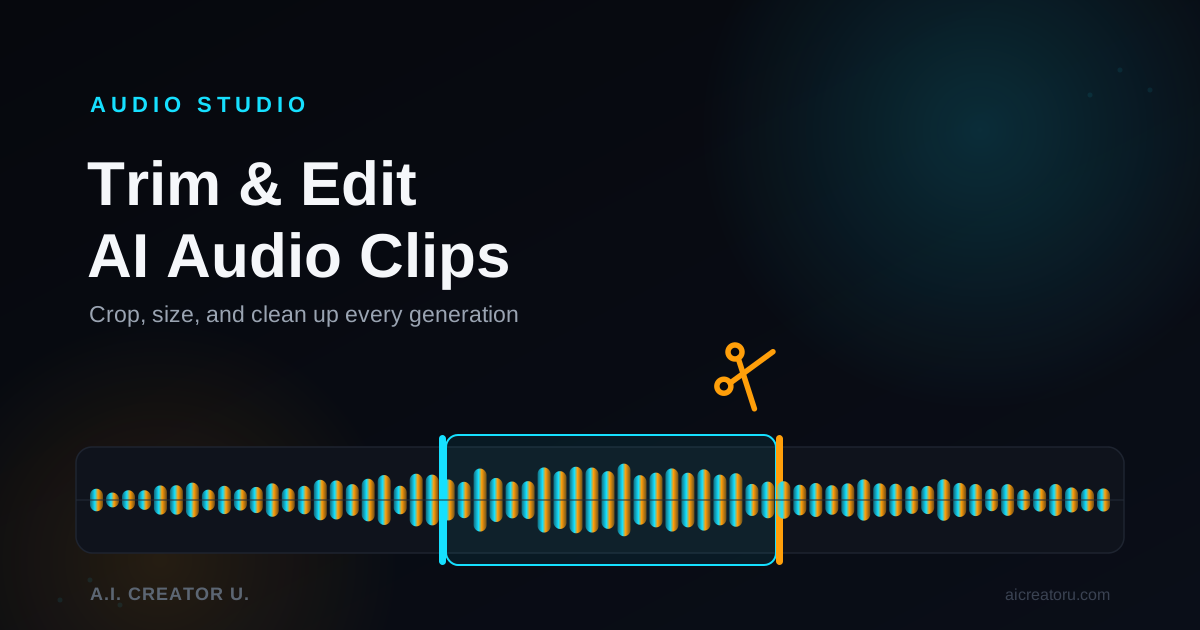
Audio Studio ships a waveform editor for exactly this. Every generated, uploaded, or cropped clip in your library has a scissors icon next to it. Click it and you get:
A visual waveform of the whole clip, zoomable from 1x up to 8x so you can find an exact word boundary instead of guessing. Two draggable handles that mark your start and end points, plus a third mode where you drag the whole selected region left or right without resizing it. Manual number fields for start, end, and length in seconds, for when eyeballing a waveform isn't precise enough. A play button that previews just your current selection, so you can hear the cut before you commit to it. An export choice between MP3 and WAV.
Save the crop and it becomes a new clip in your library, tagged so you can tell it apart from a fresh generation. The original stays untouched, so a bad crop costs you nothing but a few seconds to redo.
None of this costs credits. Cropping is free; only the original generation cost anything.
How to trim a clip, step by step
- Generate or upload the clip you want to edit. Anything in your Audio Studio library, whether it came from a prompt or you dragged it in yourself, can be cropped.
- Click the scissors icon on that clip's card. The crop modal opens with the full waveform loaded.
- Zoom in using the magnifying glass controls until you can actually see the shape of the words, not just a blur. 4x is usually enough for voice; music can often stay at 1x or 2x.
- Drag the left handle to just before the sound starts. Watch the selected region (the highlighted band) rather than trying to judge silence by ear alone.
- Drag the right handle to just after the sound you want ends. If you're prepping a Seedance reference, keep an eye on the length readout and stop at or under 15 seconds.
- Hit play to preview only the selected range. If the cut clips off a word or leaves a stray breath sound, nudge the handle and check again.
- Fine-tune with the number fields if you need frame-accurate control. Typing
2.4into the start field is more reliable than dragging when you're chasing a specific word boundary. - Pick MP3 or WAV and save. WAV if you're going to re-crop or reuse the clip heavily and want to avoid re-compression artifacts; MP3 for everything else, since it's smaller and plenty clean for voice and most sound design.
That's the whole loop. Most trims take under a minute once you've done it twice.
Prepping a clean voice-clone reference
This is where trimming earns its keep. Clone quality is directly proportional to reference quality, and the single biggest reference mistake is submitting a clip that's technically under 30 seconds but full of noise you didn't crop out. If you're cloning your own voice specifically, our guide to cloning yourself with AI walks through the recording side of this; the crop tool is what you run the result through before it becomes a usable reference.
| Do | Don't |
|---|---|
| Trim to natural speech only, no lead-in silence or trailing breath | Submit a raw recording with room tone at both ends |
| Use a clip with varied intonation (a sentence with some rise and fall) | Use a flat, monotone read if you can avoid it |
| Keep background noise as close to zero as possible | Clone from a clip recorded near a fan, traffic, or music |
| Stay at or under 30 seconds, ideally 15 to 25 | Assume "close enough" under 30 seconds is fine, precision helps |
| Preview the exact selection before saving | Trust the waveform shape alone without listening |
The 30-second ceiling is a hard limit, not a suggestion. Audio Studio will flag anything longer and ask you to crop it before it can be used as a reference, so building this into your workflow up front (record, crop, then clone) saves you a round trip.
Sizing a clip for Seedance video references
If the end goal is dropping generated audio into a Create Video job as an audio reference (the @Audio1 style token workflow covered in our multi-voice dialogue guide), the rules tighten further: 15 seconds maximum, 2 seconds minimum. Audio Studio actually catches this for you. Hit "To Seedance" on a finished clip and if it's over 15 seconds, the app opens the crop tool automatically with a 15-second ceiling already set, so you can't accidentally hand off something that'll get rejected on the other end.
That handoff is worth using deliberately rather than as damage control. If you know a clip is headed for a video reference, crop it to length in Audio Studio first, confirm the cut sounds right in isolation, then send it over. Trying to eyeball 15 seconds during generation by writing a shorter prompt is a much blunter tool than trimming the actual output.
Speed, pitch, and volume: the three sliders worth knowing
Before you even get to cropping, three generation-time controls shape how much post-editing you'll need to do at all.
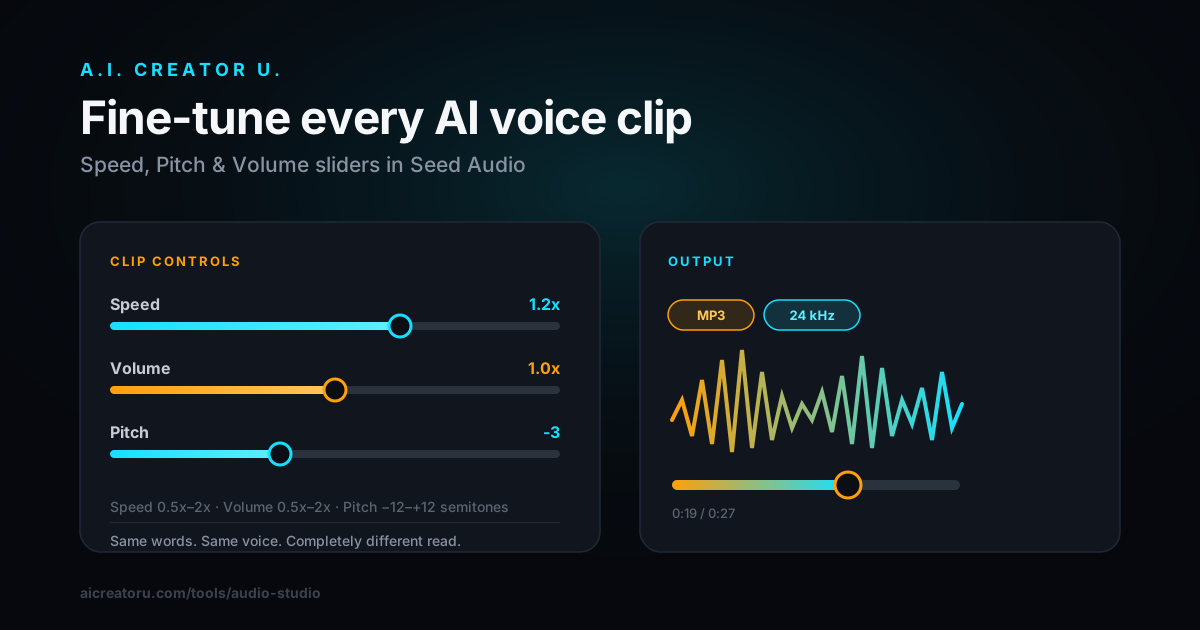
Speed runs from 0.5x to 2x. Nudging a voiceover to 1.1x or 1.2x is a cheap way to tighten a clip that's a beat too long for its slot, without re-recording anything. Push much past 1.3x and most voices start to sound rushed rather than energetic.
Pitch shifts from -12 to +12 semitones. Small moves (2 to 4 semitones) can differentiate two characters using the same base voice in a dialogue scene, which is a faster fix than hunting for a second voice preset that happens to fit.
Volume scales from 0.5x to 2x. Useful for leveling a quiet generation before it goes into a mix, though it won't fix distortion, only true silence-to-audible gain.
All three apply at generation time, not in the crop tool, so if a clip needs a speed adjustment, that's a regenerate, not a re-edit. Get these roughly right before you generate and you'll spend less time trimming afterward.
Format and sample rate: what to actually pick
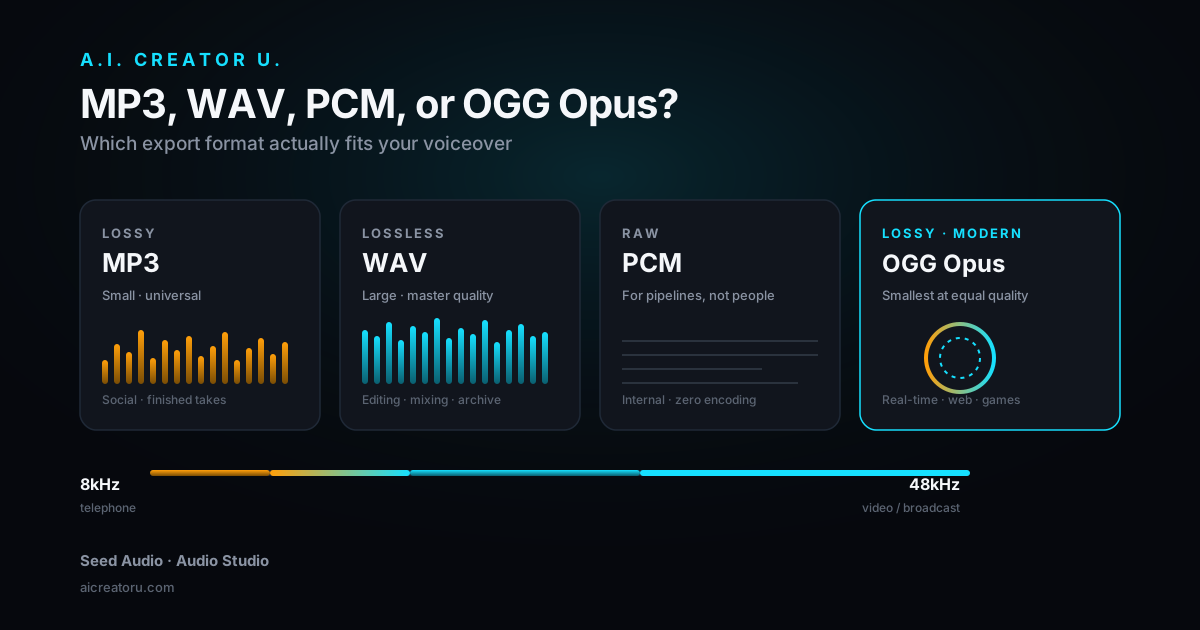
Audio Studio exports MP3, WAV, PCM, or OGG Opus, at sample rates from 8kHz up to 48kHz. Most people never need to think about this, but it's worth two minutes to get right once.
| Format | Best for | Why |
|---|---|---|
| MP3 | General use, voiceovers, sharing | Small file size, compatible everywhere, plenty clean for speech |
| WAV | Cloning references, heavy re-editing | Uncompressed, no quality loss across multiple crops |
| PCM | Piping into other audio software | Raw format many DAWs prefer for import |
| OGG Opus | Web playback, streaming contexts | Very efficient compression at low bitrates |
For sample rate, 24kHz is a sensible default for voice work and matches what most models are trained to output cleanly. Bump to 44.1kHz or 48kHz for music or anything headed into a professional mix; there's no benefit to going higher than 24kHz for a straightforward voiceover, just a bigger file.
Common mistakes worth avoiding
Skipping the preview before saving a crop. The waveform shape can lie. A cut that looks clean can clip the very start of a consonant, and you won't catch it without listening to the selection first.
Cloning from an untrimmed recording. Submitting a 28-second clip that's actually only 19 seconds of usable speech (the rest is silence or noise) wastes the reference budget you have and drags clone quality down with it.
Assuming a "close enough" crop is fine for Seedance. The system enforces the 15-second ceiling and 2-second floor at upload. A clip at 15.4 seconds gets bounced, not trimmed automatically, so leave yourself a little headroom rather than cutting exactly to the wire.
Re-exporting MP3 repeatedly. Every MP3 re-encode loses a little quality. If you know you'll crop a clip more than once, start from WAV and only convert to MP3 on the final pass.
FAQ
Does cropping an audio clip cost credits? No. Cropping is free. You already paid credits for the original generation; trimming it afterward doesn't charge again.
Can I undo a crop if I cut too much? The crop saves as a new clip and leaves your original untouched, so there's nothing to undo exactly, just crop the original again with better handle placement.
What's the maximum length for a voice clone reference? 30 seconds. Audio Studio will prompt you to crop anything longer before it accepts the file as a clone reference.
Why does my clip get rejected when I try to send it to Create Video? It's almost always length. Seedance audio references need to be between 2 and 15 seconds. If your clip is longer, the app should open the crop tool automatically with a 15-second cap already applied; if it's under 2 seconds, you'll need a slightly longer generation instead.
Should I always export WAV instead of MP3? Only if you plan to re-crop or heavily reuse the clip. For a one-and-done voiceover or sound effect, MP3 is smaller and sounds identical for practical purposes.
The workflow that actually works
Generate first, trim second, never the other way around. Write your prompt a little longer than you think you need, since it's much easier to cut a clip down to the perfect window than to stretch a too-short one. Crop with the preview on, not just the waveform shape. And if a clip is headed anywhere with a hard length limit, whether that's a 30-second clone reference or a 15-second Seedance slot, crop to fit before you move on rather than finding out at the next step that it doesn't.
If you haven't generated anything yet, start with our complete guide to AI audio generation for the fundamentals, or jump straight into Audio Studio and try the crop tool on your next clip. It's free, it's fast, and it's the step most people skip until a rejected upload forces them to learn it the hard way.
Ready to clean up your AI audio? Open Audio Studio and start generating, trimming, and shipping.