Most people treat Seedance 2.5 like a bigger Seedance 2.0: longer clips, more reference slots, a higher price ceiling. That undersells it. The real upgrade is quieter and more useful: for the first time, you don't have to nail a shot on the first try. You can go back into a clip you already generated and change one thing, without touching anything else.
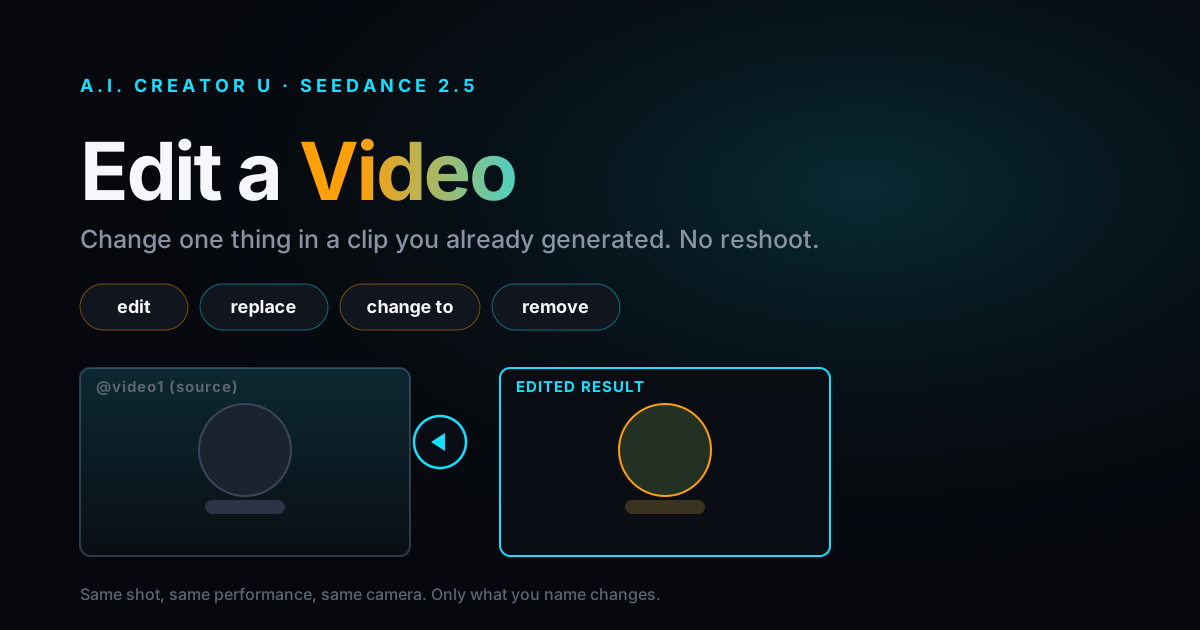
Quick answer: Seedance 2.5 can edit a video you already have instead of generating a new one from scratch. Attach the clip as a reference, phrase your prompt as an instruction rather than a description ("edit," "replace," "remove," "change to"), and the model modifies only what you name while everything else in the shot stays put. There's no dedicated "edit" button on the API side. It's the same multi-reference endpoint as generation; the wording of your prompt is what tells Seedance to edit instead of create. Get the wording wrong and it silently makes a brand-new video instead, at full price, with no way to undo the charge.
This is the guide to getting the wording right, plus what it actually costs. If you're new to AI video generation entirely, our complete guide to AI video generation is the better starting point; this piece assumes you've already generated something and want to fix it.
What "editing" means in Seedance 2.5
ByteDance introduced Seedance 2.5 in mid-2026 with three headline upgrades: single clips up to 30 seconds long, up to 50 reference assets in one generation, and what it called "targeted editing." That third one is the part almost nobody covers, probably because it isn't a separate feature you switch on. There's no edit_mode flag in the API. There's no mask tool, no region selector, no "select the object you want to change." An edit job and a generation job hit the exact same endpoint with the exact same inputs: a video reference plus a text prompt.
The only thing that separates the two is intent, and Seedance reads intent from your wording. Say "generate a video using @video1 as a reference" and you get something new inspired by the clip. Say "strictly edit @video1, and change the red jacket to a green one" and you get the same shot back with a green jacket. Same clip, same model, same underlying job type. Different sentence, completely different outcome.
That's a strange way to build a feature, but it's also why editing is powerful and dangerous at the same time. Powerful because you're not locked into some rigid, pre-baked "select an object and swap it" tool; you can describe any change in plain language. Dangerous because if you phrase it wrong, the model won't error out and tell you. It'll quietly generate a brand-new clip, charge you for it, and you won't notice until you're looking at a video that doesn't match what you had.
How to turn on Edit Mode
In A.I. Creator U's Create Video tool, select Seedance 2.5 as your model. Once you've got a video reference attached, either dropped in fresh or pulled straight from your generation history with one click, a third tab appears next to Multi-Reference and Start/End Frame: Edit a Video. Selecting it does two things automatically. It locks your aspect ratio to match the source clip (you can't crop or reframe during an edit), and it locks the output duration to the source clip's length (you can't make a 10-second clip into a 20-second one this way). Both of those are hard API constraints, not app limitations we chose.
Here's the actual step-by-step:
- Open Create Video, pick Seedance 2.5.
- Attach your existing clip as the video reference, either from your history or a fresh upload. It becomes
@video1. - Click Edit a Video.
- Pick one of the three built-in templates (below) or write your own instruction.
- Fill in the bracketed part, keep an edit trigger word in the sentence, and submit.
The app runs a live pre-flight check on your prompt before you submit. If it doesn't detect a trigger word, or doesn't see you naming the clip you're editing, it'll warn you right there in the composer, before you spend a single credit.
The three built-in edit templates
You don't have to write edit prompts from scratch. Seedance 2.5's official prompt grammar boils down to three repeatable patterns, and we've built each one into a one-click template:
Change something. Add, remove, or replace an object or character in the shot. Everything you don't mention stays exactly as it was.
"Strictly edit @video1, and modify [the plain white mug] to [a black ceramic mug with a logo]. Keep all other content, motion and camera work unchanged."
Re-shoot the camera. Keep the performance frozen and change only how it's filmed.
"Edit @video1. Keep the characters, actions and visual style unchanged. Adjust only the camera movement: [slow push-in instead of a static shot]."
Replace the background. Swap the environment, keep the subject. The model re-lights the subject to match the new scene, adjusting shadows and how light falls on clothing and hair.
"Edit @video1. Keep the main subject, their performance and the camera work unchanged. Replace the background with [a neon-lit rooftop at night], and make the subject respond naturally to it: lighting direction, clothing movement, hair and contact shadows."
Notice the pattern in all three: name what changes, then explicitly say what stays the same. Seedance's default assumption is that anything you don't mention is preserved, but stating it outright measurably improves consistency, especially on faces and hands.
The words that actually trigger an edit
This is the section that matters most, because it's the difference between an edit and an accidental $5 mistake.
Seedance 2.5 looks for specific trigger words to classify a request as an edit instead of a fresh generation: edit, add, insert, remove, delete, modify, replace, or change to. At least one has to be in your prompt. Miss it entirely and your "edit" reads as a plain reference-to-video request; you'll get a brand-new clip that happens to look loosely inspired by your source, and you'll pay full generation price for it.
There's a second trap that's less obvious: the word "reference" itself, used as a verb. "Using @video1 as a reference, show the character walking instead" pushes the model straight back toward generating something new, because "reference" is generation language, not editing language. Say "edit" and "change to," not "reference." (Using "reference" as a noun, like "keep the reference lighting," is fine. It's specifically the verb form that trips the classifier.)
And a third one, if you're trying to extend a clip rather than edit it: extend, extends, continue, continues route to video extension instead, a related but different mode with its own rules (more on that below).
Get all three right and here's the sentence that reliably works: name the clip (@video1), include an edit trigger word, and describe only the change.
What you can't change during an edit
Two things are locked, no exceptions:
- Aspect ratio is forced to match the source clip. You can't reframe 9:16 into 16:9 through an edit.
- Duration is forced to match the source clip's length. A 12-second edit produces a 12-second output, always.
If you send anything else, the API doesn't reject it at submission. It queues the job, runs the generation, and only fails afterward once it can't reconcile your request with the source. That means you can wait through a full render and still get an error, so it's worth knowing the constraint going in rather than finding out the hard way.
Your source clip also has to fall inside a specific window: 4 to 30 seconds. Anything shorter or longer gets rejected before it queues. ByteDance's own guidance recommends staying under 20 seconds for the most reliable results; clips pushing toward the 30-second ceiling edit less predictably and sometimes need a second attempt.
What editing actually costs
Here's the part most people get wrong about editing costs: it isn't priced the same as a plain generation, and it's meaningfully more expensive per second of output. The reason is billing math, not a markup decision. KIE (the provider Seedance 2.5 routes through) bills edits on output duration plus input video duration, and since an edit's output duration always matches the source, you're effectively being billed for the clip twice: once as the reference, once as the result.
| Source clip length | 480p (credits) | 720p (credits) |
|---|---|---|
| 5s | 13 | 29 |
| 10s | 26 | 57 |
| 15s | 39 | 86 |
| 20s | 51 | 114 |
| 30s | 77 | 171 |
For comparison, a plain 10-second 720p generation with no video reference runs roughly half the per-second rate of an edit at the same resolution, because it's only billing the output, not the output plus a matching-length input. Editing costs more than starting fresh. It's still almost always the better call, because "starting fresh" means re-rolling the whole shot and hoping the parts you liked survive the reroll. Editing guarantees they don't move.
One practical upshot: edit shorter clips when you can. A 10-second edit at 720p (57 credits) costs roughly half of a 20-second edit (114 credits), and most single-change edits, like swapping a prop or fixing a background, don't need a long source clip to prove out.
Editing vs. extending vs. referencing
Seedance 2.5 has three related but distinct multi-reference behaviors, and mixing them up wastes credits:
| Mode | What it does | Duration | Aspect ratio |
|---|---|---|---|
| Edit | Changes something in the existing shot | Locked to source length | Locked to source |
| Extend | Continues the clip forward or backward in time | Free (4-30s or auto) | Locked to source |
| Reference | Generates a new clip inspired by the source | Free | Free |
Extension uses its own trigger words ("extend," "continue"), and follows the same locked-aspect-ratio rule as editing, but lets you choose a new duration since you're adding time, not replacing it. Reference mode is the one with no constraints at all, because you're not editing or extending anything; you're using the source purely as creative inspiration for something new.
If you're not sure which one you want, ask yourself: am I changing something inside this exact shot (edit), adding more of this exact shot (extend), or making something new that looks like this (reference)? That question alone resolves almost every wording mistake before you type a word.
Real prompts you can copy and adjust
A product shot with the wrong background:
Edit @video1. Keep the main subject, their performance and the camera work unchanged. Replace the background with a minimalist studio backdrop in soft gray, and make the subject respond naturally to it: lighting direction, clothing movement, contact shadows.
Swapping a held object without touching the rest of the shot:
Strictly edit @video1, and modify the coffee cup in the character's hand to a stainless steel water bottle. Keep all other content, motion and camera work unchanged.
Changing only the camera move on a performance you already like:
Edit @video1. Keep the characters, actions and visual style unchanged. Adjust only the camera movement: switch from a static shot to a slow orbit around the subject.
One more thing worth building into every edit prompt: add a line telling the model to skip subtitles, logos, and watermarks if you don't want them. ByteDance's own documentation is explicit that this can't be suppressed 100% of the time, but it measurably lowers the rate, and it's free to include.
Why this matters more than it looks like it does
Every generative video model before this generation forced you into the same loop: describe the shot, generate, look at it, notice the one thing that's wrong, and reroll the entire clip hoping the rest survives intact. That loop is expensive and unpredictable, especially once you've got a shot with a character, a performance, and a camera move you actually like. Editing breaks that loop. You keep the 90% that's working and touch only the part that isn't.
It also changes how you should think about your first generation. You don't need to over-engineer a single mega-prompt trying to nail every detail at once. Get the performance, the framing, and the pacing right in a solid first pass, using Seedance 2.5's 2.0-era prompting fundamentals as your baseline, and treat wardrobe, props, and background as things you'll dial in afterward with a fast, targeted edit instead of a full reroll.
If you're still deciding whether 2.5 is worth switching to over Seedance 2.0 in the first place, our full comparison covers the other differences (30-second clips, 50-reference support) beyond editing.
Ready to try it? Open Create Video, pick Seedance 2.5, and pull up any clip from your history. New accounts start with up to 16 free credits, more than enough to run a real edit and see the difference for yourself.
FAQ
Does editing a video cost more than generating a new one? Yes, usually close to double the effective rate. Edits bill on output duration plus input video duration, and since the output matches the source clip's length, you're paying for the clip's length twice over. A 10-second 720p edit runs 57 credits versus roughly 29 credits for a plain 10-second generation at the same resolution.
What happens if I forget to include an edit trigger word? The request gets classified as a fresh reference generation instead of an edit. You'll get a brand-new clip, not a modified version of your source, and you're charged the generation price for it. There's no automatic refund for this, since nothing errors, the model just does something different than you intended. That's exactly why the composer's pre-flight checker flags a missing trigger word before you submit.
How long can my source clip be? Between 4 and 30 seconds. Shorter or longer clips get rejected before the job queues. ByteDance recommends staying under 20 seconds for the most reliable results; clips near the 30-second ceiling sometimes need a second attempt to land cleanly.
Can I change the aspect ratio or make the edited clip longer or shorter than the source? No. Both are locked during an edit: aspect ratio always matches the source, and output duration always matches the source clip's length exactly. If you need a different duration, you want extension mode instead, which lets you add time in either direction while keeping the same locked aspect ratio.
Does the source clip have to be something I generated in Seedance? No. Any video you attach as the reference works, as long as it falls inside the 4-to-30-second window, whether it came from your A.I. Creator U history or was uploaded fresh. The model doesn't check where the footage originated; it only reads the reference and your prompt.
Can I combine an edit with other references, like a reference image? Yes. Reference images are explicitly supported alongside an edit prompt. The one thing to watch is language: keep "reference" out of the prompt as a verb ("using this as a reference") since that phrasing competes with your edit trigger words for the model's classifier. Naming the image as context ("keep the reference lighting") is fine.