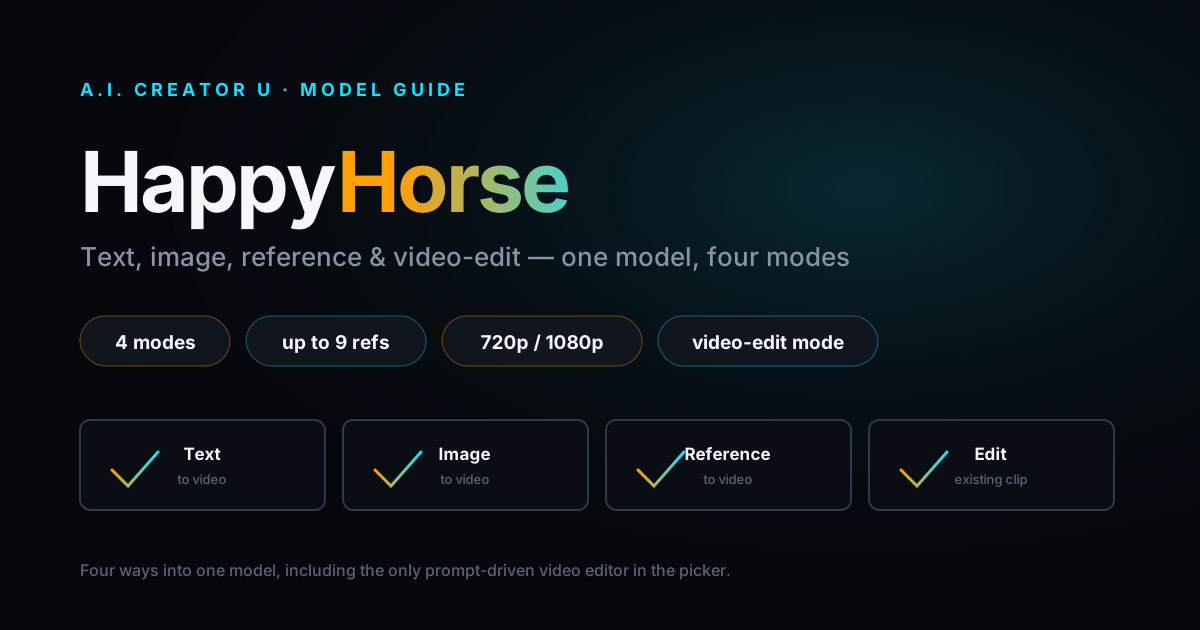
Quick answer: HappyHorse is a video generation model built into A.I. Creator U's Create Video tool, sitting right alongside Seedance and Kling. It does four things: text-to-video, image-to-video, reference-to-video (up to 9 characters or objects at once), and video editing on footage you already have. It costs 2 credits per second at 720p and 4 per second at 1080p right now (a launch promo, down from 3 and 5), runs 3 to 15 seconds per generation, and its video-edit mode can insert, swap, or remove a subject from an existing clip without you touching a timeline. It's been live for months. Almost nobody's written about it. That's the whole reason this post exists.
What Is HappyHorse?
Open the model picker in Create Video and scroll past Seedance, Kling, and VEO, and you'll find a horse emoji next to a name that sounds more like a bar than a video model. That's HappyHorse, and it's been quietly sitting there since a launch-promo price cut went live back in April.
It's reportedly built by the same lineage of open video research behind some of the fastest-improving models this year, and it's distributed through kie.ai, the same API marketplace we route several of our other models through. What's notable is the benchmark story: kie.ai's own published numbers, cross-referenced against Artificial Analysis' public Video Arena leaderboard, put HappyHorse at the top of both the text-to-video and image-to-video (no audio) rankings, reportedly ahead of ByteDance's Seedance 2.0 by a real margin in text-to-video. We can't independently verify a third-party leaderboard, so treat that as reported, not gospel. But it's not nothing that a model outranking Seedance on paper has been sitting in our own picker with a launch discount and basically no one's touched it.
That's the gap this article closes.
What Can You Actually Generate With It?
HappyHorse isn't one tool, it's four, and the app picks the right one automatically based on what you upload. Drop in zero images and it's text-to-video. One image, it's image-to-video. Two or more, it switches to reference-to-video and treats every image as a distinct subject. Upload a video instead, and it switches to edit mode entirely.
| Mode | What you give it | What you get | Max duration |
|---|---|---|---|
| Text-to-video | A prompt, nothing else | A new clip from scratch | 3-15s (default 5s) |
| Image-to-video | 1 image + a prompt | That image animated | 3-15s (default 5s) |
| Reference-to-video | 1-9 images + a prompt | A new scene combining every subject | 3-15s (default 5s) |
| Video edit | 1 video (+ up to 5 optional reference images) + a prompt | The source video, edited | Mirrors source (3-60s) |
Resolution is 720p or 1080p only, there's no 480p option here (the app auto-bumps you to 720p if you had 480p selected on another model). Aspect ratio is your choice on text and reference modes (16:9, 9:16, 1:1, 4:3, or 3:4), but image-to-video and video edit both inherit their aspect ratio from whatever you uploaded. You don't pick it because there's nothing to pick, the source dictates it.
How to Use Each Mode
Text-to-video and image-to-video
These two are the simplest entry points. Text-to-video is exactly what it sounds like: write a scene, pick a duration and aspect ratio, generate. Image-to-video takes one photo and animates it, useful for turning a static product shot or portrait into motion without touching Seedance's image-to-video path. The description baked into the tool itself calls out "realistic image-to-video animations with native sound, expressive motion, and strong multilingual lip sync," and that lip-sync claim matters more than it sounds like it should, most models in this price range handle English lip sync fine and fall apart on anything else.
Reference-to-video and the character-token trick
This is where HappyHorse gets genuinely useful. Upload two to nine images, write a prompt, and it composes all of them into one scene. Say you've got a photo of your product and a photo of a model. Reference-to-video can put them in the same shot, interacting, in a way a single image-to-video pass can't.
The prompt syntax is specific and worth knowing: HappyHorse uses character1, character2, and so on (no @ symbol) to point at each uploaded image, in the order you uploaded them. Write "character1 hands character2 the product" and it maps directly to your first and second reference images. If you're generating from inside a Project with saved characters, typing @yourcharactername in the prompt gets auto-rewritten into the right characterN token and pulls that saved asset in as a reference image automatically, so you don't have to manually re-upload the same face every time.
Video edit: the part nobody's covering
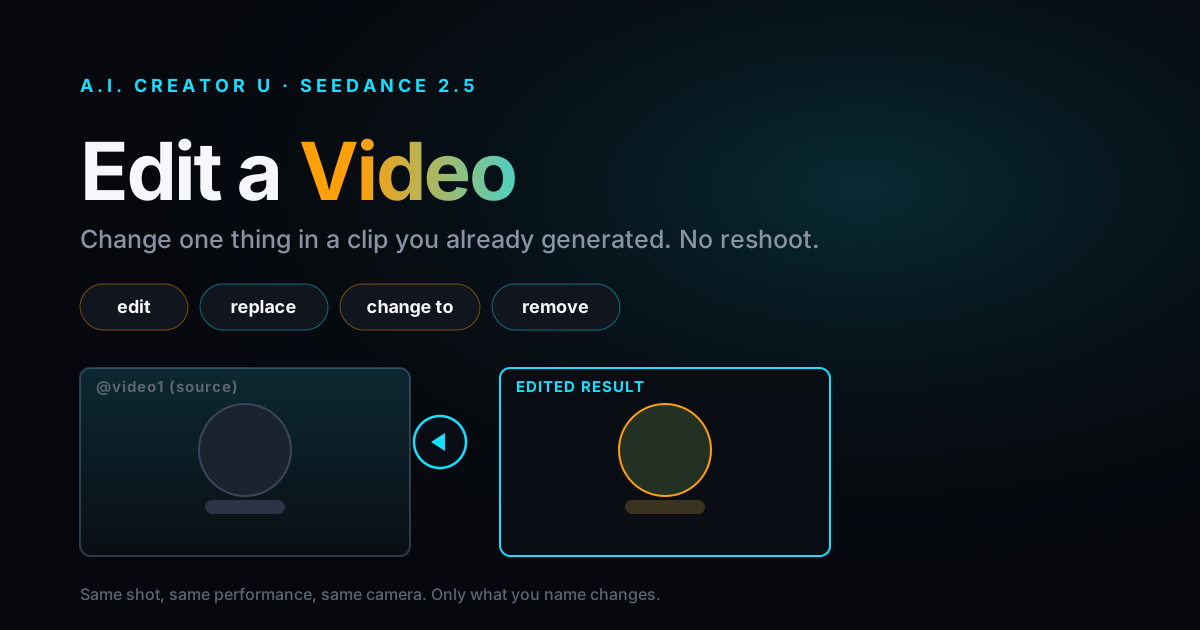
Upload an existing video (MP4 or MOV, H.264 recommended, 3 to 60 seconds, under 100 MB) and HappyHorse switches into edit mode. Add up to five reference images if you want to insert or swap a specific subject into the footage, write a prompt describing the change, and pick how to handle the original audio: "auto" lets the model regenerate audio to match the edit, "origin" keeps your source track untouched. The output always mirrors your source video's length and aspect ratio, there's no separate duration or aspect control here because the edit is built around what you already shot.
This is functionally a character-swap and object-insertion tool, and it's one of the more talked-about categories in AI video right now for a reason: replacing or inserting a subject into footage you already have is a completely different workflow from generating a new clip from a photo. If you shot a product video and want to swap in a different model, or you have UGC footage and want a different face in it, this is the mode built for that job, not the from-scratch generators. A couple of technical limits worth knowing before you upload: the source clip's shorter side needs to be at least 320px, the longer side capped at 2160px, aspect ratio between 1:2.5 and 2.5:1, and frame rate above 8fps. Anything shot on a modern phone clears all of that without you thinking about it.
How Much Does HappyHorse Cost?
Pricing is flat per second and depends only on resolution, not on mode. Right now you're on a launch promo: 2 credits per second at 720p and 4 per second at 1080p. The pre-promo rate was 3 and 5, so you're saving a real chunk on every generation while the discount runs (the app shows the struck-through original price next to the discounted one, so you can see the savings live).
| Duration | 720p cost | 1080p cost |
|---|---|---|
| 5s | 10 credits | 20 credits |
| 8s | 16 credits | 32 credits |
| 10s | 20 credits | 40 credits |
| 15s | 30 credits | 60 credits |
Video edit prices the same way, but it bills on your source clip's length, not a duration you pick:
| Source length | 720p cost | 1080p cost |
|---|---|---|
| 10s | 20 credits | 40 credits |
| 20s | 40 credits | 80 credits |
| 30s | 60 credits | 120 credits |
| 60s | 120 credits | 240 credits |
New accounts start with up to 16 free credits (a 6-credit welcome pack, plus 10 more for finishing the quick onboarding tour), good for 14 days. That's enough to run a couple of short 720p HappyHorse tests before you decide whether it earns a spot in your regular rotation.
How Is HappyHorse Different From AnimateA.I. or Kling Motion Control?
If you've read about AnimateA.I. or Kling Motion Control on this blog already, you might be wondering how HappyHorse's video edit mode is different. It's a fair question, all three touch "video in, edited video out."
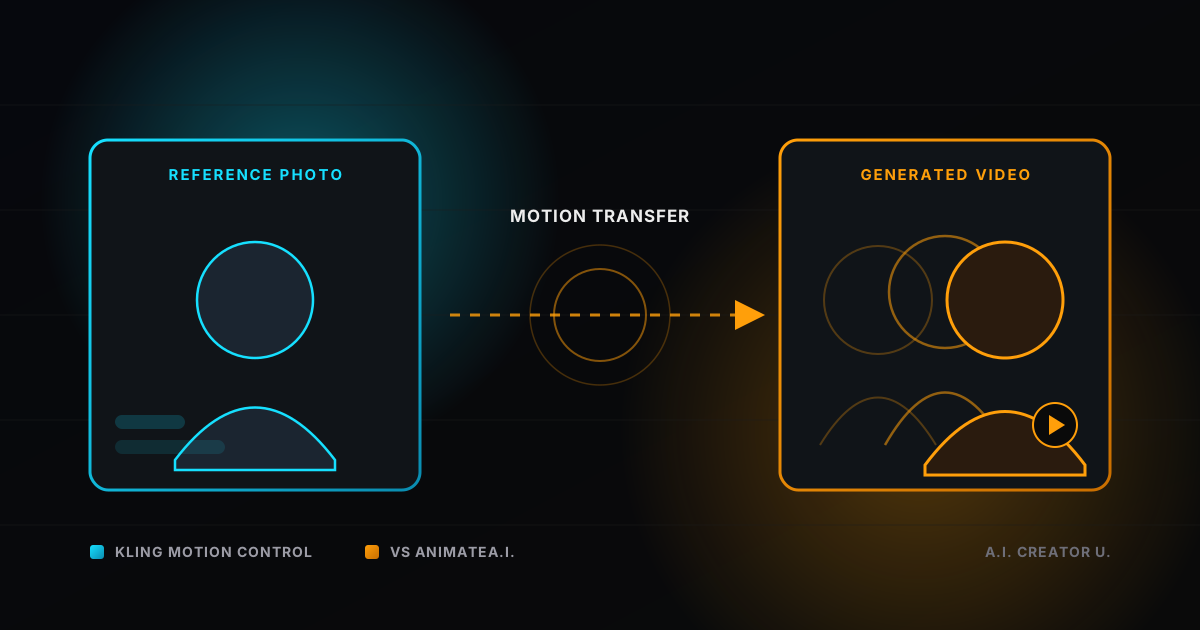
The real difference is what drives the edit. AnimateA.I. and Kling Motion Control are both motion-transfer tools: they take a reference image and puppet it using the motion, camera movement, and (for Kling) optionally the audio from a separate driving video. You're animating a still photo with someone else's movement. HappyHorse's video edit mode does the opposite: your video is the base, and your prompt (plus up to five optional reference images) describes what changes inside it. One's about giving a photo motion, the other's about editing footage that already has motion. If you're trying to bring a static character to life, reach for AnimateA.I. or Kling Motion Control. If you already have a clip and want to swap a face, add a product, or remove something from the scene, HappyHorse's edit mode is the more direct tool for it.
When HappyHorse Is the Right Call (and When It Isn't)
Here's the honest take: HappyHorse is not going to replace Seedance 2.5 as your default. Seedance has more control surfaces, first/last frame targeting, multi-shot sequencing, video extend, and a much deeper prompt-editing system. If you need that level of steering, stay in Seedance.
Where HappyHorse earns its spot is narrower and more specific. Reference-to-video with multiple subjects is genuinely strong, and cheaper per second at 720p than most of the other models in the picker. And the video-edit mode fills a real hole: none of our other video-to-video tools work the way it does, describing a change in plain language and applying it to footage you've already shot, rather than transferring motion from one asset onto another. If your job is "I have a finished clip and I need one thing about it different," HappyHorse's edit mode is worth trying before you consider reshooting or re-generating from scratch.
The trade-off is control. You're not picking camera angles frame by frame or locking a start and end pose. You're describing an outcome and trusting the model to get there, which is faster but less predictable than the more surgical tools. Treat your first HappyHorse edit as a test, not a final deliverable, and budget a second pass if the first one doesn't land exactly right.
A Simple Prompt Framework
HappyHorse's prompt window caps out around 5,000 characters (roughly half that if you're writing in Chinese), which is generous, but more isn't better. For reference and edit modes specifically, structure beats length:
- Name the action first. "Character1 walks toward character2 and hands them a coffee cup" reads better to the model than a paragraph of scene-setting before you say what happens.
- Keep camera and lighting notes short and separate. One clause each: "wide shot, golden hour" does more than three sentences of mood-setting.
- For edits, describe the change, not the whole scene. You already have the video. Say what's different, not what's staying the same.
FAQ
Is HappyHorse better than Seedance or Kling? It depends on what you're generating. Third-party leaderboards (reported via kie.ai and Artificial Analysis) rank HappyHorse highly on raw text-to-video and image-to-video quality, but "best" on a benchmark doesn't automatically mean best for your specific shot. Seedance and Kling have deeper feature sets (multi-shot, motion control, start/end frames). HappyHorse's edge is straightforward generation quality plus a video-edit mode built for character swaps.
Can I use HappyHorse for free? New accounts start with up to 16 free credits, which covers a handful of short 720p test generations on any model, HappyHorse included. Beyond your starting balance, generations draw from your credit balance like any other model in Create Video.
What video formats does the edit mode accept? MP4 or MOV, H.264 encoding recommended, 3 to 60 seconds long, under 100 MB. The clip's shorter side needs to be at least 320px and the longer side under 2160px, with an aspect ratio between 1:2.5 and 2.5:1.
How many reference images can I use? Up to 9 for reference-to-video (composing a brand-new scene from multiple subjects), and up to 5 for video edit (inserting or swapping subjects into existing footage). Image-to-video takes exactly 1.
Does HappyHorse keep the original audio when I edit a video? You choose. Set the audio setting to "origin" to keep your source track exactly as it was, or "auto" to let the model regenerate audio that matches the edited visuals.
Can I control exactly which uploaded image becomes which character? Yes. In reference-to-video mode, the order you upload images in maps directly to character1, character2, and so on. Upload your product shot first and your model photo second, and your prompt should refer to them in that same order.
Try It Yourself
HappyHorse has been sitting in Create Video since the spring with a launch discount still active and basically zero attention. If you've already tried Seedance or Kling for reference-to-video work, HappyHorse is worth a side-by-side test, especially on the video-edit mode, since nothing else in the picker works quite the same way. Upload a clip, describe the swap, and see what comes back.
For more on the other video-to-video tools in the app, see our breakdown of Kling Motion Control vs AnimateA.I., or read the AnimateA.I. motion transfer guide if you're starting from a photo instead of a video. If you're new to the Create Video tool generally, start with the AI Video Generation complete guide, and if you want the rundown on another recent addition to the picker, we covered MiniMax H3 last month.