Kling Motion Control vs AnimateA.I.: Two Photo-to-Video Motion Transfer Tools Compared
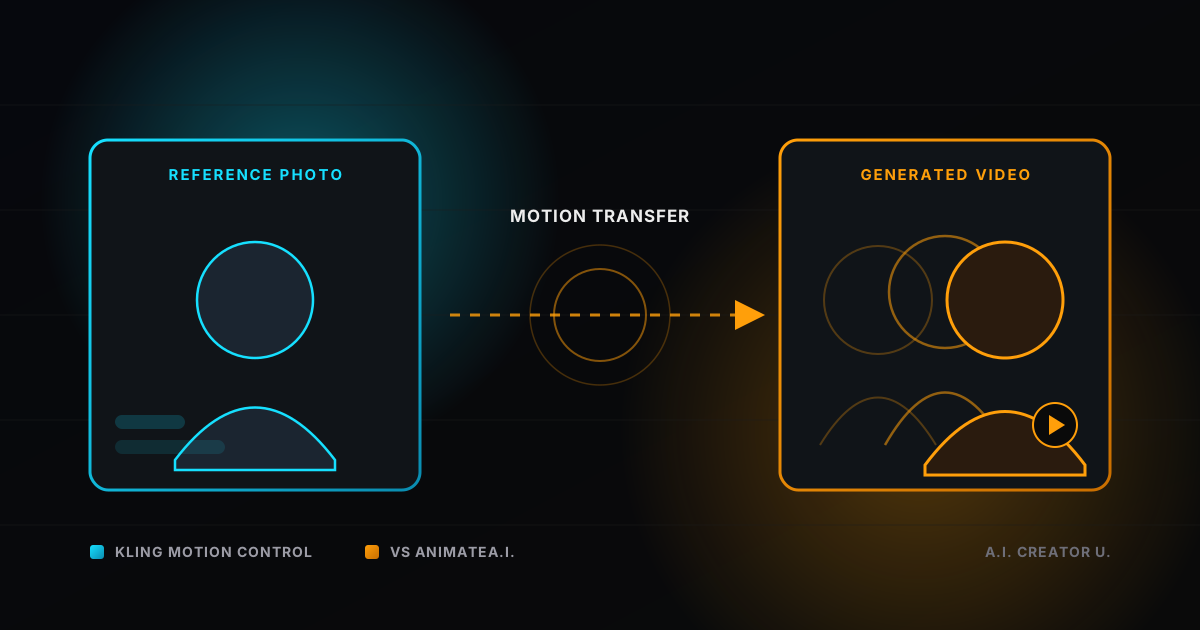
Upload one photo. Upload one video of somebody else moving. Get back a video of your photo doing the moving, dancing, gesturing, walking, whatever the reference clip did. That's the whole pitch behind two very different tools now sitting side by side in Create Video: Kling Motion Control and AnimateA.I.
They sound like the same feature. They aren't. One is built on Kling 3.0 and locks onto a character's identity while it maps a driving video's movement onto them. The other is built on Pruna's video-to-video model and carries the source clip's audio along with the motion. Pick the wrong one for the job and you'll either pay more than you needed to, lose the audio you wanted, or hit a duration cap halfway through your upload.
Quick answer: if you need the output to keep the original audio (voice, music, ambient sound) or your source clip runs longer than 30 seconds, use AnimateA.I. If you want Kling 3.0's tighter identity lock and camera sync, or you need the character to hold a specific pose from your photo regardless of what the video does, use Kling Motion Control. Neither tool needs any editing experience. Both are two uploads and a resolution choice.
Motion transfer got popular fast for a reason. AI video generation volume reportedly grew 840% between January 2024 and January 2026, and 63% of marketers say they used AI to create or edit a marketing video in the past year, up from 51% the year before. That growth is what pushed motion-transfer tools out of novelty territory and into an actual production step: reuse one clean reference photo across dozens of movement clips instead of reshooting every one.
What Is Kling Motion Control?
Kling Motion Control is Kuaishou's motion-transfer feature for Kling 3.0, running through the same model family behind our Kling 3.0 guide and Kling AI Lip Sync. It shipped as part of Kling 3.0's broader early-2026 rollout and it does one specific job: take a still reference photo and a motion video, then generate a new clip of the person or character in the photo performing the video's movement, full-body motion, hand gestures, and facial expression included.
Two uploads, both required:
- Reference image: JPG or PNG, 10MB or under, at least 300px. This is who or what ends up in the output.
- Motion video: MP4 or MOV, 3 to 30 seconds, 100MB or under. This is the movement that gets transferred.
Aspect ratio and output length are pulled straight from the motion video, so there's nothing to configure there. What you do choose is pose reference, and this is the part that trips people up if they don't read the two options carefully:
- Mimic Motion Video (the default, and the one Kling recommends): the character's movements match the reference video exactly. Best for fluid, natural motion. Capped at 30 seconds.
- Match Reference Image: the character holds the exact pose from your photo, ignoring whatever pose the video's subject is in. Capped at 10 seconds.
Here's the detail that isn't obvious from the UI: even in "Match Reference Image" mode, the scene's background still comes from the motion video, not your photo. There's no toggle to keep your photo's own background. The tool always builds the scene around the video, it only ever locks the character's pose to the photo, never the setting.
Quality has two tiers, Standard (720p) and Pro (1080p). Unlike Kling 3.0's standalone video generator, there's no 4K tier for Motion Control, and there's no audio toggle at all. The output is silent by default, full stop. If the audio matters to you, that alone might settle the decision before you look at anything else.
What Is AnimateA.I.?
AnimateA.I. is our video-to-video model built on Pruna, and we've covered it in full in AI Motion Transfer, Explained. The short version: one reference image plus one source video in, motion and audio carried onto the reference subject out. Source clips can run up to 90 seconds. Aspect ratio and camera angle are inherited from the source video with no override, same as Kling Motion Control. The meaningful difference is that AnimateA.I. keeps the original audio by default, voice, music, ambient sound, all of it, unless you turn it off yourself.
Kling Motion Control vs AnimateA.I., Side by Side
| Kling Motion Control | AnimateA.I. | |
|---|---|---|
| Underlying model | Kling 3.0 | Pruna |
| Max source video length | 30 seconds | 90 seconds |
| Audio in the output | None, silent output | Yes, carried from source by default |
| Pose control | Choice: mimic video, or lock to photo (10s cap) | Always mimics source video |
| Resolution tiers | Standard (720p), Pro (1080p) | 720p, 1080p |
| Background source | Always the motion video | Always the source video |
| Aspect ratio control | Inherited from video | Inherited from video |
| Best at | Identity lock, camera sync, precise pose control | Longer clips, audio preservation |
How to Use Kling Motion Control, Step by Step
- Open Create Video and select Kling Motion Control from the model picker. It sits under the Video to Video section alongside AnimateA.I., not in the main text-to-video list.
- Upload your reference image. A clean, well-lit photo works best. This is the identity the model will preserve.
- Upload your motion video. 3 to 30 seconds, someone (or something) moving in the way you want your subject to move. Dance clips, walk cycles, hand gestures and talking-head footage all work.
- Pick a pose reference. Mimic Motion Video for full movement transfer, or Match Reference Image if you need the character locked to your photo's exact pose (remember the 10 second cap here).
- Choose Standard or Pro. Pro costs more but renders at 1080p instead of 720p.
- Generate and review. There's no prompt required, an optional prompt field exists if you want to nudge the output ("wearing a red jacket," for instance), but it's not necessary for a basic transfer.
That's the entire workflow. No timeline, no keyframing, no prompt engineering required to get a usable result.
What Kling Motion Control Costs
Pricing is dynamic, based on your motion video's length and the resolution tier you pick. Standard runs about $0.10 per second of output, Pro runs about $0.135 per second, both with a small fixed markup added on top. Here's what that works out to in credits across the durations the tool supports:
| Duration | Standard (720p) | Pro (1080p) |
|---|---|---|
| 5s | 8 credits | 10 credits |
| 10s | 14 credits | 18 credits |
| 15s | 20 credits | 27 credits |
| 20s | 26 credits | 35 credits |
| 25s | 33 credits | 44 credits |
| 30s | 39 credits | 52 credits |
New accounts get up to 16 free credits after signup and onboarding, and Kling Motion Control (like every premium video model in Create Video) requires an active paid account to use, free credits alone won't unlock it. Compare that against AnimateA.I., which prices off Pruna's own per-second video-to-video rate rather than Kling's, and the two tools genuinely land at different price points for the same duration. Run the numbers for your actual clip length before assuming one is cheaper across the board; at short durations the gap is small, at 30 seconds it isn't.
Which One Should You Actually Use?
Run through these in order:
Do you need audio in the output? Kling Motion Control has no audio option at all. If the source clip's voice, music, or ambient sound matters, that alone rules it out. Go with AnimateA.I.
Is your source clip longer than 30 seconds? Kling Motion Control tops out at 30. AnimateA.I. goes to 90. Trim your clip or switch tools.
Do you need the character locked to a specific pose regardless of what the video shows? That's Kling Motion Control's Match Reference Image mode, a capability AnimateA.I. doesn't offer; it always mimics the source video's motion.
Is facial and identity consistency the priority, especially across hand gestures or complex framing? Kling 3.0's identity-lock is the more specialized tool here. Kling Motion Control is built specifically to keep a character's face and identity stable through motion-heavy sequences, which is a narrower and more polished job than AnimateA.I.'s general-purpose video-to-video transfer.
Is this a quick, cheap test at a short duration? Either works. Check the credit table above for your specific length and resolution before deciding.
A common mistake is picking Kling Motion Control for a talking-head clip and being surprised the output is silent. If the point of the video is someone talking, and you want to hear them talk, that's an AnimateA.I. job, or a straight lip-sync job through Kling AI Lip Sync if you're pairing a voice track with the visuals separately.
Another common mistake is expecting "Match Reference Image" to also lock the background to your photo. It won't. The scene always comes from the motion video in both pose modes. If you need your own background specifically, you'll want to generate or edit that in separately, through Character Studio or a standard image-to-video pass, rather than expecting Motion Control to preserve it.
A Few Things That Aren't Obvious Until You Hit Them
The minimum output length is 5 seconds even though the upload window technically starts at 3. Upload a 3 or 4 second clip and the tool bumps your output duration up to 5 regardless.
The prompt field is optional and mostly cosmetic here. Unlike Seedance 2.5's prompt-driven editing, where the exact wording of your prompt determines what happens to the video, Kling Motion Control's job is defined by your two uploads. A prompt can nudge details like clothing or setting, but it's not doing the heavy lifting.
There's no 4K tier. If you need a 4K motion-transfer render, neither Kling Motion Control nor AnimateA.I. currently offers it, both cap at 1080p Pro.
Where This Actually Fits in a Content Workflow
The obvious use case is a UGC-style creator who wants the same face or character performing a dozen different trending movements without filming a dozen takes. Shoot or generate one strong reference photo, feed it a stack of trending motion clips, and you've got a week of content from a single upload. Kling Motion Control's identity lock matters most here, the whole point of a recurring character is that it stays recognizable across every clip, and that's specifically what Kling 3.0 was built to hold onto even through hand gestures and busy framing.
E-commerce sellers get a narrower but still useful case: turn a static product-with-model photo into a short, silent motion clip for a feed post, then layer a voiceover or music track on top afterward through Audio Studio rather than expecting the tool to generate one. That's a real limitation, not a workaround. Since Kling Motion Control never outputs audio, it forces a two-step process by design; you're not missing a hidden setting.
AnimateA.I. tends to fit better when the source clip's audio is the point, a talking-head reaction, a voiceover-driven explainer, a clip where the ambient sound sells the scene. Carrying that straight through instead of rebuilding it saves an entire post-production step.
Neither tool replaces a full character pipeline. If you need the same character across dozens of unrelated scenes (not just movement clips), building a proper reference set in Character Studio and generating fresh video with Seedance or Kling's standard text-to-video mode will get you more consistent, controllable results than repeatedly running one photo through motion transfer.
FAQ
Is Kling Motion Control the same thing as a deepfake or face swap? No. Face swap replaces a face inside existing footage and leaves the rest of the video untouched. Kling Motion Control generates an entirely new video of your reference photo performing the motion video's movement. It's not editing the original clip at all, it's generating a fresh one.
Does Kling Motion Control output include audio? No. The output is silent regardless of resolution tier. There's no toggle to add audio back in. If you need audio carried through, use AnimateA.I. instead, which preserves the source clip's audio by default.
What's the longest motion video I can use with Kling Motion Control? 30 seconds. If you choose Match Reference Image instead of Mimic Motion Video, the output itself is capped at 10 seconds regardless of how long your source video runs.
Can I keep my own photo's background instead of the motion video's? Not currently. Both pose modes pull the scene and background from the uploaded motion video. Only the character's pose changes between the two modes, never the setting.
Which is cheaper, Kling Motion Control or AnimateA.I.? It depends on your clip length and resolution choice, they're priced off different underlying models with different per-second rates. Check the credit table above for Kling Motion Control's exact cost at your duration, and compare it against your AnimateA.I. estimate before generating either one.
Ready to try it? Head to Create Video and pick Kling Motion Control or AnimateA.I. from the Video to Video section. Upload a photo, upload a clip, and see which one gets you the result you're actually after.