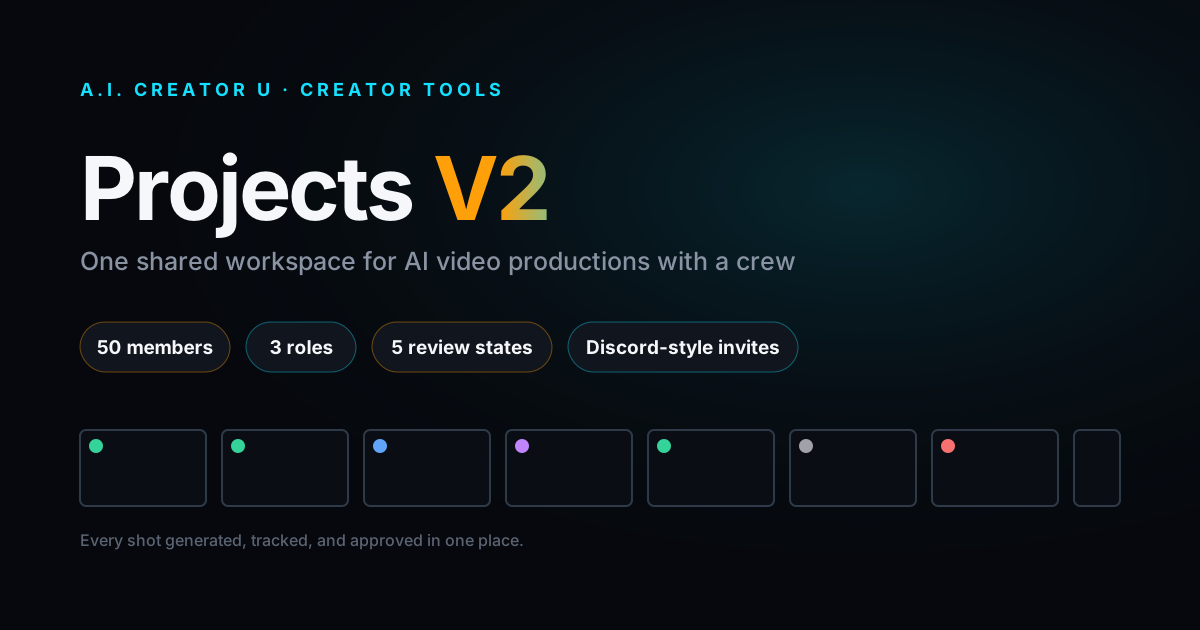
Quick answer: Projects V2 is A.I. Creator U's shared workspace for AI video productions that need more than one person. You create a project, invite collaborators as editors or viewers with a Discord style link, and everyone generates, reviews, and comments inside the same space instead of texting each other MP4 files. It's free to create and join; you only spend credits on the generations you make inside it, same as anywhere else on the site.
The problem with making AI video as a group
Here's the thing nobody tells you when you start making AI video with other people: the AI part was never the hard part. Generating a shot takes thirty seconds. Figuring out which of the six versions your co-writer generated last night is the one you're supposed to build on, that's the hard part.
Most teams solve this with a shared Drive folder and a group chat. It works until it doesn't. Someone renames a file. Someone generates over what was supposed to be final. Nobody knows if "arrival_v3_FINAL_actually_final.mp4" got approved or just got made. You end up spending more time managing the mess than making the video.
Projects V2 is A.I. Creator U's answer to that: one shared space per production, with the roles, review states, and generation history baked in instead of duct taped on top with folder names.
What is Projects V2, actually?
Strip away the marketing language and Projects V2 is three things stacked on top of each other:
- A shared library. Every character, reference image, audio clip, and generated video for a production lives in one place, organized into folders, capped at 1,050 assets per project (the homepage rounds that down to "1,000," the actual ceiling in the code is 1,050).
- A permission system. Every collaborator is an owner, editor, or viewer, and what they can see and touch depends on which one they are.
- A review layer. Every generated clip carries a status (unreviewed, needs work, in progress, approved, or denied) so a crew can tell at a glance what's done and what still needs eyes on it.
None of that is exotic if you've used any team software before. What makes it worth a dedicated look is that it's built directly into the same tool you're already generating video in. Open a project, and Create Video (Seedance 2.5 and the rest of the model lineup) runs right there, scoped to that project, so anything you generate lands in the shared library automatically instead of needing a manual upload step afterward.
This matters most for exactly the kind of ongoing production the Faceless Content Playbook describes: a channel or campaign you're building over weeks, not a single one-off clip. A recurring series is where a shared library and a review queue start paying for themselves, because you're not starting from zero each time.
Why does an AI video tool even need "team" features?
Because AI video generation is deceptively fast, and fast generation with no shared review layer is how a five-person team ends up with forty untracked variations of the same scene by Thursday.
Here's my honest opinion on this: most creative teams don't need more generation speed right now, they need less chaos per generation. A tool that lets four people generate in parallel without anyone knowing what anyone else made isn't actually faster, it's just busier. The bottleneck moves from "how long does a shot take to render" to "how long does it take to figure out which render we're using." Projects V2 is aimed squarely at that second problem, and it's the more useful one to solve once your team passes one person.
Industry trackers have been circling the same idea from the vendor side this year. eMarketer has reported that a majority of content and creative professionals (51% in a 2026 survey) now say AI is their top method for speeding up production, ahead of cross-team collaboration tools and performance measurement. That's a reported industry figure, not our own data, but it lines up with what you'd expect: once generation stops being the bottleneck, the workflow around it becomes the thing worth fixing.
How do roles and invites actually work?
This is the part worth understanding before you invite anyone, because it's more deliberate than a typical "share this link" flow.
There are exactly three roles:
| Role | Can generate & organize | Can invite others | Can approve join requests, change roles, or remove members |
|---|---|---|---|
| Owner | Yes | Yes | Yes |
| Editor | Yes | Yes (mint invite links) | No |
| Viewer | No (view and comment only) | No | No |
The owner is whoever created the project. Editors and viewers get added by joining through an invite link.
The invite mechanism itself is closer to Discord than to a typical "add by email" box. An owner or editor mints a shareable link and sets how many times it can be used, anywhere from 1 to 10 uses, and it's revocable at any point. When someone opens that link, they don't get dropped straight into the project. They land as a join request, and only the project owner can approve or reject it. Viewers can't see invite links or pending requests at all, only owners and editors can.
A few hard caps worth knowing before you plan a big production: a project tops out at 50 total members, an owner can have at most 20 pending invites open at once, and at most 10 active invite links at a time. For context, that's generous enough for a real production crew (writers, a couple of editors, a client or two as viewers) without being an open door.
What can you actually store in a project?
Everything a video production generates, with sane limits so nobody accidentally uploads their entire hard drive:
- Assets, total: 1,050 per project (characters, reference images, audio, video, stills)
- Audio clips: capped at 120 seconds each
- Audio used as a voice or dialogue reference: capped at 15 seconds (Seedance 2.5 allows up to 30 seconds when you're using it as an audio reference inside a generation)
- Video clips: capped at 300 seconds (5 minutes) each
Assets get organized into folders, characters in one, reference footage in another, and so on, so a project with a hundred generated clips doesn't turn into one long scroll.
How do you review and approve shots as a crew?
Every item in a project's library carries one of five review statuses: unreviewed, needs work, in progress, approved, or denied. A producer or lead can scan the grid and immediately see what's locked, what's stuck, and what nobody's looked at yet, without opening a single file or asking in the group chat.
Collaborators can also leave comments directly on an item, up to 2,000 characters per comment, which is enough room for real feedback ("push the camera in on the second beat, the wide shot reads flat") instead of a one-line "looks good."
There's also a live presence indicator: the app shows who's actively in a project right now, based on a heartbeat that counts someone as "here" if they've been active in the last 45 seconds, and clears them from the list after 10 minutes of inactivity. It's a small thing, but it answers the question "is anyone else in here right now" without you having to ask.
Setting up your first project, step by step
- Go to /tools/projects and start a new project. This is the project list, and starting one puts you in as the owner automatically.
- Open the project to start generating. This drops you into Create Video, scoped to that project, so every clip you make from here lands directly in the shared library. No manual export-and-upload step.
- Open the project's manage view to see the grid. This is where folders, review statuses, and the members panel live. Organize assets into folders as the library grows.
- Invite your crew. As owner or an editor, mint an invite link, choose how many people can use it (1 to 10), and send it. Anyone who opens it lands as a join request.
- Approve requests and set roles. Only the owner can approve a join request or change someone's role afterward, so this step is on you specifically.
- Review as things come in. Mark clips approved, needs work, or denied as your crew generates, and leave comments on anything that needs a specific fix.
That's the entire loop. No exporting a folder of files to a shared drive, no separate spreadsheet to track what's approved.
It's the same loop whether you're producing one short film or running a whole channel. If you're building out a recurring short-form series rather than a single video, pair a project with Shorts Studio for the channel-identity side (character, voice, and style locked once) while Projects V2 handles the crew and review side.
If your team is currently coordinating an AI video production over Slack threads and a shared Drive folder, /tools/projects is worth ten minutes of your time this week just to see the difference.
Can you publish a project to your public profile?
Yes, with one catch worth knowing up front. Only the project owner can publish it, and you need a public username set on your account before you can (the app will tell you to pick one if you haven't). Publishing the project itself doesn't automatically make every clip inside it public, though. Each individual item still needs its own separate publish toggle, so you control exactly what a visitor to your profile actually sees, not just "everything in this folder."
That pairs directly with how creator profiles work elsewhere on the site: a project is a natural way to group a body of work (a series, a campaign, a short film) before deciding which pieces of it go public.
Projects V2 versus a shared Google Drive
I'll say the quiet part out loud: a shared Drive folder is free and everyone already knows how to use it. If your "team" is you and one other person doing a single one-off video, you probably don't need any of this.
Where Projects V2 actually earns its keep is the moment you cross from "two people occasionally collaborating" into "a recurring production with more than two sets of hands." That's when file naming stops working, when "who approved this" becomes a real question, and when generating video and organizing it become two different jobs that need two different views. A Drive folder can't tell you a clip is denied. It can't stop a viewer from overwriting an editor's work, because a Drive folder doesn't have viewers, editors, and owners in the first place. It's not that Projects V2 is more powerful in the abstract, it's that it's built for the specific failure mode that group AI video projects actually run into.
FAQ
Do I need to pay to create or join a project? No. Creating a project, joining one, inviting people, and reviewing clips are all free. You spend credits the same way you would anywhere else on the site: on the generations you make, not on the workspace itself. New accounts start with up to 16 free credits (a 6-credit welcome pack plus 10 more for finishing the quick tour), which is enough to test the whole invite-and-review loop before spending anything.
How many people can be in one project? Up to 50 members total. An owner can also have up to 20 pending invites and 10 active invite links open at the same time, which is plenty of headroom for anything short of a very large production.
What happens when someone uses my invite link, do they join instantly? No, and this trips people up the first time. Anyone who opens an invite link lands as a join request, not an active member. Only the project owner can approve or reject that request. This is deliberate: it keeps a link you posted publicly from turning into an open door.
Can an editor invite people, or is that owner-only? Both owners and editors can mint invite links. Only the owner can approve join requests, change anyone's role, or remove a member. Viewers can't see invite links or pending requests at all.
Is there a limit to how much I can store in one project? Yes: 1,050 total assets per project, video clips capped at 300 seconds each, and audio clips capped at 120 seconds each (shorter if you're using a clip as a reference inside a generation). For almost every production short of a full season of episodes, that ceiling won't be the thing that stops you.
Ready to get your crew out of a shared Drive folder and into one workspace? Start a project and invite the first two people who'd actually use it.