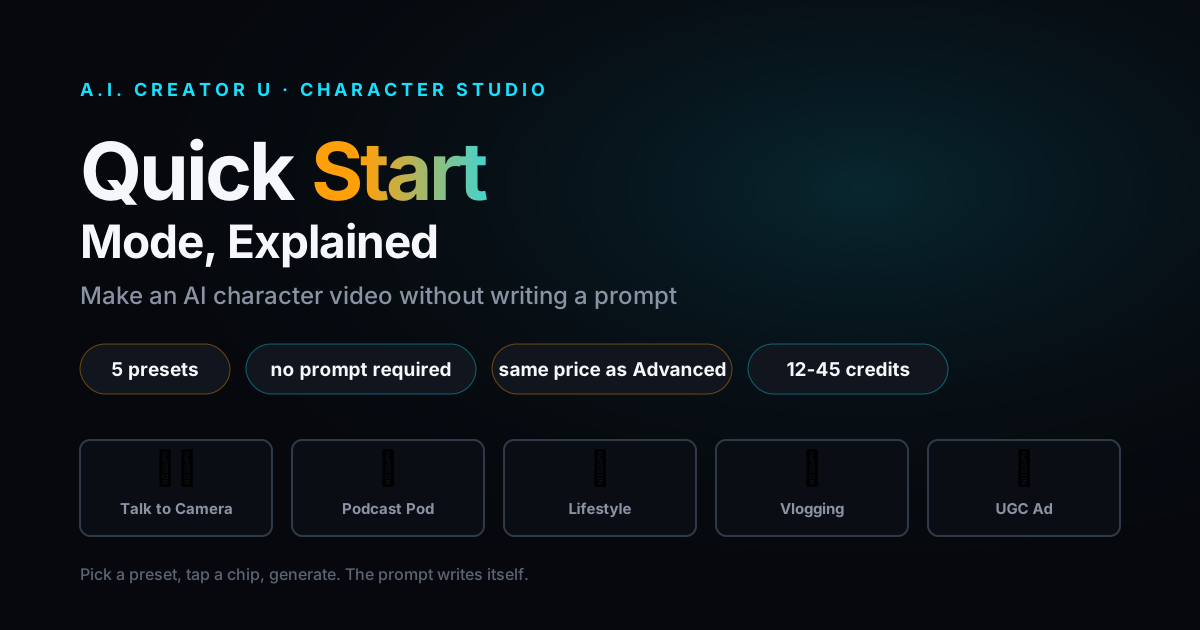
Quick answer: Character Studio's Video tab now opens straight into Quick Start mode by default. Pick one of five scene presets (or write your own), tap a mood chip, add up to three product photos and a line of dialogue if you want them, and generate. No prompt-writing required. It calls the same Seedance 2 engine as Advanced mode, at the same price (12 to 45 credits depending on length and quality), and any video you make there can be handed straight to Advanced for fine-tuning later. If you've been avoiding Character Studio's Video tab because the prompt box felt like homework, this is the fix.
What Is Quick Start Mode, Actually?
Character Studio has always had a Video tab where you type a prompt describing what your character does, then wait for Seedance to render it. That's still there. It's just not the front door anymore.
Open the Video tab today and you land in Quick Start: a picker of five scene presets plus a Custom Prompt option, a row of mood chips, and a short confirm screen. No blank text box staring back at you. The system builds the prompt behind the scenes, using your character's saved identity and whatever preset and chip you pick, and shows you the human-readable version before you commit.
This isn't a separate product. It's a second front end on the exact same generation pipeline. Every Quick Start video calls the same seedance.generate mutation Advanced mode uses, defaults to the Seedance 2 Fast model, and gets billed on the same credit schedule. Quick Start doesn't cost more. It just removes the part where you have to know what to type.
That distinction matters because of where most people actually get stuck. Marketers who've adopted AI video generation report that the top barrier to going further with the tools isn't price and it isn't access. It's in-house skill, cited by 43% of marketers as the real blocker to scaling AI video production. Writing a prompt that reliably produces a usable 5-second clip is a skill. Most people don't have it yet, and they shouldn't need it just to get their character talking on camera.
It's also worth caring about because of what these clips end up doing once they're posted. UGC-style content, the casual, unpolished, talking-to-camera style Quick Start is built around, is reported to convert far better than obviously produced brand content, with 2026 research showing UGC-style posts outperforming brand-created content by a wide margin. An AI persona that talks straight to camera in a believable, unpolished way isn't a novelty. It's aiming at the exact format that already works.
What Quick Start Actually Builds Behind the Scenes
Here's what makes this more than a simplified UI skin. Pick Talk to Camera, add the Coffee Shop chip, upload one product photo, and type "check this out" as your dialogue. Quick Start composes a prompt roughly like this before you ever see a text box:
"@yourcharacter speaking directly to the camera, medium close-up, warm eye contact, natural daylight, subtle hand gestures while talking, in a cozy coffee shop with warm ambient light, holding @image2, saying: 'check this out'"
That's the human-readable version, shown to you on the confirm screen before you commit. Behind it, a second version swaps your character's name for @image1 and the product photo for @image2, the exact reference-token format Seedance expects. You never touch that second version. You just watch the first one build itself as you tap through presets, chips, and uploads, and you can edit it directly if one word feels off before you generate.
That transparency is deliberate. Nothing about Quick Start is a black box that quietly decides what to generate. It's the same prompt-writing process an experienced Advanced-mode user would type by hand, just assembled from your taps instead of your keystrokes.
The Five Presets (and When to Use Each One)
Every preset is a starting template: a plain-English description plus a hidden cinematography instruction you never see, tuned for that specific look. You pick a vibe, not a shot list.
| Preset | What it's for | Default framing |
|---|---|---|
| Talk to Camera | Direct-address clips, announcements, explainer intros | 9:16, medium close-up, warm eye contact |
| Podcast Pod | Sit-down, interview-style calm energy | 16:9, mic in frame, soft push-in |
| Lifestyle Scene | Candid day-in-the-life moments | 9:16, handheld documentary feel |
| Vlogging | Selfie-style, shot-on-phone authenticity | 9:16, arm's-length framing, natural shake |
| UGC Ad / Promo | Product-first, energetic showcase clips | 9:16, phone-style framing, product lit and visible |
| Custom Prompt | Full manual control, no preset scaffolding | Whatever you type |
Five mood chips layer on top of whichever preset you pick, filling in a setting without you having to describe it: City Walk, Coffee Shop, Gym Workout, Product Demo, and Founder Story. Chips and presets combine freely. Talk to Camera plus Coffee Shop gets you a warm, seated explainer clip. UGC Ad/Promo plus Product Demo gets you a studio-lit product showcase. The chip fills the "where," the preset defines the "how."
One detail worth knowing if your character is illustrated rather than photoreal: Quick Start checks your character's art style and automatically swaps the cinematography instructions for an art-preservation directive when the style is anime, Pixar-style 3D, western cartoon, or storybook. You don't have to remember to ask the model not to "realism-ify" your cartoon character. It already knows.
Walking Through a Quick Start Video
- Open your character's Video tab. You land in Quick Start automatically, every single time, whether this is your first video with this character or your fiftieth. Prefer Advanced for a specific generation? Switch with the mode toggle at the top. That choice isn't remembered between visits on purpose. Next time you open the tab, you're back in Quick Start.
- Pick a preset. Five scene cards plus Custom Prompt. Hover or tap to preview what each one produces before committing.
- Add a mood chip (optional). Not required, but it's the fastest way to set a scene without typing anything.
- Upload products (optional, up to three). These attach as additional reference images alongside your character's identity shot, so the model treats them as objects your character is actually holding or using, not just background clutter.
- Add a line of dialogue (optional). Type what you want your character to say and it gets folded into the prompt as a quoted line.
- Set duration, aspect ratio, and quality. Durations run 4, 5, 6, 8, 10, 12, or 15 seconds. Aspect ratios are Reel (9:16), Landscape (16:9), or Square (1:1). Quality is 480p or 720p.
- Preview the composed prompt. Before you generate, Quick Start shows you the actual human-readable prompt it built, tokens and all, so nothing happens silently. You can see exactly what it's about to send.
- Generate. Credits get charged the same way Advanced mode charges them, based on duration and resolution. See the table below.
- Review in your gallery, or send it to Advanced. A "Change in Advanced" option hands your composed prompt, duration, aspect ratio, quality, and product uploads straight into Advanced mode as a starting point, so you can keep tweaking without starting from scratch.
That last step is the one people miss. Quick Start isn't a dead end for anyone who eventually wants more control. It's a faster on-ramp into the exact same Advanced surface, with your first attempt already loaded as a draft.
What It Actually Costs
Quick Start uses the same dynamic Seedance 2 Fast pricing as Advanced mode. There's no Quick Start tax. Here's the credit cost by duration and quality tier:
| Duration | 480p | 720p |
|---|---|---|
| 4s | 6 credits | 12 credits |
| 5s | 7 credits | 15 credits |
| 6s | 9 credits | 18 credits |
| 8s | 12 credits | 24 credits |
| 10s | 14 credits | 30 credits |
| 12s | 17 credits | 36 credits |
| 15s | 21 credits | 45 credits |
Adding product photos or a dialogue line doesn't change the price. The cost is driven entirely by how long the clip is and which resolution you pick. If you're testing a preset for the first time, start at 480p and 4 or 5 seconds. It's cheap enough to try three or four combinations before you commit real credits to a 720p, 15-second render.
Quick Start vs. Advanced: Which One Should You Use?
Quick Start is the right call when you know roughly what you want (a talking-head clip, a lifestyle moment, a UGC-style product shot) and you'd rather pick from good defaults than write cinematography language yourself. It's also the automatic landing spot every time you open a character's Video tab, by design. The product deliberately doesn't remember that you picked Advanced last time, on the theory that Quick Start is the safer default for any new generation.
There's a second entry point worth knowing about too. If you've generated a still image of your character in the Images tab and want to bring it to life, the "Animate this image" option on that image skips the picker screen entirely. It jumps straight to Quick Start's confirm step with a matching preset already selected and that exact image locked in as the identity reference, replacing the usual four-panel character sheet for that one generation. Using a single specific image as the reference instead of the general character sheet tends to produce a video that matches that image's pose and outfit more tightly, since there's only one visual source for the model to match instead of four.
Advanced is the right call when you need something none of the five presets cover: a very specific camera move, a non-standard aspect ratio, multi-shot sequencing, or fine control over exactly how a product is being used rather than just held. It's also where you land automatically if you use the Library's "Recreate" option on a past video, since recreating something specific is inherently a full-control task.
Neither mode is the "beginner" version and the other the "real" one. They're both driving the same engine. The difference is just how much of the prompt you write by hand versus how much the preset writes for you.
The One Real Trade-off
Here's the honest catch. Presets are opinionated. Talk to Camera always frames a medium close-up with warm eye contact. Vlogging always adds handheld camera shake and a shot-on-iPhone look, on purpose, because that's what makes it read as authentic rather than produced. If you need a look that isn't handheld, isn't a medium close-up, and isn't candid, none of the five presets will get you there without editing the composed prompt yourself in Advanced mode afterward.
That's not a flaw so much as the whole point of a preset system. A preset that could produce literally anything wouldn't save you any prompting work. The five here cover the shots people actually ask for most, direct address, interview, candid lifestyle, phone-style vlog, and UGC product demo, and Custom Prompt is sitting right there in the picker for the one time in five you need something else.
Where This Fits If You're Just Getting Started
If you haven't built a character yet, start with the character-building side of Character Studio before touching the Video tab at all. A character with a weak or drifting identity will produce inconsistent video no matter which mode you use to generate it. Our AI character generator guide walks through building one that holds its identity across shots.
Once you're generating regularly, the product upload feature in Quick Start pairs naturally with keeping the same physical objects consistent across shots. If you're already using Assets to keep a product looking identical from one photo to the next, that same consistency logic carries into Quick Start's product slots. We cover the mechanics in how to keep your AI character's products and outfits consistent.
And if Talk to Camera is the preset you keep reaching for, it's worth reading our dedicated breakdown on building an AI talking head video generator workflow, which goes deeper into lip sync quality and delivery than a single preset overview can.
Quick Start videos are also a fast way to stock a faceless channel with your AI persona instead of your own face. If that's the direction you're headed, our Faceless Content Playbook lays out the bigger strategy: how much content to plan, how to keep an audience without ever appearing on camera, and how a tool like Character Studio fits into that plan rather than being the whole plan.
Frequently Asked Questions
Does Quick Start cost more than writing my own prompt in Advanced mode? No. Both modes call the same model at the same dynamic per-second pricing. The only thing that changes the credit cost is duration and resolution, not which mode you used to build the prompt.
Can I upload my own product photos in Quick Start? Yes, up to three per generation. They attach as additional reference images alongside your character's identity shot, and the model is instructed to show your character actually holding or using them rather than just standing near them.
What happens if my character has an illustrated style instead of a realistic one? Quick Start detects non-realistic styles (anime, Pixar-style 3D, western cartoon, storybook) and automatically swaps in an instruction that preserves the illustrated look instead of the default photoreal cinematography language. You don't need to specify this yourself.
Can I add spoken dialogue to a Quick Start video? Yes. There's a dedicated dialogue field on the confirm screen. Whatever you type gets appended to the composed prompt as a quoted line, so your character is instructed to say it on camera.
If I start in Quick Start, can I switch to Advanced mode without losing my work? Yes. The "Change in Advanced" option carries your composed prompt, duration, aspect ratio, quality setting, and any product uploads straight into Advanced mode as a starting point. Nothing you've already picked gets thrown away.
Does Quick Start default to a specific AI video model? Yes, every preset defaults to Seedance 2 Fast, the same balanced-cost, balanced-speed model most Advanced-mode users reach for by default. You're not sacrificing model quality for convenience. If you want a different model entirely, that's an Advanced-mode decision, made after you hand off your Quick Start draft.
Try It
Quick Start is already live on every character's Video tab, first-time and returning users alike. If you've got a character built and you've been putting off the Video tab because writing prompts felt like a separate skill to learn, that's exactly the gap this closes. Open Character Studio and generate your first clip in under a minute, no prompt required.