The AI Brand Kit: How Studio Zero Keeps Every Photo, Ad, and Caption On-Brand Without You Repeating Yourself
You know the drill. You generate a gorgeous product photo in one tool, a carousel in another, and a video ad in a third, and somehow your "brand blue" comes out three different shades of blue. Nobody typed the wrong hex code. Nobody forgot the logo. The tools just don't talk to each other, so you're re-explaining your brand every single time you open a new one.
Quick answer: Studio Zero's Brand Kit fixes this by building a reusable brand profile (colors, voice, tagline, logo, fonts) straight from your product, once, and then applying it automatically to every photo, video, carousel, and ad you make from that point on. Building or editing a kit costs nothing. The AI-written marketing copy pack that comes with it (headlines, descriptions, captions, hashtags) is a flat 1 credit per pack, and it happens without you ever opening a separate "brand settings" page.
What Is Studio Zero's Brand Kit, Actually?
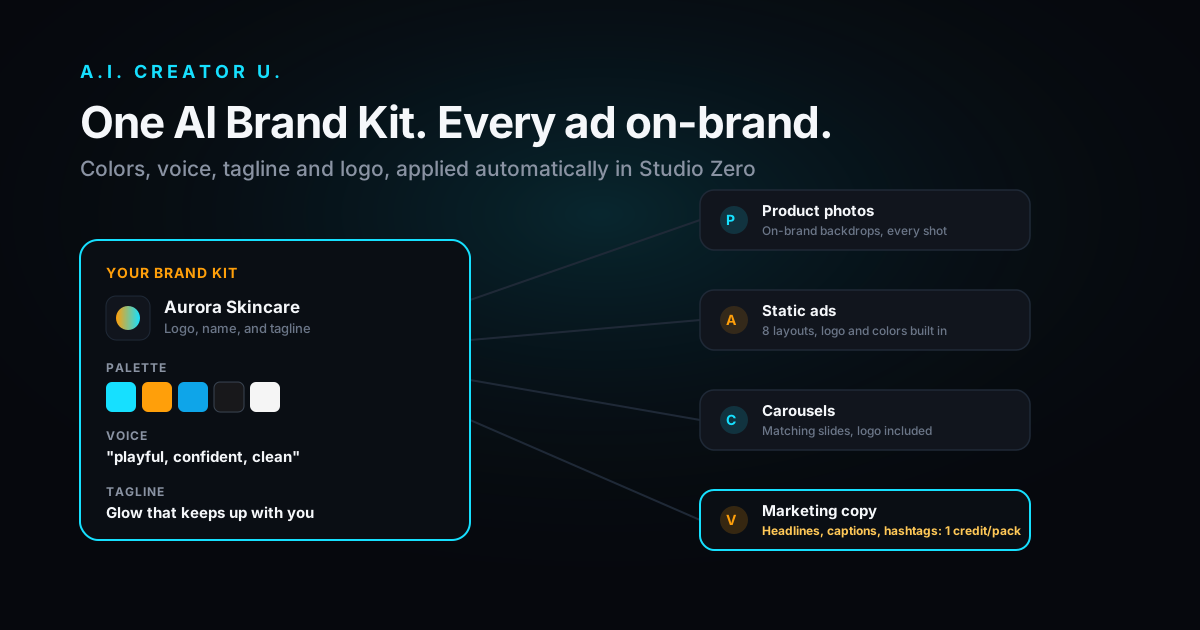
It's a small, structured object that Studio Zero builds and stores per user: a name, a 3 to 5 color palette, a brand voice described in a handful of adjectives, a short tagline, heading and body font suggestions, and an optional logo. Nothing exotic. What makes it useful is where it gets read from and where it gets applied.
Every one of those fields feeds directly into the actual prompts the AI uses to generate your photos, and into the copy it writes for your ads and captions. It's not a moodboard you build once and admire. It's an input that changes the pixels and the words that come out the other end.
How Does It Learn Your Brand in the First Place?
You don't fill out a form. The first time you bring a product into Studio Zero (paste a URL or upload photos), the analysis step reads that product's name, description, and scraped colors, and quietly kicks off a brand-kit build in the background while you keep working. By the time you land on the Photos or Make Ads tab, a kit built from that exact product is usually already attached, with zero clicks from you.
Under the hood it's a three-tier AI pipeline (Claude first, Gemini as a fallback, a safe static default if both are down), so it never leaves you stuck without a kit. You can also trigger it manually any time from the "Brand & Details" tab with a "Build my brand kit from this product" button, or feed it a different URL entirely (your homepage, a competitor's page, whatever context you want it to read) if you want to build a kit that isn't tied to the product you happened to import first.
Building, editing, attaching, and deleting brand kits costs 0 credits. Only the AI copy pack that rides along with it (more on that below) has a price tag.
What's Actually Inside One
| Field | What it does | Limit |
|---|---|---|
| Color palette | 3 to 5 hex colors, mapped internally to nameable colors like "forest green" or "amber gold" so the image model can actually use them in a scene | up to 8 stored |
| Brand voice | 3 to 6 tone adjectives (e.g. "playful, confident, premium") that steer copy tone and the overall mood of generated scenes | 600 characters |
| Tagline | A short, punchy line, optionally echoed in ad copy | 160 characters |
| Fonts | Suggested heading and body typefaces, Google-Fonts style | 60 characters each |
| Logo | An uploaded image, auto-downscaled to a small PNG and used on carousels and static ads | 8 MB upload |
One detail worth calling out because it's easy to get wrong: the color palette only styles the environment, meaning backdrops, surfaces, props, lighting. Your product's own packaging is explicitly protected and never recolored to match the palette. That's a hard rule baked into the prompt logic, not a suggestion the model sometimes ignores.
Where Does It Actually Show Up?
This is the part that makes it worth writing about instead of just a footnote in another post. The same kit reaches into every corner of Studio Zero:
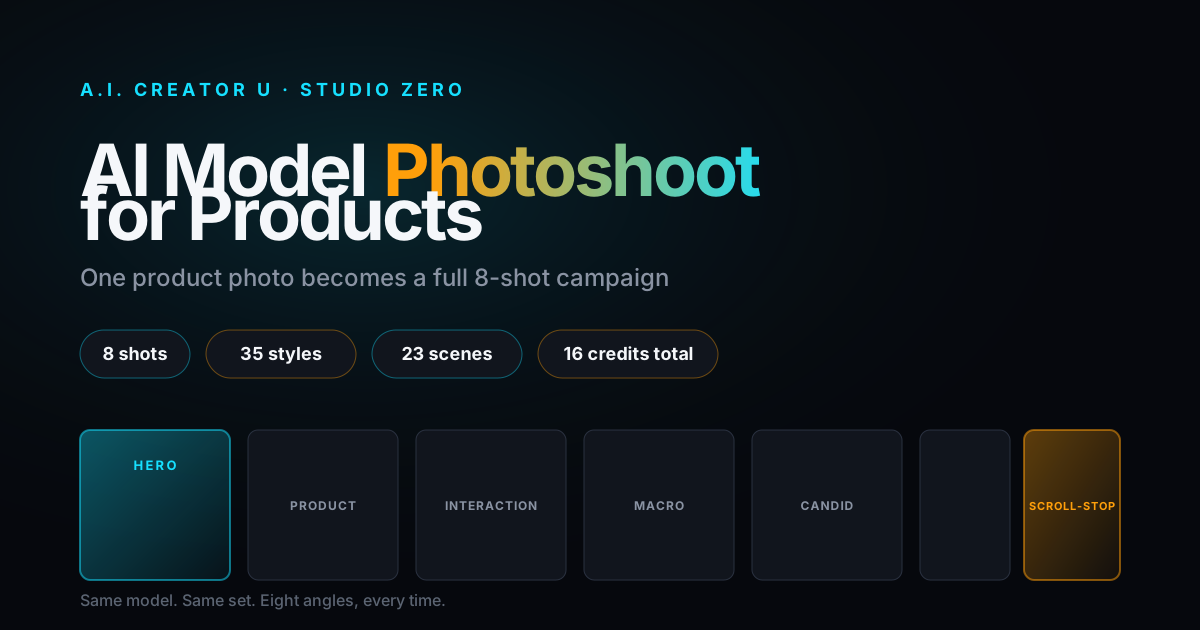
- Photos and Model Photoshoots. Scene backdrops, props, and styling pull from your palette and voice, whether you're generating a single product shot or running the full 8-shot model photoshoot.
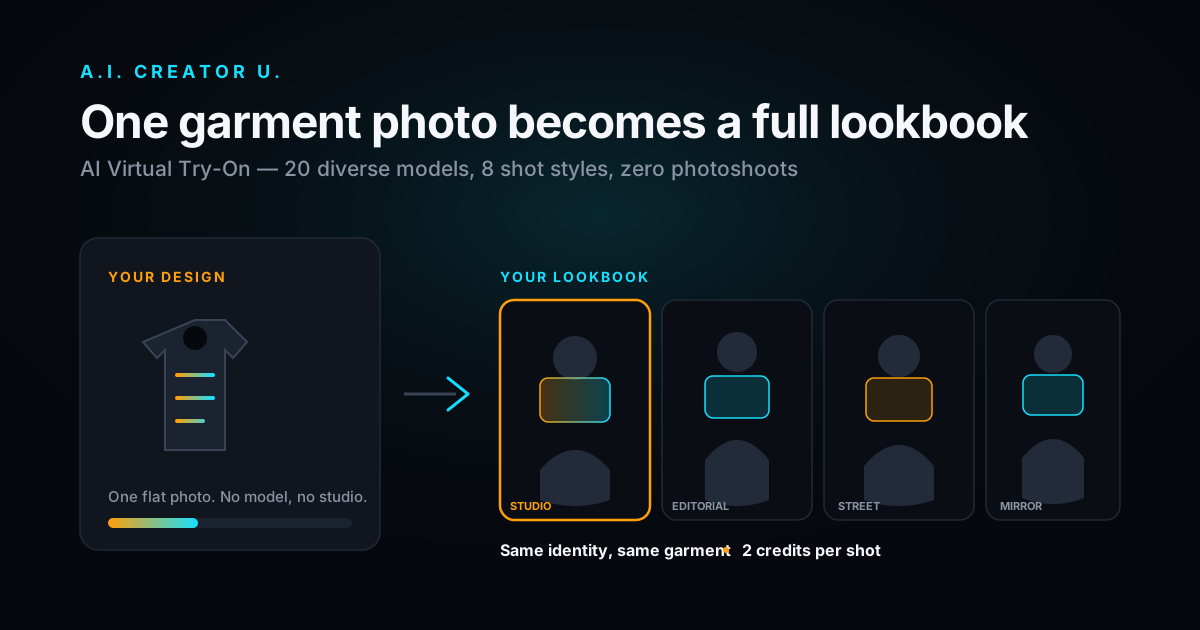
- Try-On shots. Same brand styling applies to the environment around the model, not the garment itself.
- Carousel Studio. Your logo and colors carry straight into the swipe-through carousel templates, so the slide backgrounds and creator-attribution overlay match instead of looking bolted on.
- The Make Ads tab. This is Studio Zero's static ad builder: 8 layout templates (a bottom brand band, a photo with a dark fade, split-panel text, an offer badge in the corner, big outline type, and a few more), rendered at 1:1, 4:5, or 9:16. Your logo, palette, and fonts apply automatically to whichever layout you pick.
- Marketing copy, everywhere copy shows up: headlines, product descriptions, ad captions, hashtags, even the alt text on your images.
- Video ad pipelines, like turning a single product photo into a video ad, inherit the same voice and palette when a brand kit is attached to the session.
What's the Marketing Copy Pack, and What Does It Cost?
Alongside the visual brand fields, the same system generates a structured copy pack for whatever product you're working on:
| Item | What you get | Cost |
|---|---|---|
| Copy pack | 3 to 5 headlines, a 2 to 4 sentence product description, 3 to 5 ad captions, 8 to 15 hashtags, and one SEO alt-text line | 1 credit per pack |
| Generate more (headlines or sublines) | Up to 8 fresh lines per request, in one of 5 angles: benefit-led, bold, question, offer, or social proof | 1 credit per call |
| Ad export | Download your finished static ads as a ZIP, however many you selected | 1 flat credit for the whole batch |
That "generate more" step is more useful than it sounds. Pick the "offer" angle and it'll work a discount or urgency line into the copy without inventing a number you didn't give it. Pick "proof" and it leans on trust language without fabricating a review or a stat, because the system prompt explicitly forbids making up specific claims, certifications, or studies. For anything in the supplement or wellness space, it also hard-blocks disease, treatment, or cure language and sticks to "support"-style phrasing, which matters if you're running ads through Meta or TikTok's ad review.
How Do You Switch Brands or Turn It Off?
You can save more than one kit, useful if you sell under a few different product lines or brands. The "Brand & Details" tab shows your currently active kit up top with a simple on/off toggle, and a full list of your saved kits below it that you can switch between with one click.
Flipping the toggle to "off" doesn't touch your product photos. It just tells the generator to skip your saved colors and voice for that specific project, useful when you're testing a totally different creative direction and don't want the AI pulling you back toward your usual palette. Flip it back on and your kit reapplies instantly, nothing is lost.
Step-by-Step: Set This Up in Under Two Minutes
- Import a product into Studio Zero (paste a product URL or upload a few photos).
- Let the analysis step run. A brand kit gets built from that product automatically in the background, no action needed.
- Open the Brand & Details tab to see what it built: check the palette, read the voice, and add your logo if you have one (drag and drop, under 8 MB).
- Not happy with what the AI inferred? Hit "Build a new kit from this product" to regenerate it, or edit the fields directly.
- Head to Photos, Make Ads, or Carousels and generate. The kit is already attached, so there's nothing else to configure.
- Selling a second product line? Build a second kit and switch between them from the same tab whenever you need to.
Why This Is Worth Setting Up Even If You're Skeptical of "Brand Kits"
Most "brand kit" features across AI tools are static assets: a saved palette you upload once, then have to manually reference every time you write a new prompt. This one is different because it's read at generation time by the actual image and copy models, not just stored for your own reference. You don't paste your hex codes into a new prompt every session. You don't rewrite your brand voice into every headline request. It's just there.
Whether the 23% revenue lift a widely cited Lucidpress brand-consistency study attributes to consistent branding holds up for a small ecommerce shop running AI-generated ads is genuinely hard to know. What isn't hard to know is the smaller, dumber cost most sellers actually pay: the ten minutes wasted matching colors by eye across three different tools, or the ad that gets pulled because the caption made a health claim nobody meant to make. A free, automatic brand layer solves the boring version of that problem, which is usually the one that actually eats your afternoon.
If you're already running product photos or ads through Studio Zero, the Brand Kit is worth checking before your next batch. It's already built. You just haven't looked at it yet.
Get More Ad Creative Out of the Same Setup
Once your brand kit is attached, it's worth running it through Studio Zero's other formats while everything is already dialed in. That could mean the 8-shot model photoshoot, a swipe-through Instagram carousel, or turning your best photo into a full video ad. For the bigger picture on building a complete ad strategy around AI-generated creative, our guide to making AI video ads that convert walks through the full playbook.
FAQ
Do I have to build a Brand Kit manually? No. The first time you bring a product into Studio Zero, a kit gets built from it automatically in the background. You can edit it, replace it, or ignore it, but there's no setup step required to get started.
Does creating or editing a Brand Kit cost credits? No. Creating, updating, attaching, switching, and deleting brand kits are all free actions. The only cost is the AI copy pack (headlines, descriptions, captions, hashtags), which is a flat 1 credit per pack, and "generate more" requests at 1 credit each.
Can I have more than one Brand Kit? Yes, there's no hard limit mentioned in the product. Build one per product line or brand you manage and switch between them from the Brand & Details tab whenever you're working on a different one.
Will the Brand Kit change how my actual product looks in photos? No. The color palette and voice only style the environment: backdrops, props, lighting, and mood. Your product's packaging and label are explicitly protected and generated exactly as shown in your reference photos, never recolored or restyled to match your brand palette.
What if I want to experiment with a totally different look for one project? Flip the "Brand for this project" toggle off in the Brand & Details tab. It suppresses your saved colors and voice for that one project without deleting or detaching your kit, so you can flip it back on any time.