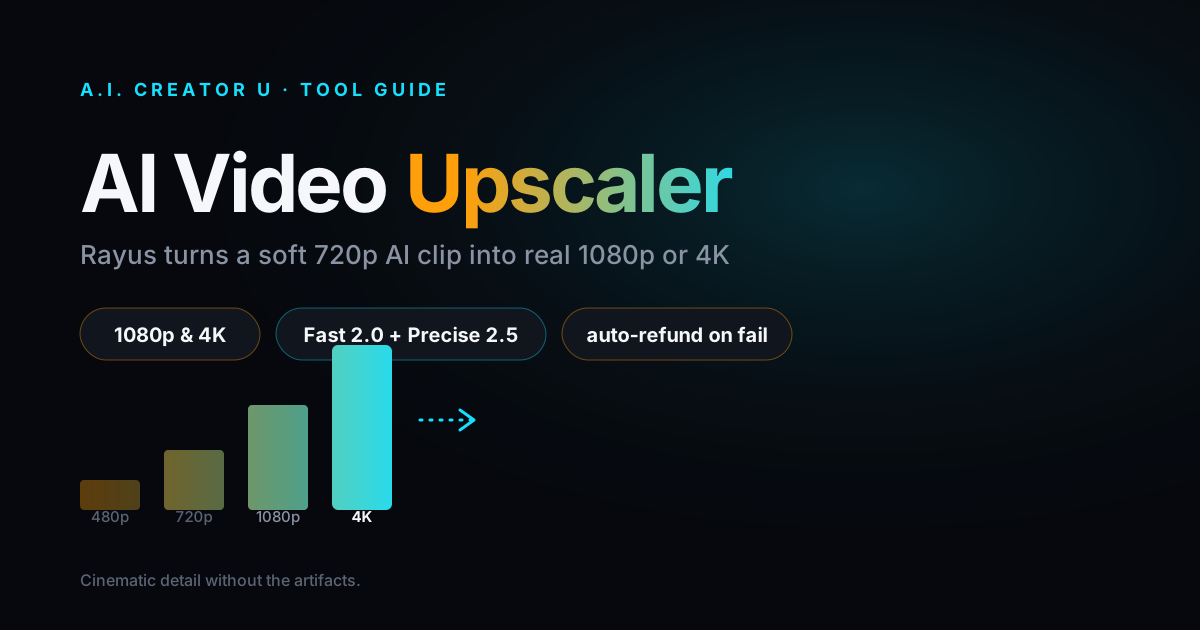
Quick answer: Most AI video models cap their output well below 4K. Seedance 2.5, our own flagship model, tops out at 720p. If you need the clip bigger, sharper, or ready for a big screen, you upscale it after generation instead of hoping a "high quality" toggle magically invents pixels that were never there. Rayus (our built-in upscaler at /tools/upscaler) takes any generated or uploaded clip up to 4K, runs on two model tiers (Fast 2.0 and Precise 2.5), and refuses to charge you full price if the clip is already at your target resolution. Here's exactly how it works and when it's worth the credits.
Why your AI video looks softer than you expected
Nobody tells you this when you sign up: most AI video generators don't actually output in 4K, and a lot of them don't hit 1080p either. Seedance 2.5, the newest and most capable model in our Create Video tool, generates at 480p or 720p only. No 1080p option, no 4K option, full stop. Seedance 2 Fast and Seedance 2 Mini are the same story: 480p or 720p, nothing higher. That's not a bug or a corner we cut. It's how the current generation of video diffusion models works. Higher native resolution means exponentially more compute per second of footage, so most providers (ours included) generate at a resolution that keeps speed and cost sane, then leave upscaling as a separate, optional step.
That's a completely different problem from "my video looks fake." Soft edges, warped hands, flickering text and melted backgrounds are AI generation artifacts, and no upscaler fixes those. What an upscaler does fix is resolution and fine detail: turning a real 720p clip into a genuinely sharper 1080p or 4K file, with more actual pixel information, not just a bigger blurry version of the same thing.
If you've only ever hit "download" on a Seedance or Kling clip and uploaded it straight to TikTok or YouTube, you've probably been publishing sub-1080p video without realizing it. On a phone screen it's forgivable. Cropped into a 6-foot display at a trade show, or repurposed as a hero video on a product page, it looks exactly like what it is: upscaled by the platform's own compression, badly.
What Rayus actually does
Rayus is the upscaler built into A.I. Creator U, live at /tools/upscaler. You don't export anything or juggle a second app. Pick a clip from your own generation history (from Create Video, Studio Zero, Character Studio, wherever), or upload your own file, choose 1080p or 4K, and Rayus runs it through a real AI upscaling model, not a resize filter.
A few details worth knowing before you use it:
- Two model tiers. Rayus Fast 2.0 is the default, and it's the cheaper option for most footage. Rayus Precise 2.5 is the premium tier, tuned for AI-generated and noisy source video where you want the sharpest possible detail recovery.
- Aspect ratio is preserved exactly. "1080p" and "4K" describe the short edge of the output, not a fixed frame size. A 9:16 phone clip upscales to 1080×1920, a 16:9 clip to 1920×1080, a square post to 1080×1080. Nothing gets stretched, cropped, or letterboxed to fit a preset.
- Real limits. 60 seconds max per clip, 500MB max file size for uploads. Heavy 4K jobs can take 10 to 20 minutes, so it's not instant, but it also isn't something you have to babysit.
- Failed jobs auto-refund. If a job errors out, the credits go back into your balance automatically. You're never charged for a clip that didn't process.
- A built-in before/after slider. Every completed job opens with a wipe-comparison view so you can drag between the original and the upscaled version and actually see what changed, not just take the resolution number on faith.
Fast 2.0 vs Precise 2.5: which one do you actually need
This is the one decision Rayus asks you to make, and it's simpler than it looks.
Use Rayus Fast 2.0 when: you're upscaling clean, well-lit footage, generated video that already looks decent at its native resolution, or you're processing a lot of clips and want to keep costs down. It's the default for a reason. Most of what comes out of Create Video at 720p looks genuinely good run through Fast 2.0 at 4K.
Use Rayus Precise 2.5 when: the source clip is noisy, has compression artifacts, or came from a model known for softer detail (lower-tier generation settings, older exports, screen recordings). Precise 2.5 is tuned specifically for pulling detail out of degraded or AI-generated noise patterns, which is a different problem than just "make it bigger." It costs more, roughly double the credits of Fast 2.0 for the same clip length, because it's running a heavier model, but for a hero clip going on a landing page or a paid ad, that's usually worth it.
Here's the honest opinion part: most people default to the "premium" option because it sounds better, and burn credits they didn't need to. Precise 2.5 earns its cost on genuinely rough source material. On a clean Seedance clip, you often can't tell the difference from Fast 2.0 side by side, and the credit gap adds up fast across a batch.
How the credit cost actually works
Rayus prices upscales by frame count, not a flat per-video fee, so a 10-second clip and a 60-second clip cost proportionally different amounts. The exact mechanic: Topaz-side cost is calculated per frame, then converted to your credits with a markup. There's a launch discount live right now (roughly 10 to 12% off the regular rate depending on length), shown as the price you actually pay on the button.
Here's what that looks like in practice for Rayus Fast 2.0, assuming a typical 24fps clip:
| Clip length | 1080p (launch price) | 4K (launch price) |
|---|---|---|
| 10 sec | 14 credits | 27 credits |
| 20 sec | 24 credits | 50 credits |
| 30 sec | 35 credits | 74 credits |
| 45 sec | 50 credits | 111 credits |
| 60 sec | 66 credits | 147 credits |
A few notes on reading this table honestly: these numbers assume 24fps source video. Rayus detects your actual frame rate automatically, so a 30fps or 60fps clip will cost more (more frames to process). Rayus Precise 2.5 runs on the same per-frame formula but at roughly double the credit cost of Fast 2.0 for an equivalent clip, since it's a heavier quality-focused model. The tool always shows you the exact credit cost before you submit, so treat this table as a planning guide, not a quote, and check the on-screen number for your specific clip.
New accounts start with a 6-credit welcome pack, and finishing the quick onboarding tour adds another 10, for up to 16 free credits total to test the tool with before you commit to anything.
How to upscale an AI video, step by step
- Open Rayus at
/tools/upscaler(or click the one-click "Upscale" button that appears directly on output cards after a Create Video generation). - Pick your source. Search your generation history by tool, or drag in your own video file (500MB max, video files only).
- Choose your target resolution. 1080p or 4K. Rayus shows you the exact output dimensions based on your clip's aspect ratio before you commit.
- Pick a model. Fast 2.0 for most clips, Precise 2.5 for noisy or heavily AI-generated source footage.
- Check the credit quote. It updates live based on your clip's actual duration and detected frame rate.
- Submit and wait. Most jobs finish in a few minutes; heavy 4K passes on longer clips can take 10 to 20 minutes.
- Compare before you publish. Use the before/after wipe slider to confirm the upscale actually improved the clip, then download.
The mistake Rayus won't let you make
Here's a small feature that says a lot about how this tool is built: if you pick a clip that's already at or above your target resolution, Rayus stops you. A warning appears explaining that running it through the upscaler at that resolution would just "enhance" pixels that already exist, not genuinely upscale anything, and you'd be paying full credit price for a marginal bump. You can override it and enhance anyway if you have a real reason, but you have to check a box that says exactly that: "I understand it won't actually upscale."
That's a deliberate anti-pattern for a paid tool. Most software would happily let you pay to run a 1080p file through a "4K upscaler" and call it a day. This one tells you not to. It's also a genuinely useful signal if you're not sure what resolution your source clip actually is; the tool will tell you.
Chaining upscales for maximum quality
If you generated a clip at 480p (say, on Seedance 2 Mini for a quick draft) and want the best possible final quality, you don't have to jump straight to 4K in one pass. Rayus supports an "Upscale More" flow: run a 480p source through Fast 2.0 to 1080p first, review it, then feed that 1080p output back in as the new source for a second pass to 4K with Precise 2.5. Each step is a real upscale on real intermediate detail, not one giant leap that has to guess at everything at once.
Rayus vs. standalone upscaling apps
If you've looked into fixing blurry AI video before, you've probably run into Topaz Video AI, the long-standing benchmark for desktop AI video upscaling, along with a wave of newer online tools like VanceAI and various browser-based upscalers. Topaz in particular is genuinely well regarded and is reportedly priced as an annual subscription in the $299/year range as of 2026, separate from whatever you're already paying to generate the video in the first place.
| Rayus (built-in) | Standalone desktop/web upscalers | |
|---|---|---|
| Workflow | Pick from your generation history, no export/import | Download your clip, upload to a separate app or site |
| Pricing | Pay per upscale in credits you already have | Separate subscription or per-export fee |
| Source picker | Native access to everything you've generated in-app | Manual file management |
| Guardrails | Warns you before you waste credits on an already-sharp clip | Varies by tool; most will happily process anything you feed them |
The honest tradeoff: dedicated desktop tools like Topaz have been refining upscaling models for years and offer more granular manual controls for professional colorists. For a creator or seller whose footage originated in A.I. Creator U and is going straight to a platform or an ad, the built-in path removes an entire round trip of downloading, uploading, and paying for a second tool.
FAQ
Does upscaling fix AI video artifacts like warped hands or flickering? No. Upscaling increases resolution and recovers fine detail; it doesn't repair generation artifacts like distorted faces, melting objects, or flickering text. Those come from the generation model itself. If a clip has those problems, regenerating with a different prompt or model is the fix, not upscaling.
Which A.I. Creator U models actually need upscaling? Seedance 2.5, Seedance 2 Fast, and Seedance 2 Mini all cap out at 720p natively (some at 480p/720p only, with no 1080p option in the picker). If you need 1080p or 4K output from any of these, running the result through Rayus afterward is currently the only way to get there.
How long does an upscale take? Most jobs finish within a few minutes. Longer clips at 4K, especially through Precise 2.5, can take 10 to 20 minutes. You don't have to keep the tab open; it processes in the background and shows up in your history when it's done.
What happens if my upscale job fails? Credits are refunded automatically. You're not charged for a job that didn't complete.
Can I upscale a video I didn't generate in A.I. Creator U? Yes. Rayus accepts uploaded video files up to 500MB and 60 seconds, so footage from your phone, a stock clip, or another tool works the same way as anything from your own generation history.
Get sharper video without leaving your workflow
If you've been publishing 720p Seedance clips straight to a platform that expects 1080p or better, the fix takes about five minutes and doesn't require a second app or a new subscription. Head to Rayus at /tools/upscaler, pick a recent generation, and see the before/after slider for yourself.
Want to make the clip you're upscaling actually worth sharpening first? Check the AI Video Generation guide for the full model lineup, our honest comparison of Seedance vs. VEO vs. Kling if you're still choosing a generation model, or our MiniMax H3 guide for a model built with higher native output in mind. And if editing polish matters as much as resolution, our roundup of AI video editing software covers the rest of the finishing pipeline. Building a consistent AI character into your videos too? Our character generator guide covers keeping faces sharp and consistent across clips, which pairs directly with running the final output through Rayus before it ships.