Every Audio Studio tutorial we've published, including our own, walks through the same workflow: type a prompt, drop in a reference voice clip, get audio back. That covers cloning a voice. It doesn't cover the whole tool.
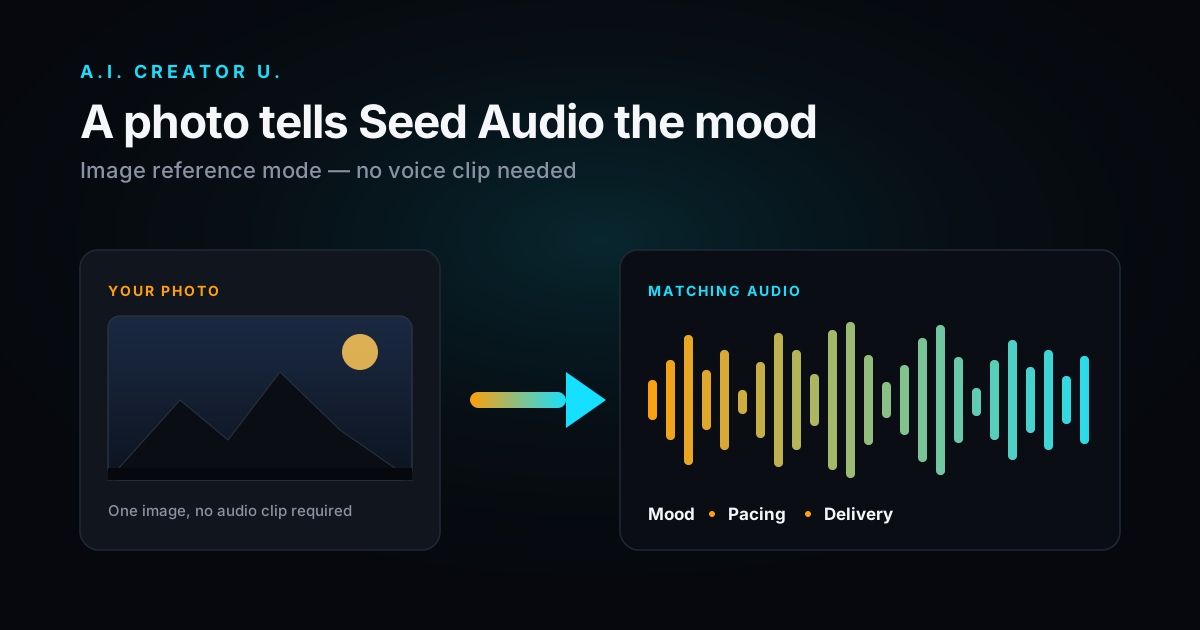
Tucked under the reference-voice slots in Audio Studio's control panel is a second option most people scroll past: "Use an image reference instead." Upload a photo, and Seed Audio uses it, not a soundbite, to decide what your audio should feel like. It's a real, fully shipped feature. It's also one almost nobody talks about, because almost nobody opens that toggle.
Quick answer
Seed Audio 1.0 (the model behind Audio Studio) accepts either up to three reference voice clips or one reference image, never both at once. The image doesn't get read aloud or turned into a caption. It conditions the mood, pacing, and delivery of whatever your text prompt asks for. Upload a photo of a rain-streaked window at night, ask for "a narrator reading a quiet confession, distant thunder," and the result comes back colored by that image's atmosphere, even though nothing in your prompt described weather or lighting. It costs the same flat 2 credits as every other Audio Studio generation, image reference or not.
What image reference mode actually does
Seed Audio doesn't have a "mode" switch buried in its settings. There's no toggle for "text-to-speech" versus "cinematic scene." According to ByteDance's own model documentation, whether you get flat narration or a full layered soundscape is purely a function of how you write the prompt and what you attach to it. Reference clips push it toward mimicking a specific voice. A reference image pushes it toward matching a specific feeling.
Practically, that means the image is doing the same job a mood board does for a designer. It's not transcribed, and it's not going to show up as an object in the output. If you upload a photo of a crowded night market and prompt "two friends catching up over food," you won't get a description of lanterns and steam. You'll get two voices, at the volume and energy level a real night market would demand, probably with a low wash of ambient noise: it read the vibe, not the pixels.
That's a meaningfully different tool than the text-described sound effects we've written about before. Our AI sound effects guide is about naming a sound and getting it back literally: "glass shattering on tile," "creaking wooden door." Image reference mode is for when you know the feeling you want but you'd rather show it than describe it. Both live in the same tool. You'll reach for one or the other depending on whether the thing you're trying to nail is a specific sound or a specific atmosphere.
How to actually use it
- Open Audio Studio and skip the reference-voice slots. Right below them, you'll see "Use an image reference instead" as a small text link (it's disabled if you've already added an audio reference, and vice versa, since the two are mutually exclusive).
- Upload one photo. PNG, JPEG, or WebP. Just one; there's no multi-image version of this the way there's a 3-clip version of voice references.
- Write your prompt as if the image weren't there. Describe the scene, the dialogue, the sound design, whatever you actually want generated. The image is context, not content.
- Optionally lock a voice preset. The "Voice preset" dropdown (19 built-in options, from narrator-style presets to distinct character voices) isn't disabled by the image reference the way it is by an audio clip. That's a detail that's easy to miss: you can pin a specific voice for consistency across multiple generations while still letting a different image drive the mood of each one. Leave it on "Auto / from reference" if you want the model to pick delivery on its own.
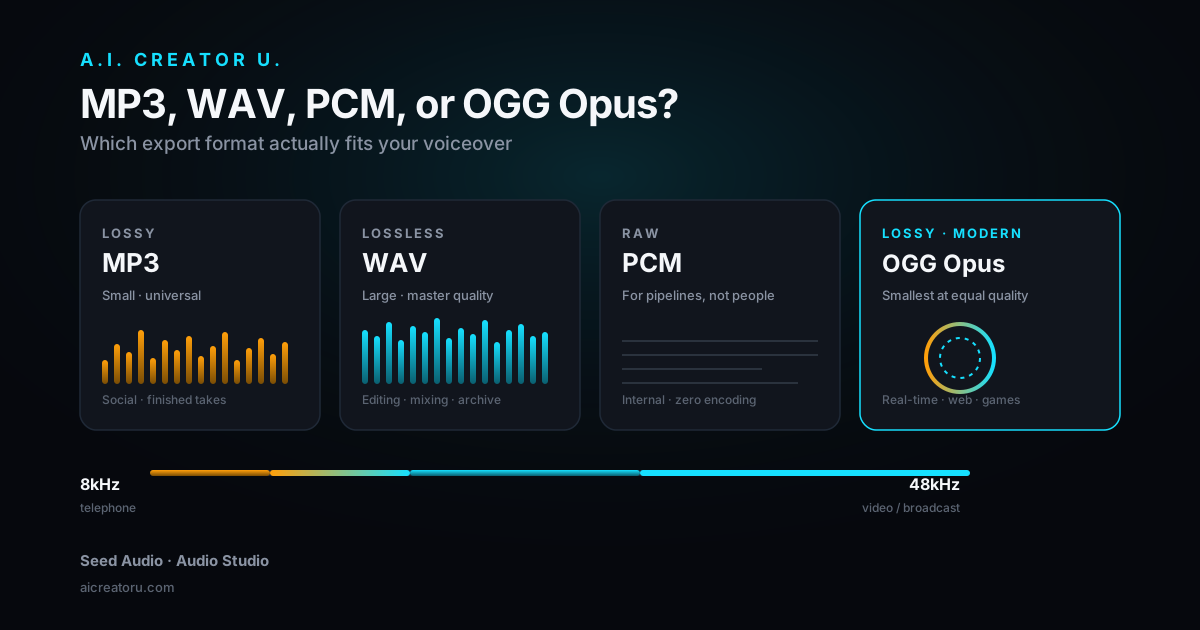
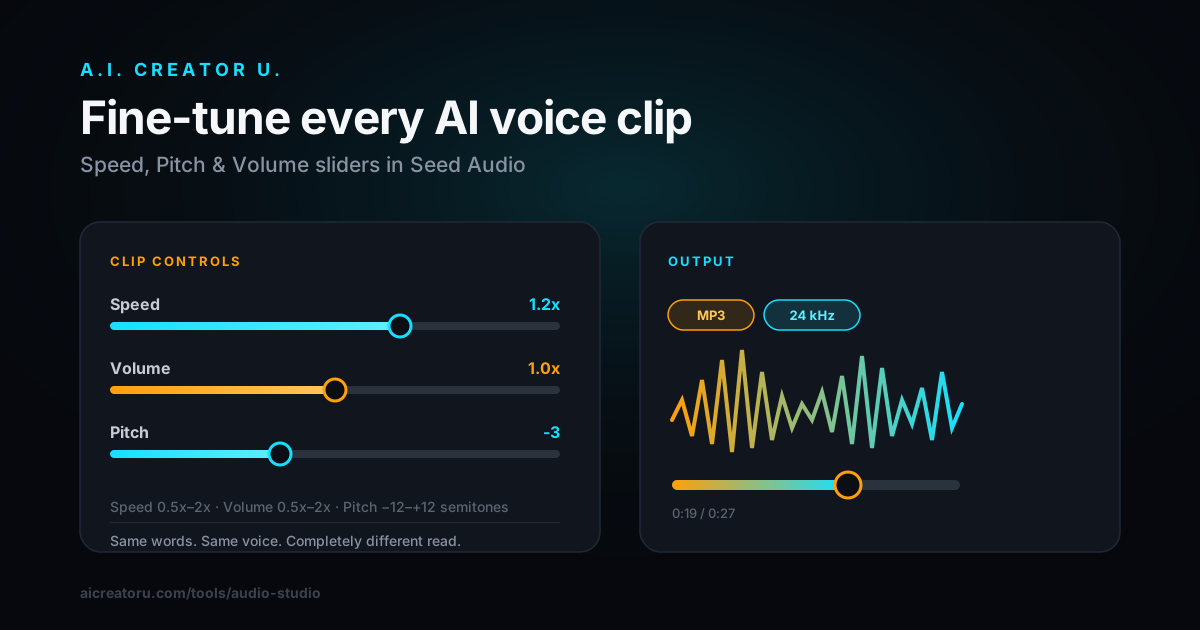
- Generate. Output comes back in your chosen format (MP3, WAV, PCM, or OGG Opus) at a sample rate between 8kHz and 48kHz, same controls as any other Audio Studio job.
There's no separate button or confirmation screen for "image mode." From the generation queue's perspective, it's an audio job like any other. The only visible difference is that the reference chip in your history shows a small image thumbnail instead of an audio waveform icon, which is genuinely the easiest way to tell, weeks later, which of your old generations used which reference type.
Image reference vs. voice reference: when to reach for each
| Voice reference (@Audio1-3) | Image reference | |
|---|---|---|
| What it controls | The specific voice/timbre being cloned | Mood, pacing, emotional delivery |
| Best for | Consistent character voice across a project | Matching a scene's atmosphere when you don't have (or don't need) a voice sample |
| Max references | 3 clips, ≤30 seconds each | 1 image |
| Can combine with a voice preset | No, the clip is the voice | Yes, pin a preset voice and still use the image for mood |
| Credit cost | 2 credits flat | 2 credits flat |
| Good example use | Narrating a series with the same host voice every episode | A single one-off ambient scene, trailer voiceover, or mood piece |
If you already did the work of cloning a voice for a project (see our full walkthrough of cloning yourself), stick with the audio reference. Image reference mode earns its keep on the opposite end: one-off pieces where you have a strong visual sense of what something should sound like but no audio sample to point at.
What photo actually works here
We ran this against a handful of image types to get a feel for what moves the needle, and a few patterns held up:
- Lighting and color read more strongly than literal content. A dim, blue-toned photo nudges toward hushed, tense delivery even if the scene itself is mundane. A bright, warm photo nudges toward upbeat.
- Crowds and empty spaces produce very different ambience. A packed room versus an empty hallway will change the implied background noise even with an identical prompt.
- It's not going to identify objects for you. Don't expect it to notice there's a dog in the frame and add barking; the image informs tone, not a shot list. If you need a specific sound cued, name it in the prompt.
- Screenshots and product photos don't do much. This feature earns its keep on photography with mood: a landscape, a candid shot, a still from a film. A flat product shot on white doesn't give the model much to steer with, so you'll get closer to "no reference at all" output.
That last point matters if you're coming from Studio Zero or a product-video workflow: this isn't the tool for making a product photo sound like anything in particular. It's built for scene and story work.
How is this different from other "image to audio" tools?
Image-conditioned audio generation isn't unique to Seed Audio: research models like MMAudio and ThinkSound, and a scattering of standalone apps, have been doing versions of "upload a photo, get matching ambience" for a while, largely aimed at turning still images into simple background soundscapes. What's different here is that it's not a separate app or a single-purpose toy. It's one input mode inside a full generation model that also does multi-speaker dialogue, music, and sound effects, so the image reference feeds the same engine that handles everything else in Audio Studio. You're not exporting to a different tool to get the mood layer; you're changing one upload in the same panel.
Seed Audio 1.0 itself is a recent model. ByteDance's Seed team reportedly introduced it at the Volcano Engine FORCE conference in mid-2026, and reporting on the release describes it as designed to produce a complete audio scene, voice, music, and effects together, in a single pass rather than stitching outputs from separate tools. The image reference option is a smaller piece of that same pitch: one more way to steer a single-pass generation instead of assembling the result from parts.
Where this fits in an actual workflow
Say you're building one of the AI story videos we've covered before and you've already got a striking still frame, maybe a grab from Create Video, maybe a reference image you generated for the scene. Instead of writing three paragraphs trying to describe the tone in words, drop that still into Audio Studio's image reference slot, keep your prompt to the actual dialogue or narration, and let the image carry the atmosphere. It's faster than iterating on adjective choices, and it tends to produce more consistent results than trying to describe "moody" six different ways across six generations.
The same trick works in reverse for faceless channel work: if you've locked in a visual style for a series (a specific color grade, a specific kind of location), one representative still can become your mood reference for every voiceover in that series, saving you from re-explaining the same atmosphere in every prompt.
Ready to try it? Open Audio Studio and look for the image reference toggle right under the voice reference slots. New accounts start with up to 16 free credits, more than enough to run a handful of comparisons between a text-only prompt, a voice-referenced prompt, and an image-referenced one on the same idea.
FAQ
Can I use both a reference image and a reference voice clip at the same time? No. Seed Audio treats them as mutually exclusive inputs. Adding an audio reference clip disables the image upload, and vice versa. If you need a specific cloned voice and a specific mood, pin the voice with a preset instead (the preset dropdown works alongside an image reference) or run the voice clip through first and adjust delivery with your prompt wording.
Does using an image reference cost more credits than a text-only prompt? No. Every Audio Studio generation is a flat 2 credits regardless of length or which reference type (if any) you use.
What image formats and sizes are supported? PNG, JPEG, and WebP. There's no published hard size cap beyond normal upload limits, but a single, clear image works better than a busy composite; the model is reading overall mood, not parsing multiple sub-scenes.
Will my uploaded reference photo get deleted? Audio Studio references and generations sit on the platform's standard 180-day retention window. Reusing a generation (playing it, sending it to another tool) resets that clock, the same as any other Audio Studio asset.
Can I send an image-referenced clip to Create Video as an audio reference? Yes. Once generated, it's just an audio clip like any other Audio Studio output, so the same "send to Seedance" handoff applies (it needs to be 2 to 15 seconds long for that specific use, same rule as every other clip).
Still deciding whether Seed Audio or a dedicated voice-cloning tool is the right call for your project? Our Seed Audio vs. ElevenLabs comparison breaks down where each one wins, and the AI Audio Generation guide is the full map of everything Audio Studio can do.