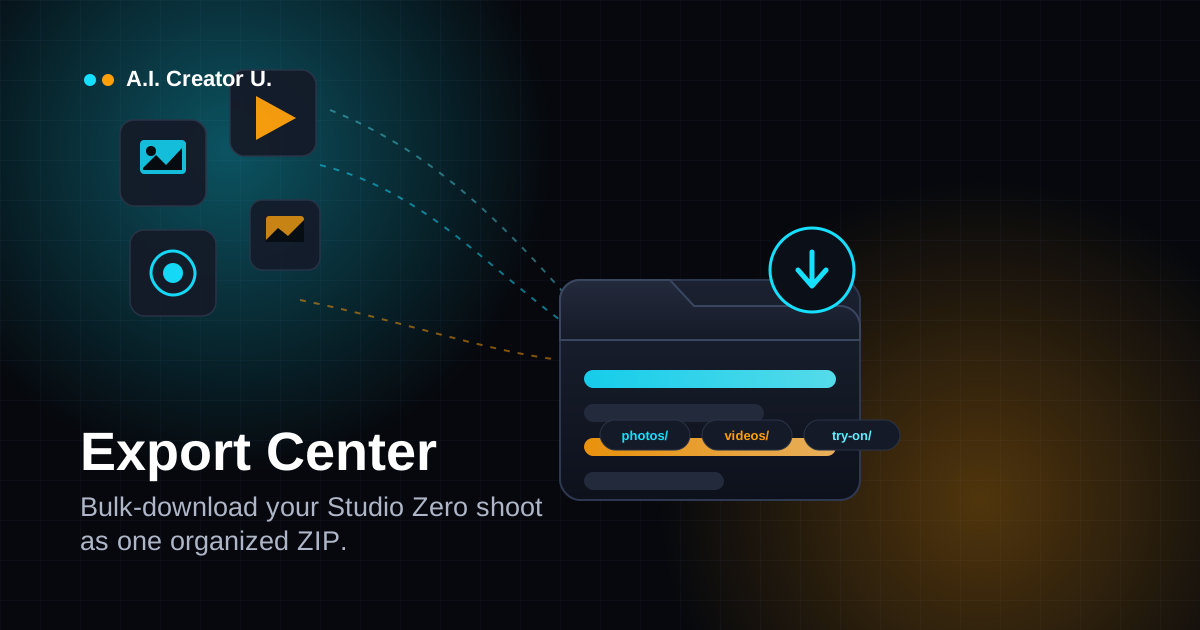
Quick answer: Studio Zero's Export Center lets you multi-select photos, videos, and try-on shots straight from your project gallery and download all of it in one organized ZIP, sorted into photos/, videos/, and try-on/ folders. It's free (no credits, you already paid for the generations), it caps a single ZIP at roughly 300MB to keep your browser from choking, and it hands you a partial download with a prompt to grab the rest if a batch runs bigger than that. Ads and Carousel Studio content still use their own separate export flows, not this one, at least for now.
The part of AI content nobody talks about: getting it off the platform
Everyone writes about generating the shot. Nobody writes about what happens after you've got forty of them.
You ran a full product photoshoot in Studio Zero. Eight angles, six styles, a couple of try-on renders you want a second opinion on before you commit to a set. Now you need those files on your laptop, sorted, so you can hand a folder to your video editor, drop the right ones into your Shopify listing, or bulk-upload to TikTok Shop. The old way: click into each photo, hit download, rename it something you'll actually remember, repeat forty times. That's not a workflow. That's an afternoon you didn't budget for.
It's not a niche complaint, either. One widely cited industry survey found marketers lose close to 7 hours a week to duplicated work, much of it exactly this kind of manual file-wrangling, and a separate report on document management found 83% of employees have had to recreate an asset simply because they couldn't find or retrieve it fast enough the first time. Bulk export isn't a glamorous feature. It's the unglamorous fix for a genuinely common time-sink, and Studio Zero shipped one.
What Export Center actually is
Export Center is a floating selection bar that appears the moment you tap "Select to download" inside a Studio Zero project's gallery. It's not a separate page or a settings menu, it's a live cart: select items across your Photos tab, your Videos tab, and your Try-On tab within the same session, and a bar slides up from the bottom of the screen showing a running count ("14 items selected · 8 photos · 4 videos · 2 try-ons"). Hit Download, and it packs everything into a single ZIP named after your project (something like summer-launch-export.zip), with a subfolder for each content type.
There's no dialog to configure, no format picker, no wait screen. You select, you download, you're done. That simplicity is the actual feature. It exists because the alternative, opening each asset in a lightbox and saving it individually, is the kind of task that looks small until you're twenty photos into a forty-photo shoot and your patience is gone.
How to use it
- Open a Studio Zero project and land on the gallery view (this is wherever your finished photos, videos, and try-on shots live once a shoot completes).
- Switch to the Photos, Videos, or Try-On tab. Each of these three tabs has its own "Select to download" button in the top-right of the section.
- Tap "Select to download." The tab switches into select mode: a checkmark badge appears on every completed item, and you tap the ones you want (or hit Select all to grab everything in that tab at once).
- Repeat across tabs if you want a mixed batch. Your selections persist as you move between Photos, Videos, and Try-On, so you can build one export that spans all three without starting over.
- Watch the cart bar at the bottom. It shows your running total and a breakdown by type the whole time you're selecting.
- Hit Download. Export Center fetches every file, packs the ZIP, and triggers the save. On a normal batch (a dozen photos, a couple of clips) this takes a few seconds. Bigger batches take longer because files are pulled one at a time, not in parallel, to keep your browser from running out of memory.
- Tap Done or Clear when you're finished, and the tab drops back to normal browsing.
That's the whole interaction. No account settings, no export presets, no separate "downloads" page to dig through afterward.
What's actually inside the ZIP
Export Center doesn't just dump files into one flat folder. It sorts them, and it names them in a way that survives being handed to someone else (a VA, an editor, a co-founder) without a legend.
| Folder | What lands here | File naming pattern |
|---|---|---|
photos/ | Everything selected from the Photos tab | {style-name}-{number}.png |
videos/ | Everything selected from the Videos tab | {format-name}-{number}.mp4 |
try-on/ | Everything selected from the Try-On tab | {angle-name}-{number}.png |
The extension on each file is pulled from the actual file itself rather than assumed by content type. That sounds like a minor detail, but it matters: some of the video formats Studio Zero generates can report a generic file type instead of a proper video MIME type to the browser, so guessing the extension instead of reading it would occasionally hand you a .png that's actually an .mp4, or vice versa. Reading the real extension off the file avoids that entirely, and it's the kind of detail you'd only notice if it went wrong.
The 300MB ceiling, and what happens when you hit it
Export Center builds your ZIP entirely in your browser. That's what makes it instant and server-load-free, but it also means every file has to sit in your browser's memory at once while the ZIP gets assembled. To keep that from crashing the tab on a lower-end laptop, there's a soft cap of roughly 300MB per export.
"Soft" is the operative word. If your batch is under the cap, nothing changes, you get the whole thing in one ZIP like normal. If you select a genuinely huge batch, say two dozen video clips, and the running total crosses 300MB partway through packing, Export Center doesn't fail the whole download. It finishes packing whatever it's already grabbed, hands you that partial ZIP with a clear message telling you roughly how many files and how many megabytes you got, and tells you to deselect those and run a second export for the rest.
That's a deliberate design choice, and a reasonable one. A hard wall that just refuses to export anything over the limit would be worse: you'd get an error with no files at all. This way, a big batch costs you two clicks instead of one, not a failed download and a support ticket.
In practice, this limit rarely matters for photos. It's almost always videos that push you toward it, since even a handful of 1080p clips adds up fast. If you're exporting a pure-photo batch, you can select dozens before you'd notice the cap exists.
What Export Center doesn't cover yet
Here's the part worth being upfront about, because it's easy to assume "export" means "everything in my project." Right now it doesn't.
Export Center covers Photos, Videos, and Try-On content. It does not currently cover the Ads tab or Carousel Studio. If you've built ad creative or a swipe-through Instagram carousel in the same Studio Zero project, those live in their own tabs with their own separate save flows, they're not part of the multi-select-and-ZIP cart described above. Carousel Studio, in particular, already has its own dedicated ZIP export built specifically for slide sequences (numbered, portrait-cropped PNGs ready for Instagram's carousel format), which is a different tool solving a narrower, format-specific problem.
If you're doing a full campaign in one sitting, product photos plus ad variants plus a carousel, expect to download those pieces separately rather than in one unified export. Worth knowing before you go looking for an "export everything" button that isn't there yet.
Export Center vs. the other ways to download from Studio Zero
Studio Zero actually has three separate download paths, and it's easy to grab the wrong one out of habit. Here's how they differ:
| Tool | What it's for | How many files at once | Cost |
|---|---|---|---|
| Export Center (Photos/Videos/Try-On tabs) | Bulk-grab a mix of your best shots as one organized ZIP | Multiple, multi-select | Free |
| Library view ("All" tab) single download | Save one specific item on the spot while you're browsing | One at a time | Free |
| Carousel Studio's own ZIP export | Slide sequences formatted for Instagram's carousel post type | All slides in one carousel | Free |
The single-item download in the "All" library tab is the one you already know: click the download icon on a tile, get one file, named something like studiozero-lifestyle-shot-a1b2.png. That's the right tool when you're browsing and spot one thing you want. Export Center is the right tool when you know going in that you want a batch. And Carousel Studio's export is narrower still, purpose-built for the numbered, portrait-cropped slide sets carousels need, which is different enough from a general photo/video ZIP that it makes sense as its own thing rather than being folded into Export Center.
None of these three step on each other. They're just answering different questions: "give me this one thing," "give me a curated batch," and "give me this carousel, formatted right."
Why this is worth caring about if you're a seller, not just a creator
Here's my honest take: generation features get all the attention in AI tool marketing because they're the flashy part, the "look what it made" moment. But if you're actually running a store, the bottleneck usually isn't generating content. It's what happens in the thirty minutes after generation, when you need those files organized, named sensibly, and out of the browser tab and into whatever system actually runs your business, your product listing, your ad account, your shared drive with a contractor.
A tool that skips that step isn't finished, it's a demo. Export Center is Studio Zero treating "get this out of the app" as seriously as it treats "make this in the app," and that's the unsexy kind of feature that actually saves you real time every single week, not just on the first shoot when everything feels new.
If you're managing multiple product lines or running weekly refreshes, the math adds up fast: even saving five minutes per export, twice a week, is more than four hours back over a quarter. That's not a hypothetical, that's just what one-click-versus-forty-clicks looks like at scale.
FAQ
Does Export Center cost credits? No. It's free. You already paid the credits to generate the photos, videos, or try-on shots the first time; packaging them into a ZIP for download doesn't charge anything additional.
Can I export content from multiple projects at once? No, Export Center works within one Studio Zero project (one session) at a time. If you need content from two different projects, run the export separately in each one.
Why did my download only include some of my files? You likely crossed the roughly 300MB soft cap for a single ZIP. Export Center will tell you how many files it packed and prompt you to deselect those and run a second export for the rest. It's not a failure, it's the tool protecting your browser from running out of memory mid-download.
Can I export ad creative or carousel slides through Export Center? Not yet. Export Center currently covers the Photos, Videos, and Try-On tabs. Carousel Studio has its own separate ZIP export built for slide sequences, and Ads tab content currently uses its own individual save flow.
Do I need to select items one at a time? Not necessarily. Each tab has a "Select all" option once you're in select mode, so you can grab everything in that tab in one tap, then fine-tune by deselecting anything you don't want before you hit Download.
What's the difference between Export Center and the download button on a single photo in my library? The single download icon on a library tile grabs exactly that one file, on the spot, which is fastest when you only want one item. Export Center is for when you want several items at once packed into one organized ZIP instead of triggering a dozen separate one-off downloads.
Get your shoot out of the browser
If you've been individually downloading Studio Zero photos one at a time, or worse, screenshotting your own generations, stop. Select to download exists for exactly this. Run your next shoot, multi-select across Photos, Videos, and Try-On, and grab it all in one organized ZIP built for handing off to an editor, uploading in bulk, or just archiving properly.
Haven't tried Studio Zero yet? Start a project and turn one product photo into a full shoot, and see the export flow for yourself the moment your first batch finishes rendering.
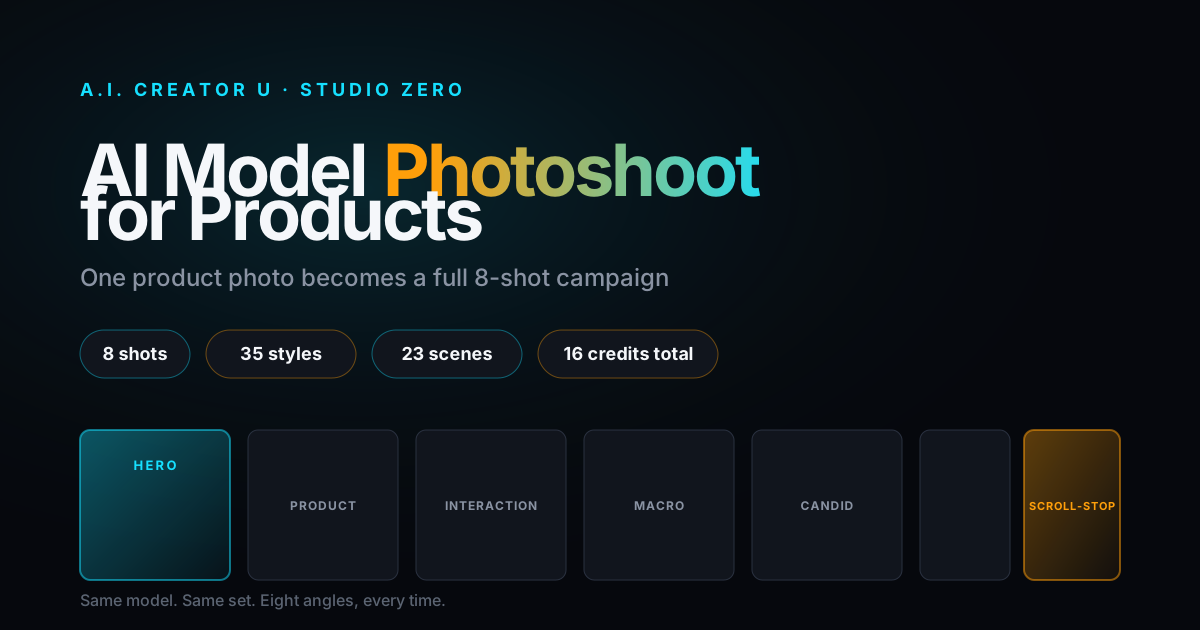
For the rest of what Studio Zero can do, see how Studio Zero's AI Model Photoshoot turns one product photo into an 8-shot campaign, how the AI Brand Kit keeps every photo and ad on-brand automatically, and how the Instagram Carousel Maker builds its own separate slide-export ZIP. For the full playbook on turning any of this into ads that actually convert, start with How to Make AI Video Ads That Convert.